
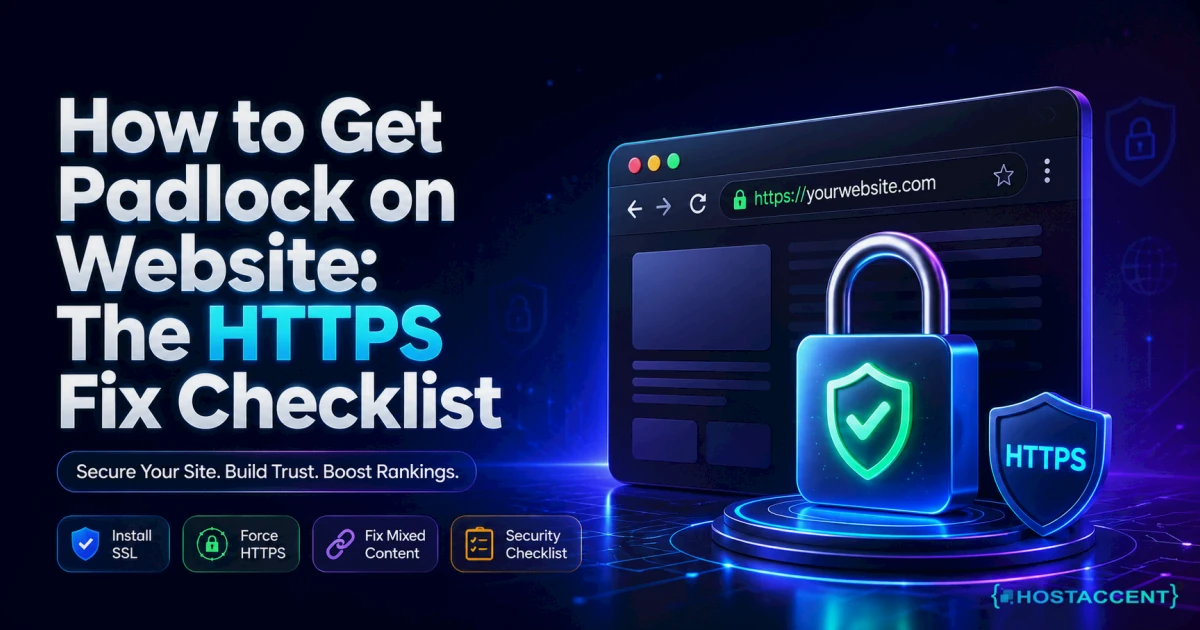
You installed the SSL certificate, reloaded the page, and the address bar still says "Not Secure". No lock, no reassurance, and every visitor sees the same warning you do. If you've been searching for how to get padlock on website addresses, here's the short version: the certificate is only step one of three. The missing steps are almost always redirects and mixed content, and this checklist walks through all of them in the order that actually resolves the problem.
Quick Answer (as of August 2026): A browser marks a site secure only when three things are true: a valid SSL certificate is installed on the server, every HTTP request gets a 301 redirect to HTTPS, and 100% of the page's resources (images, CSS, scripts) load over HTTPS. If even one image still loads over plain HTTP, the secure indicator disappears, no matter how good the certificate is.
SSL problems make up about 20% of the support tickets Hostaccent's engineers resolve each month (our own support-queue data, as of August 2026), out of the 20-30 client issues we clear every day. The sequence below is the exact one we run on those tickets, written out so you can do it yourself in 15-30 minutes. Grab your hosting control panel login and let's get the lock back.
Why the Padlock Is Missing (and Where Chrome Hid It)
The padlock appears only when the entire page, not just the main document, arrives over an encrypted connection. Your browser runs three checks on every load: the certificate must be valid (issued by a trusted certificate authority, not expired, and matching your exact domain), the connection itself must be HTTPS, and every single sub-resource on the page must also be HTTPS. Fail any one of the three and the secure indicator vanishes.
Before you spend an hour debugging, though, check which browser you're testing in. This is the part almost every older guide gets wrong.
Google removed the padlock from Chrome entirely in version 117, rolled out from September 2023. In its place sits a small "tune" icon (two sliders). Google's own research found only about 11% of users correctly understood what the padlock meant, so the icon was retired. On a perfectly secured site, Chrome now shows the tune icon and the text "Connection is secure" when you click it. An HTTPS padlock missing in Chrome is therefore expected behaviour, not a fault. Firefox and Safari still display the classic lock.
The same goes for colour. The green padlock website owners chased in the 2010s was tied to Extended Validation certificates, and browsers dropped the green treatment years ago. Today's lock (where it still exists) is a plain grey glyph.
So reframe the goal. What you're really fixing is the "Not Secure" warning and the broken-lock or info-triangle state. Once those are gone, Chrome users see a clean, quiet address bar, and Firefox and Safari users see the lock. Nothing on your site is hacked or broken when the indicator is missing; in nearly every case it's a configuration issue you can clear in under half an hour, and your content, database and email are untouched throughout.
One more reassurance: search engines don't blacklist you for this. The warning costs you visitor trust and conversions long before it costs you rankings, which is exactly why it's worth fixing today rather than this weekend.
The Real Causes, Ranked by How Often We See Them
The pattern we see in these tickets is remarkably consistent, and it's rarely the certificate itself. Ranked by real-world frequency, the causes look like this:
- Mixed content. The certificate is fine, but the page pulls at least one image, stylesheet or script over plain http://. This single cause explains more missing padlocks than everything else combined.
- The site URL still says http. On WordPress, the Site Address setting quietly rewrites every internal link back to http, recreating mixed content on every page.
- No redirect in place. The HTTPS version works, but visitors typing your domain still land on the http version because nothing forces them across.
- Expired or failed certificate. Free certificates from Let's Encrypt last 90 days; if auto-renewal silently fails, the lock disappears on day 91. Renewal automation is worth checking before you ever sign up with a host, and our Domain & Hosting Buying Guide: What to Check First covers exactly that question.
- Stale cache. The server, a CDN, or your own browser keeps serving old http HTML after the fix is already live.
- Cloudflare SSL mode mismatch. The wrong encryption mode between Cloudflare and your origin produces redirect loops or certificate errors instead of a lock.
To sort out which one you have, run the same 60-second triage routine Hostaccent's support team runs on every one of these tickets. We call it the Three-C Check: Certificate (visit https://yourdomain.com directly; does the browser accept the connection at all?), Connection (visit the plain http:// version; does it redirect you to https automatically?), Content (on the https page, press F12 and open the Console; are there "Mixed Content" lines?). Whichever C fails first tells you which section below to jump to. Certificate failures point to Step 1, connection failures to Step 2, and content warnings, the most common outcome by far, to the mixed content section.
Run the check now, before touching anything. Fixing the wrong layer first is how a 15-minute job turns into an evening.
How to Get Padlock on Website: The Step-by-Step Fix
Work through these in order. Each step is safe to run on a live site if you follow it as written, and each ends with a way to confirm it worked before moving on.
Step 1: Install (or renew) the SSL certificate
A valid certificate is free in 2026. Let's Encrypt issues trusted certificates at no cost, and most shared hosting control panels automate the whole thing. In cPanel, open SSL/TLS Status, tick your domain and its www version, and click Run AutoSSL. Within a minute or two both entries should show a green lock with a validity date about 90 days out.
On a VPS you manage yourself, Certbot does the same job from the command line:
bashsudo certbot --nginx -d example.com -d www.example.com
Swap --nginx for --apache if that's your web server. Certbot installs the certificate and sets up its own renewal timer.
Then verify it independently. Run your domain through the Qualys SSL Labs server test; the scan takes about 60-90 seconds and shows the grade, expiry date and whether the full certificate chain is served. Aim for an A. Crucially, confirm the certificate covers both example.com and www.example.com, because a certificate valid for only one of the two is a classic cause of a lock that appears on one URL and not the other.
Step 2: Force every visitor onto HTTPS
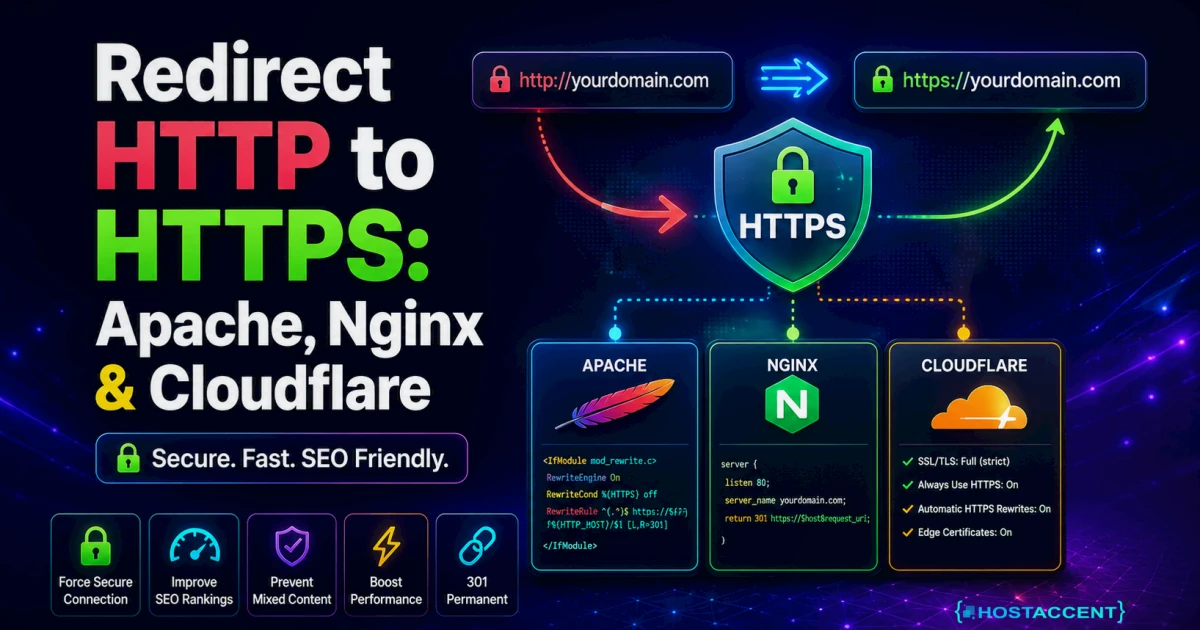
A working https:// URL means nothing if half your traffic still arrives at http://. On Apache shared hosting, add this to the top of the .htaccess file in your site root:
textRewriteEngine On RewriteCond %{HTTPS} off RewriteCond %{HTTP:X-Forwarded-Proto} !https RewriteRule ^(.*)$ https://%{HTTP_HOST}%{REQUEST_URI} [L,R=301]
The X-Forwarded-Proto condition matters if your site sits behind a proxy or Cloudflare; without it, the server can't see that the visitor already arrived over HTTPS and bounces them in an endless redirect loop. Edit .htaccess carefully: a single typo in this file can take the whole site down with a 500 or a 403 Forbidden Error, so keep a copy of the original before saving.
If you use Cloudflare, also set SSL/TLS mode to Full (strict) in the dashboard. The "Flexible" mode is the number one cause of redirect loops on setups like this, and if Cloudflare can't validate the certificate on your origin server you'll hit Cloudflare Error 526: Invalid SSL instead of a padlock.
Pro Tip: Test the redirect without a browser and its cache: run
curl -I http://yourdomain.comin a terminal. You want to see301 Moved Permanentlywith aLocation:header pointing at the https version. Anything else means the rule isn't firing.
Clearing Mixed Content: The Step Most Guides Skip
SSL installed but no padlock is, in our queue, almost never a certificate problem. It's this one. A padlock not showing on a website that passes the SSL Labs test with an A grade means the page itself is loading something insecurely.
Why is there still no padlock after I installed SSL?
Because the browser judges the whole page, not the connection alone. When an HTTPS page requests an image, script or stylesheet over plain http://, that's mixed content, and browsers treat it as a hole in the encryption. Modern browsers auto-upgrade passive resources like images where they can (Chrome has done this since around version 86) and outright block insecure scripts, but either way the clean secure state is gone. The MDN mixed content documentation explains the active-versus-passive distinction in depth.
Finding the offenders takes two minutes. Open the page, press F12, and read the Console tab: every line beginning "Mixed Content:" names the exact http URL at fault. Prefer a hosted scan? Why No Padlock crawls any page you give it and lists every insecure resource.
Fixing it on WordPress
First, Settings → General: both "WordPress Address" and "Site Address" must start with https://. This one dropdown-level change fixes a surprising share of cases on its own.
Old http URLs are also baked into your posts and database from before the switch. Take a backup, then rewrite them in one pass with WP-CLI:
bashwp search-replace 'http://example.com' 'https://example.com' --skip-columns=guid --dry-run
The --dry-run flag shows what would change without touching anything; review the counts, then run it again without the flag to apply. No command line access? A plugin like Better Search Replace does the same job from the dashboard. Really Simple SSL is the popular one-click alternative, though be honest with yourself about the trade-off: it rewrites URLs on the fly at page load rather than fixing them in the database, so the underlying http references stay put underneath.
Live site and zero appetite for experiments? Our engineers clear this exact padlock problem for a small one-time fee, and you see the exact quote before any work starts. Hosted with Hostaccent? Then issues like this are simply covered by support, free. Have an engineer fix it
Fixing it on a static or custom site
Search the code directly for hardcoded insecure URLs:
bashgrep -rn "http://" ~/public_html/ --include="*.html" --include="*.css" --include="*.js"
Change each result to https:// (for third-party resources, confirm the https version exists first; nearly all CDNs serve one). Check theme files like header.php too, since hardcoded http logo and font URLs love to hide there.
Insider Insight: As a safety net, add the header
Content-Security-Policy: upgrade-insecure-requeststo your server config. Browsers will then silently upgrade any stray http request on the page to https. Treat it as a seatbelt, not a substitute: fix the URLs at the source and let the header catch future mistakes.
Confirm the Fix and Keep the Padlock for Good
Confirmation takes four checks and about three minutes. First, open a fresh private window (Ctrl+Shift+N in Chrome), because your normal window will happily show you the cached, broken version of the page long after the fix is live; even incognito keeps cache for the session, so open a new one per test. Second, click the icon left of the address: it should read "Connection is secure" with no mixed-content note. Third, press F12 and confirm the Console shows zero "Mixed Content:" lines. Fourth, rerun the Why No Padlock scan and watch it come back clean.
If a page element vanished after the URL rewrite, some of those old http addresses probably pointed at files that no longer exist. That's a missing file, not an encryption problem, and our guide on How to Fix 404 Not Found Error walks through tracing it.
Prevention comes down to renewal. Let's Encrypt certificates expire every 90 days by design, so the automation has to work without you. On cPanel hosting, AutoSSL rechecks and reissues on its own. On a self-managed server, confirm the timer fires with sudo certbot renew --dry-run, and put a calendar reminder 10 days before expiry the first cycle, until you've watched the automation succeed once. While you're in the terminal, hardening the rest of the server takes half an hour with our Linux VPS Security Baseline for Ubuntu 24.04.
Pro Tip: Once the site has run clean for a week, add an HSTS header (
Strict-Transport-Security: max-age=31536000) so browsers refuse to load your pages over http at all, killing the insecure first request entirely. Do it after everything works, not before: HSTS is a commitment browsers remember for the full max-age, and it will lock visitors out if HTTPS ever breaks underneath it.
Your Next Step: A Lock That Stays On Without You
If you fixed it: the one habit worth keeping is verifying that certificate auto-renewal actually fires, because day 91 is when quiet failures surface. On a well-managed host, though, this entire class of problem is support's job rather than yours. Hostaccent has launched 10,000+ websites since 2012 (trading since 2012, UK-incorporated 2018), and shared plans include free SSL with automatic renewal, so the work you just did by hand simply happens on its own. Start on the Economy plan at $1.99/mo (renews at $1.99/mo, with a 30-day money-back guarantee). One honest caveat: Economy is sized for a single site, so if you run several, Standard at $4.58/mo is the better fit. Either way, you now know how to get padlock on website addresses and keep it there.
If you're still stuck: open a support ticket and an engineer will trace and clear it for a small one-time fee, with the exact quote in front of you before any work starts.
Frequently Asked Questions About the Website Padlock
Why is my website showing "Not Secure" even though I installed SSL?
Almost always mixed content: the certificate is valid, but the page loads at least one image, script or stylesheet over plain http://, so the browser downgrades the whole page. Press F12 and check the Console for "Mixed Content:" lines naming the exact URLs, then rewrite them to https://. On WordPress, also confirm both address fields under Settings → General start with https://, since an http site URL recreates the problem on every page.
How to get padlock on website in Chrome specifically?
You can't, and that's by design. Chrome retired the padlock in version 117 (September 2023) and replaced it with a tune icon, so even a flawlessly secured site never shows a lock there. The correct goal in Chrome is a quiet address bar with no "Not Secure" text, plus "Connection is secure" when you click the tune icon. To see a classic padlock for reassurance, test the same page in Firefox or Safari.
Do I have to pay for an SSL certificate to get the padlock?
No. Let's Encrypt issues browser-trusted certificates completely free, renewable every 90 days, and hosts like Hostaccent bundle AutoSSL into shared plans so issuance and renewal both happen automatically. Paid certificates buy extra organisation validation and warranty cover, which some businesses want for compliance, but browsers display exactly the same secure state either way. For getting the lock itself, a free certificate is every bit as effective as a $200 one.
How long does it take for the padlock to appear after installing SSL?
The change is effectively instant once the certificate is installed and the redirect works; there's no waiting period on the certificate side. If you still see the old state, it's cache: hard-refresh with Ctrl+F5, or better, test in a brand-new private window. Behind a CDN, purge its cache too, which can add a few minutes. If a clean browser still shows warnings 30 minutes later, stop waiting and check the Console for mixed content.
Does the padlock mean a website is safe to trust?
No, only that the connection is encrypted between your browser and the server. Phishing sites obtain valid certificates too, so a lock proves nothing about who runs the site or whether they're honest. Google's research found only around 11% of users understood this distinction, which is the main reason Chrome dropped the icon in 2023. Judge trustworthiness by the domain name, the company behind it and independent reviews, never by the lock alone.
Will a missing padlock hurt my Google rankings?
HTTPS has been a ranking signal since 2014, but a lightweight one, so the direct SEO penalty is small. The real damage is human: visitors who see "Not Secure" on a checkout or contact form leave, and browsers may block form submissions on http pages outright. Lost conversions and trust cost far more than the ranking nudge. Fix it for your visitors first and treat the modest SEO benefit as a bonus.



Discussion
Have a question or tip about this topic? Share it below — your comment will appear after review.