
WordPress powers about 43% of all websites. That scale is exactly why it's also the most attacked CMS on the internet — not because it's inherently insecure, but because attacking WordPress at scale is profitable. Bots don't target your site specifically. They scan millions of sites for known vulnerabilities in outdated plugins, weak passwords, and misconfigured permissions. Most of this comes down to WordPress malware prevention done consistently, not heroics after a breach.
The good news: most WordPress hacks are preventable with a consistent baseline. You don't need enterprise security budget. You need to close the obvious gaps and maintain them.
Quick Answer: Most WordPress attacks are automated, not targeted, so the basics stop the vast majority. Use strong, unique logins with two-factor auth, keep core, plugins, and themes updated, delete unused plugins, set correct file permissions, add a firewall and login rate-limiting, force HTTPS, and keep tested off-server backups. Hosting-layer hardening (isolation and a WAF) closes the rest.
How WordPress sites actually get compromised
Understanding the attack vectors helps you prioritize:
- Outdated plugins with known CVEs — the most common attack vector by far
- Brute-force login attacks — automated bots trying password combinations
- Weak or reused passwords — especially for admin accounts
- Nulled themes and plugins — pirated plugins often contain backdoors
- Hosting-level vulnerabilities — outdated PHP, misconfigured server, shared hosting account isolation issues
- Insecure file uploads — malicious files uploaded through form vulnerabilities
Most hacked WordPress sites had at least two of the above in place. Fix the list and you've addressed the vast majority of real attack scenarios.
1) Harden login security
The WordPress login page (/wp-login.php) receives automated attack traffic whether you know it or not. By default, there's no rate limiting — bots can attempt thousands of password combinations without being blocked.
Change your admin username. "admin" is the first username bots try. If your primary admin account uses "admin," create a new admin user with a different name, update all content attribution, and delete the old account.
Use a strong, unique password. A 20+ character password generated by a password manager. Not your company name with a number. Not a word you use elsewhere.
Enable two-factor authentication. WP 2FA or the Wordfence plugin both provide TOTP-based 2FA. When enabled, compromising your password alone isn't enough.
Limit login attempts. Install Limit Login Attempts Reloaded (free) or enable login rate limiting in Wordfence. Configure it to lock out an IP after 3–5 failed attempts:
Wordfence → Brute Force Protection → set lockout thresholds.
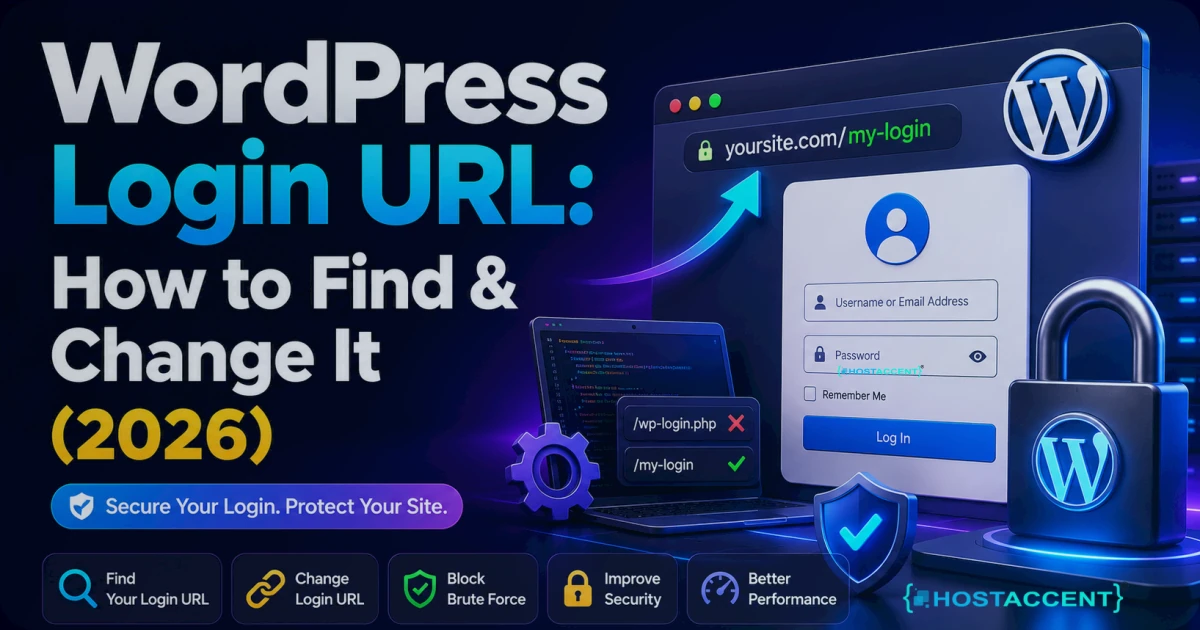
Change the login URL (optional but useful). The WPS Hide Login plugin changes /wp-login.php to a custom URL. This doesn't stop a determined attacker but eliminates most automated attacks that look for the default login path.
2) Keep everything updated — with a safe workflow
Outdated plugins are responsible for the majority of WordPress compromises. Plugin vulnerabilities are publicly disclosed — security researchers publish CVEs and attackers start scanning for them within hours.
But updating blindly on production can break things. Use this workflow:
Weekly update routine:
- Check for updates in Dashboard → Updates
- Take a full backup before updating
- Update on a staging environment first (if available)
- Test key pages: homepage, contact form, checkout
- Push updates to production if staging tests pass
What "staging" means in practice: A duplicate copy of your site at a subdomain (staging.yourdomain.com) where you test changes before applying them to the live site. Most managed WordPress hosts provide this. On shared hosting or VPS, you can set one up manually.
For plugin discipline:
- Remove unused plugins — every inactive plugin is still an attack surface if not deleted
- Remove unused themes (keep only one active + the Twenty-something default as fallback)
- Avoid abandoned plugins (no updates in 12+ months)
- Never use nulled/pirated themes or plugins
3) Configure HTTPS and security headers
SSL is table stakes in 2026. Every WordPress site should redirect HTTP to HTTPS — that guide has the exact Apache, Nginx and Cloudflare rules — and the SSL certificate management guide covers issuance and renewal before you enable a strict redirect:
bash# Verify HTTPS is working: curl -I https://yourdomain.com
Look for HTTP/2 200. If you see a redirect chain or certificate error, fix it.
Add security headers in your Nginx or .htaccess configuration. These headers tell browsers how to handle your site's content and prevent several classes of attacks:
In Nginx:
nginxadd_header X-Content-Type-Options "nosniff" always; add_header X-Frame-Options "SAMEORIGIN" always; add_header X-XSS-Protection "1; mode=block" always; add_header Referrer-Policy "strict-origin-when-cross-origin" always; add_header Strict-Transport-Security "max-age=31536000; includeSubDomains" always;
Test your headers at securityheaders.com.
4) Fix file permissions
Incorrect file permissions are a significant risk. If files that should be read-only are writable, an attacker who gains access to one part of your site can modify other files.
Correct WordPress permissions:
bash# Directories: 755 find /var/www/yourdomain.com -type d -exec chmod 755 {} \; # Files: 644 find /var/www/yourdomain.com -type f -exec chmod 644 {} \; # wp-config.php: 600 (only owner can read/write) chmod 600 /var/www/yourdomain.com/wp-config.php
wp-config.php contains your database credentials. It should not be world-readable.
Also block direct browser access to wp-config.php in Nginx:
nginxlocation = /wp-config.php { deny all; }
5) Backup strategy that actually works
The most important security measure that almost nobody gets right is backups. "We have daily backups" isn't the same as "we can recover in 30 minutes." The difference is whether you've tested restoration.
Minimum backup standard:
- Daily automated backups
- Off-server storage — a separate location from your hosting (S3, Google Drive, your local machine)
- 30-day retention minimum
- Monthly restore test — actually restore a backup to a test environment and confirm it works
Free and paid options:
- UpdraftPlus — free tier with Google Drive/Dropbox integration
- WPvivid — good free option
- BlogVault — paid, excellent restore UX
- Your host's built-in backup — supplement with a plugin backup to a separate location
The scenario you're protecting against: your site gets compromised or corrupted, your host's infrastructure has a problem, and you need to restore from a backup that you control. If your only backup is on the same server as your site, it may not exist when you need it.
6) Add a WordPress security plugin
A security plugin handles monitoring, malware scanning, and firewall rules in one place. The two most commonly used:
Wordfence (free tier very capable):
- Login rate limiting and IP blocking
- Malware scanner that checks WordPress core file integrity
- Real-time traffic monitoring
- Email alerts on suspicious activity
Sucuri Security (free tier):
- Security hardening recommendations
- Core file integrity monitoring
- Audit log of admin actions
- Optional paid WAF (Web Application Firewall)
Don't run both — they conflict. Pick one and configure it properly.
Key settings to enable in either plugin:
- Email alerts for failed logins (or lock out thresholds)
- File change notifications
- Admin actions audit log
7) Protect wp-config.php and sensitive files
Block access to files that should never be directly accessed:
In Nginx:
nginx# Block xmlrpc.php (unless you specifically need it) location = /xmlrpc.php { deny all; } # Block direct PHP execution in uploads folder location ~* /uploads/.*\.php$ { deny all; } # Block access to hidden files location ~ /\. { deny all; }
xmlrpc.php is a common attack target. Unless you're using a remote publishing app that requires it (old Jetpack features, WP mobile app), block it.
8) Monitoring and alert setup
You want to know about problems before customers tell you. Minimum monitoring setup:
Uptime monitoring — UptimeRobot (free, checks every 5 minutes) sends email or SMS when your site goes down. Takes 2 minutes to set up.
File integrity monitoring — Wordfence or Sucuri alerts you when WordPress core files change unexpectedly. An unexpected change to a core file is often the first detectable sign of a compromise.
Failed login alerts — Configure your security plugin to email you when login attempts exceed a threshold. 50 failed logins in an hour is worth knowing about.
Your security maintenance calendar
Security isn't a one-time task. It's a rhythm:
Weekly:
- Check for plugin/theme/core updates
- Review Wordfence or Sucuri security alerts
- Verify last backup completed
Monthly:
- Restore test — restore a backup to staging and confirm
- Review active plugins — remove anything unused
- Check Google Search Console for security issues flag
Quarterly:
- Audit admin user list — remove accounts no longer needed
- Review file permissions
- Run a full malware scan
A WordPress site that gets this regular attention is not the path of least resistance for attackers. They move to easier targets.
If your site is already compromised, go straight to our WordPress malware removal guide before continuing with hardening. If visitors are being redirected to spam sites, our WordPress hacked redirect fix guide covers the immediate steps to remove the redirect and trace the source.
HostAccent WordPress hosting gives you the server foundation this guide assumes: modern PHP, daily backups, and support that helps you recover fast when something goes wrong — because eventually, something always does.
HostAccent Linux VPS — dedicated resources, NVMe storage, and full root access.
Related guides from HostAccent
- Linux VPS Security Baseline (Ubuntu 24.04) in 30 Min
- WordPress Emails Going to Spam? Here's the Actual Fix
- SSL Certificate Management: Setup, Renewal & SEO
- WordPress White Screen of Death: Fix It Fast (2026)
- This Site May Be Hacked Google Warning: How to Remove It
Related guides: WordPress Theme Editor Missing: 4 Causes & Fixes (2026)
<!-- ha:inbound-repair:end -->
Discussion (4)
Have a question or tip about this topic? Share it below — your comment will appear after review.
Impressive post! Honestly appreciated the way you shared this. Excited to see more posts like this!
Impressive post! Really liked the way you presented this. Looking forward to more updates like this!
Hi!, such a fantastic resource. I really appreciate the effort you put into this!