
Most WordPress speed guides give you a list of things to do without explaining why they matter or which ones are actually worth your time. You end up installing five caching plugins, none of them configured properly, and your PageSpeed score moves by 3 points.
This guide is different. These 15 fixes are ordered by impact. Do the first three before anything else — they account for the majority of real-world speed improvements on most WordPress sites.
Why WordPress speed matters in 2026
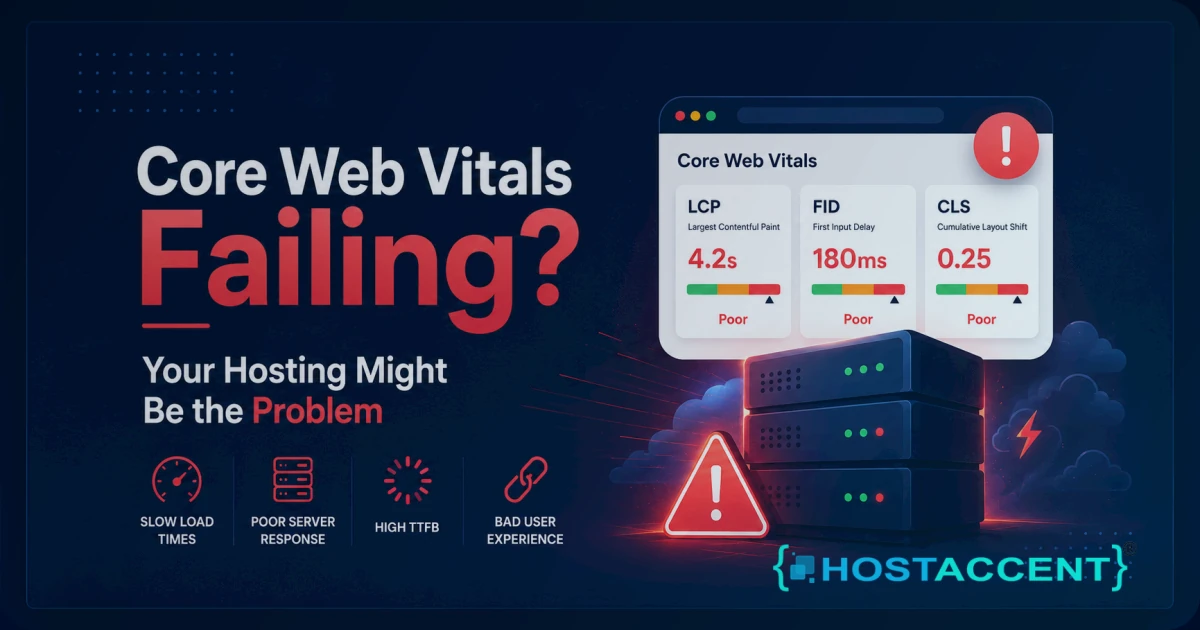
Google's Core Web Vitals are a confirmed ranking factor. They measure three things:
- LCP (Largest Contentful Paint) — how fast the main content loads
- INP (Interaction to Next Paint) — how responsive the page is to clicks
- CLS (Cumulative Layout Shift) — whether elements jump around as the page loads
A slow WordPress site fails LCP almost by definition. That directly costs you search ranking. Beyond SEO, slower pages have measurably higher bounce rates — Google's own research shows that as page load time goes from 1s to 3s, bounce rate increases by 32%.
This isn't abstract. It's conversion rate.
Fix 1: Start with the hosting layer
This is the one most guides bury at the bottom. It shouldn't be. No amount of caching, minification, or CDN configuration fully compensates for a slow server.
What "slow server" means in practice: Time to First Byte (TTFB) above 600ms. Check yours with PageSpeed Insights or GTmetrix. If your TTFB is consistently above 600ms, you have a hosting problem, not a WordPress problem.
What good hosting looks like for WordPress in 2026:
- NVMe SSD storage (not HDD, not regular SSD)
- PHP 8.2 or 8.3 (not PHP 7.x — it's end-of-life and measurably slower)
- Server-level caching (OPcache enabled, ideally Redis available)
- Server close to your primary audience
If you're on shared hosting and constantly hitting resource limits, moving to a VPS is often the single highest-impact change you can make.
Fix 2: Configure full-page caching properly
Caching is the second-biggest lever after hosting. A cached page is served from memory in milliseconds; an uncached page runs PHP, queries the database, and assembles HTML on every request.
Recommended setup:
- WP Rocket — best all-in-one option, worth the cost for non-technical users
- LiteSpeed Cache — free and excellent if your host runs LiteSpeed
- W3 Total Cache + Redis — more configuration needed, better ceiling on VPS
Minimum cache configuration checklist:
- [x] Page cache enabled
- [x] Browser cache headers set (1 year for static assets)
- [x] Gzip/Brotli compression enabled
- [x] Database object cache (Redis or Memcached if available)
- [x] OPcache enabled at PHP level (ask your host or check
phpinfo())
Don't run two caching plugins simultaneously. It breaks things.
Fix 3: Optimize images
Images are typically 50–80% of a page's total weight. This is almost always the fastest way to reduce page size.
Steps:
- Convert to WebP — WebP files are 25–35% smaller than JPEG at the same quality. Use Imagify, ShortPixel, or Cloudflare's Polish feature.
- Set proper dimensions — don't upload a 4000px wide image and display it at 800px. Resize before upload.
- Add lazy loading — images below the fold don't need to load immediately. WordPress has this built in since 5.5.
- Compress before upload — use Squoosh.app or TinyPNG for manual optimization.
Fix 4: Use a lightweight theme
Page builders and multipurpose themes add enormous CSS and JavaScript payloads. A theme with 800KB of CSS is loading styles for features you're not using.
Lightweight theme options: Astra, GeneratePress, Kadence, Blocksy. All load under 50KB of CSS with default configuration.
If you're on a page builder theme (Divi, Avada, etc.) and performance is a priority, this is a hard conversation: the theme is likely contributing significantly to your slow scores.
Fix 5: Audit and remove plugins
Every active plugin adds PHP execution time and potentially additional database queries. More importantly: inactive plugins still run update checks and can still have security vulnerabilities.
Do a plugin audit:
- Deactivate anything you haven't used in 3 months
- Replace heavy multi-purpose plugins with lightweight single-purpose ones
- Delete — don't just deactivate — plugins you're removing permanently
Common heavy offenders: Jetpack (use only what you need), WooCommerce extensions you're no longer using, page builder addons.
Fix 6: Minify and defer CSS/JS
Render-blocking scripts delay the browser from displaying your page. CSS and JavaScript that load in the <head> block rendering until they finish downloading.
What to do:
- Minify CSS and JS (reduces file size)
- Defer non-critical JavaScript (adds
deferattribute) - Move scripts to footer where possible
- Remove unused CSS (WP Rocket and Perfmatters both do this)
Most caching plugins handle basic minification. For more aggressive optimization, Perfmatters gives you surgical control over which scripts load on which pages.
Fix 7: Use a CDN
A CDN caches your static assets (images, CSS, JS) on servers distributed globally. Instead of every visitor downloading from your origin server, they download from the nearest CDN edge.
For most WordPress sites: Cloudflare's free plan is a significant improvement over no CDN. For higher traffic, Cloudflare Pro or Bunny.net provides better performance.
CDN matters most when your audience is geographically distributed. If all your visitors are in one country and your server is there too, CDN impact is smaller — though still useful for static asset delivery.
Fix 8: Clean the database
WordPress accumulates junk over time: post revisions, spam comments, expired transients, orphaned metadata. On active sites, this can mean hundreds of thousands of unnecessary rows slowing database queries.
sql-- Check revision count: SELECT COUNT(*) FROM wp_posts WHERE post_type = 'revision';
Use WP-Optimize or Advanced DB Cleaner to remove revisions, spam, and transients. Run this monthly, not once.
Also set a revision limit in wp-config.php:
phpdefine('WP_POST_REVISIONS', 5);
This stops WordPress from storing unlimited revisions going forward.
Fix 9: Reduce homepage payload
Your homepage is often your heaviest page and your most important one. Common homepage bloat:
- Full-width video backgrounds — autoplay videos add 3–10MB on first load
- Heavy sliders — Slider Revolution and similar plugins add significant JS
- Third-party embeds — social feeds, chat widgets, YouTube embeds
Use lazy-loaded facades for embeds. For YouTube embeds, the Lyte plugin loads a thumbnail instead of the full YouTube player until clicked — saves ~500KB per embed.
Fix 10: Audit third-party scripts
Analytics, heatmaps, ad trackers, live chat widgets, A/B testing tools — each one adds JavaScript that the browser must download and execute. Five of them adds up.
Check your tag loading in Chrome DevTools (Network tab, filter by JS). Look for scripts from third-party domains and assess which you actually need.
Delay non-critical scripts with setTimeout or a script manager like Perfmatters or Fly Dynamic Image Resizer.
Fix 11: Optimize font loading
Google Fonts loads from an external server and can add 200–400ms. Host fonts locally instead:
- Download fonts from Google Fonts Helper
- Upload to your server
- Reference them in your theme's CSS directly
css@font-face { font-family: 'Inter'; src: url('/wp-content/fonts/inter.woff2') format('woff2'); font-display: swap; }
font-display: swap is important — it tells the browser to show fallback text immediately while the font loads, which prevents blank text during load (a CLS issue).
Also: use 2 font families maximum. Each additional weight (400, 600, 700, etc.) is a separate file download.
Fix 12: Preload critical resources
Tell the browser in advance what it's going to need:
html<link rel="preload" href="/wp-content/fonts/inter.woff2" as="font" type="font/woff2" crossorigin> <link rel="preload" href="/wp-content/uploads/hero-image.webp" as="image">
Add preload hints for your LCP image (the largest visible element above the fold — usually a hero image) and primary font. This can meaningfully improve LCP scores.
Most caching plugins have a preload setting. Use it.
Fix 13: Fix Core Web Vitals by page
Don't optimize globally and assume every page is fixed. Check your top 10 traffic pages individually in PageSpeed Insights or Google Search Console's Core Web Vitals report.
Different page types have different problems:
- Homepage — usually LCP and CLS
- Blog posts — usually CLS from ads loading late
- WooCommerce product pages — often INP from cart JavaScript
Fix the pages that get the most traffic first. The impact is proportional to visit volume.
Fix 14: Test changes in staging
Every caching plugin change, theme update, or JavaScript deferral should be tested in a staging environment before production. "It works on my machine" is not enough when deferred scripts break your checkout flow.
Most managed WordPress hosts provide one-click staging. On VPS, duplicate your site to a subdomain, test there, then push changes.
This is the step most people skip. It's also the step that saves you from a broken site on your busiest day.
Fix 15: Build a weekly performance routine
Speed optimization isn't a one-time task. Plugins update and add new scripts. Content grows. Traffic patterns change.
A 10-minute weekly check:
- Run PageSpeed Insights on homepage and top landing page
- Check GTmetrix waterfall for any new heavyweight assets
- Check Google Search Console Core Web Vitals report for any new "Poor" URLs
Build this into your workflow, and your site stays fast rather than requiring emergency fixes.
The priority order
If you're starting from scratch:
- Fix hosting first — check TTFB, upgrade if needed
- Configure caching — page cache + browser cache + OPcache
- Optimize images — WebP + lazy loading + compression
- Clean up plugins and scripts — remove what you don't need
- Fix fonts — host locally, use swap
- Address Core Web Vitals — page by page
Everything else is incremental improvement on top of this foundation.
If your hosting is the bottleneck, HostAccent VPS plans run PHP 8.3, NVMe storage, and Redis — the infrastructure side of WordPress performance, handled properly.
HostAccent Cloud Hosting — scalable cloud infrastructure for growing businesses.




Discussion
Have a question or tip about this topic? Share it below — your comment will appear after review.