
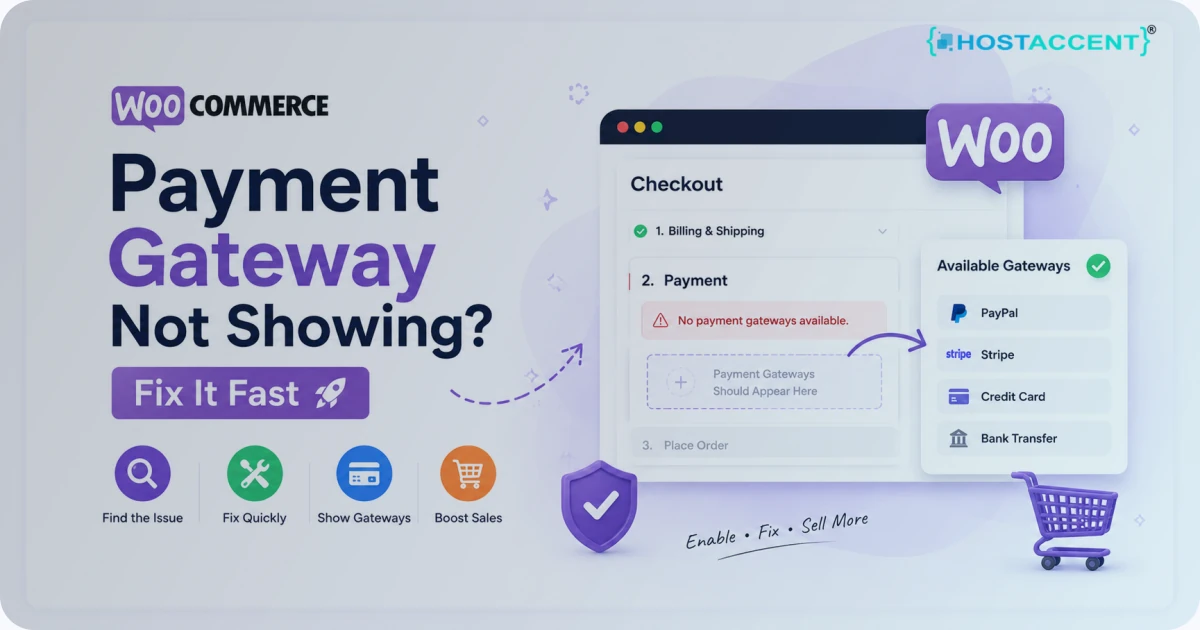
Your store looks fine. Products load, the cart fills up, then a customer reaches checkout and there's no way to pay — no card field, no PayPal button, nothing. Every minute that screen stays broken, you're losing live orders.
A WooCommerce payment gateway not showing at checkout is almost always one of a handful of fixable causes. Most take two minutes to rule out. This guide walks them in the order they actually break stores, with the exact clicks and checks for each, so you can get payments live again today. We'll work through every cause in order, and each example comes from a real Hostaccent store stack we run ourselves.
Quick Answer: If your WooCommerce payment gateway is not showing, check four things in order: the gateway is enabled under WooCommerce → Settings → Payments, your store currency matches what the gateway supports, a shipping method exists for the customer's address, and SSL (HTTPS) is active on checkout. One of these fixes most cases.
Quick Answer: WooCommerce Payment Gateway Not Showing? Start Here
Before you touch code or call your host, run the four fast checks below. Do them in this order. They're ranked by how often each one is the real culprit on a live store — not by how technical they sound.
The pattern matters. The loudest-looking problem (a missing Stripe field) often has the quietest cause (a currency your account doesn't support). Start simple, then go deep only if you have to.
Fastest Checks First (Two Minutes, Most of Your Wins)
1. Is the gateway actually enabled? Go to WooCommerce → Settings → Payments. Each method has a toggle. If Stripe or PayPal is switched off — or installed but never enabled — it won't appear. Flip it on, save, and reload checkout in a private window.
2. Does your store currency match the gateway? This is the gotcha that catches the most people. A gateway only offers itself when it supports your store's currency and your account is set up for it. If your WooCommerce currency is one your Stripe or PayPal account doesn't accept, the method silently disappears. No error. It just hides. Check WooCommerce → Settings → General for your currency, then confirm the gateway account supports it.
3. Is there a valid shipping method for the address? If your cart holds a physical product and no shipping method matches the customer's country or zone, checkout can stall — and payment options may not render. Open WooCommerce → Settings → Shipping and confirm a zone covers your test address with at least one method attached.
4. Is SSL active on checkout? Modern gateways refuse to load on an insecure page. If the padlock is missing or your certificate lapsed, the card field won't show. Confirm checkout loads over HTTPS with a valid certificate. Let's Encrypt issues free certificates if yours expired.
Pro Tip: Always test checkout in a private/incognito window or a second browser. A logged-in admin session plus a cached page can hide the very symptom — or the fix — you're trying to confirm.
If none of those four solved it, the cause is deeper. Here's the full ranking.
The Real Causes, Ranked by How Often They Break Checkout
When a WooCommerce payment gateway is not showing, the reasons cluster into a predictable order. Most common first:
- Gateway disabled or misconfigured — toggled off, or stuck in test mode on a live store.
- Currency or shipping-zone mismatch — the silent disappear-er.
- Expired or wrong API keys — Stripe and PayPal stop responding when keys rotate or you mix test and live credentials.
- Caching or CDN serving a stale checkout — the page loads from cache and the dynamic payment fields never initialize.
- A JavaScript error from a plugin or theme — one broken script halts the code that draws the card field.
- A server fatal error at checkout — a PHP error fires only on the checkout hook, often only under load, and the gateway blinks out.
- A conditional rule or order minimum — a plugin or setting that shows payment methods only above a certain total, role, or country.
The middle and last items are intermittent. They're the hardest to catch because checkout works when you test it and fails when ten real customers hit it at once. Work the list top to bottom and you'll rarely need to reach the bottom.
Step-by-Step Fixes for Each Cause
Fix 1: Confirm the gateway is enabled and in the right mode
WooCommerce → Settings → Payments → click Manage on the gateway. Check it's enabled, and that you're not stuck in test mode on a live store (or live mode with setup half-finished). Stripe and PayPal both have a test/live switch — a mismatch here renders nothing. The official WooCommerce payments documentation lists each method's required fields.
Fix 2: Resolve currency and shipping-zone mismatches
Set your store currency to one your gateway account supports (WooCommerce → Settings → General). Then open Shipping and make sure a zone covers your customers with a real method attached. Test with an address inside that zone.
Two extra traps live here. First, your Stripe or PayPal account has a home country, and some currencies only settle when that country matches — a US account selling in a currency it can't process will quietly hide the method. Second, a cart total of zero (a free product or a 100%-off coupon) makes some gateways vanish, because there's nothing to charge. Test with a real, paid cart. This pair clears a surprising share of "no payment options woocommerce" reports.
Fix 3: Re-enter your API keys
Expired or swapped keys are common after account changes. In the gateway settings, paste fresh live keys from your Stripe or PayPal dashboard. For Stripe, confirm the publishable and secret keys are both live, not test — Stripe's API keys documentation shows exactly where to find them. Save, then hard-reload checkout.
Fix 4: Clear every cache layer
This is where intermittent issues hide. Clear your WordPress page cache, your object cache, and your CDN cache — in that order. Then exclude the cart, checkout, and my-account pages from caching entirely. A cached checkout serves stale HTML, and the script that injects the Stripe card field or PayPal button never runs.
Insider Insight: Never cache the checkout, cart, or account pages. If your caching plugin or CDN doesn't already exclude them, add the exclusions by hand. A single cached checkout response is one of the top reasons a gateway shows for you and vanishes for customers.
Fix 5: Hunt the JavaScript error
Open your live checkout, then open your browser's developer console (right-click → Inspect → Console). A red error there usually points straight at the plugin or theme breaking the payment script. MDN's browser developer tools guide explains how to read it. Stripe in particular draws its card field with JavaScript, so a single script error upstream can wipe it out. Once you know the culprit file, you've found your conflict.
Fix 6: Run the conflict test
Switch to a default theme (Storefront or Twenty Twenty-Four) and disable every non-essential plugin, then retest checkout. If the gateway returns, re-enable plugins one at a time until it breaks again. The last one you turned on is the conflict. Do this on a staging copy if you can, so you're not toggling plugins on a live store mid-sale. Tedious, but it's how every serious store engineer isolates a "stripe not showing woocommerce" or "paypal missing woocommerce checkout" problem.
Fix 7: Check for conditional payment rules and minimums
If you (or a previous developer) installed a plugin that shows or hides gateways by user role, country, or cart total, that rule may be hiding the method right now. Look for a "conditional payment" or "payment restrictions" plugin and review its logic. Also check any minimum-order setting on the gateway itself — set a $5 minimum, and a $3 cart shows nothing. Disable the conditional plugin temporarily, retest, and you'll know within a minute whether a rule is the cause.
Is this still affecting your store?
Tell us which customer journey is failing and what changed. We can investigate the application, payment, database, and hosting layers without moving your store.
Why Is the WooCommerce Payment Gateway Not Showing Only Sometimes?
This is the one that fools people. Checkout works when you test it at 2 a.m. and breaks during your Friday sale. When a gateway disappears only under traffic, the cause is usually a server fatal error at the checkout step — not WooCommerce itself.
Here's what happens. A plugin hook runs on checkout. It needs memory or execution time the server can't spare when several shoppers hit the page together. PHP hits a fatal — memory exhausted, max execution time, or a database connection limit — and the request dies before the payment block renders. To the customer, the gateway "isn't showing." In your error log, there's a fatal with a timestamp that lines up with the lost sale.
We've watched a store run flawlessly in testing, then drop the Stripe field for one in twenty shoppers during a launch — purely because a logging plugin chewed through PHP memory on every checkout request. On our own Hostaccent stack, we trace these by tailing the PHP error log and the WooCommerce status log together during a load test. Nine times out of ten, the fix is more isolated resources and a clean cache layer — not another plugin.
To check it yourself: enable WordPress debug logging (set WP_DEBUG and WP_DEBUG_LOG to true in wp-config.php), reproduce the load, then read wp-content/debug.log alongside your server's PHP error log. A fatal stamped at the checkout time confirms it.
The structural fix is hosting that gives your store dedicated CPU and memory instead of a crowded shared box, plus a cache layer that never touches checkout. Our Cloud Hosting for Ecommerce: Performance and Stability Guide for Growing Online Stores breaks down the resourcing math.
How to Confirm the Fix and Stop It Coming Back
Fixing checkout once isn't enough — you need it to stay fixed. Here's the routine that keeps the payment step reliable.
Place a real test order. Use a live card (refund it after) or your gateway's live-mode test path. A test-mode success doesn't prove live mode works.
Build a staging site. Never test plugin updates on production. Clone to staging, update there, confirm checkout, then push live. Most checkout outages start with an untested update.
Run a quick load test. Before a big sale, hit checkout with a simple load-testing tool or several devices at once and watch your error log. If the gateway holds under pressure, you're ready. If it blinks out, you've caught a resourcing problem before your customers did.
Monitor the checkout page, not just the homepage. Set an uptime monitor that loads checkout itself. You want to know the gateway vanished before a customer tells you.
Resource your hosting for spikes. On Hostaccent's Cloud plans, each store gets isolated CPU and memory, so one busy checkout can't starve another and a hook can't fatal under load. If you're choosing or auditing a host for WooCommerce, our Ecommerce Hosting Checklist: 12 Must-Haves Before Launch and Best WooCommerce Hosting (2026): What Actually Works for BD Stores cover exactly what to demand.
Keep Your Checkout Online
A missing payment gateway is usually a five-minute fix once you know where to look. Keeping it from coming back is a hosting decision. Hostaccent's WooCommerce-ready Cloud Hosting starts at $3.90/mo and isolates each store's CPU and memory, so a checkout hook can't take payments down under load — with managed SSL, a Cloudflare → Nginx → Apache stack on NVMe SSDs, and UK-based support that actually reads your error logs. If checkout reliability is costing you orders, see the Cloud Hosting plans or compare VPS options for full control.
Frequently Asked Questions
Why is the WooCommerce payment gateway not showing for some customers but not others?
When the WooCommerce payment gateway is not showing for only some shoppers, suspect caching or currency/country rules. A cached checkout serves stale fields to returning visitors, and gateways hide themselves for unsupported currencies or regions. Clear all caches, exclude checkout from caching, and confirm the gateway supports every country you sell to.
Does SSL affect whether the WooCommerce payment gateway is not showing?
Yes. Stripe and most modern gateways refuse to render on a page without valid HTTPS. If your certificate expired or checkout loads over HTTP, the card field won't appear. Renew or reissue your SSL certificate, force HTTPS site-wide, then retest checkout in a private window.
How do I fix Stripe not showing at WooCommerce checkout?
Confirm Stripe is enabled and in live mode, your live publishable and secret keys are both correct, your store currency is supported, and SSL is active. Then clear your cache and check the browser console for a JavaScript error. One of those resolves nearly every Stripe disappearance.
Why is PayPal missing from my WooCommerce checkout?
PayPal usually hides when the account credentials are wrong, the currency isn't supported, or the order total falls below a minimum. Re-enter your PayPal client ID and secret, confirm the store currency, and place a real test order to verify the button returns.
What does it mean when no payment methods appear at all in WooCommerce?
When every gateway is missing — not just one — the cause is usually global: SSL is broken, all gateways sit in test mode, the checkout page is heavily cached, or a fatal error kills the page before payments load. Start with SSL and caching, then check your error log for a checkout-time fatal.
Can my hosting cause a WooCommerce payment gateway to disappear?
Yes — and it's underrated. If your server hits a memory or execution limit at checkout under load, the request fatals before the gateway renders, so it vanishes only during busy periods. Isolated, resourced hosting like Hostaccent's Cloud plans prevents this by keeping checkout off a crowded shared server.
Will clearing my cache fix payment options not appearing at checkout?
Often, yes. A cached checkout page is a leading cause of a woocommerce checkout payment error where fields don't load. Clear your page, object, and CDN caches, then permanently exclude the cart, checkout, and account pages from all caching to stop it recurring.

Discussion
Have a question or tip about this topic? Share it below — your comment will appear after review.