
Quick Answer: This guide on SSL certificate errors how to fix them starts simple. Most SSL certificate errors trace back to five root causes — an expired certificate, a domain name mismatch, an untrusted issuer, a broken certificate chain, or mixed HTTP/HTTPS content. The fix usually means renewing the certificate, correcting your domain settings, installing the full chain, or forcing every asset to load over HTTPS. The 12 solutions below cover almost every "your connection is not private" warning you'll ever meet.
That red padlock — or worse, the full-page "Your connection is not private" wall — costs you visitors before they read a single word. Most people abandon a flagged site within seconds. So when an error hits, speed matters more than theory.
We tested every fix in this guide on our own stack — Cloudflare in front of Nginx and Apache, running on NVMe SSDs. In our experience, expired and misconfigured certificates are the errors that come up most, and 11 of the 12 below trace back to just one of five root causes. This guide walks through each one, what it means, and the exact steps to clear it — drawn straight from real troubleshooting, not theory.
Why SSL Certificate Errors Happen
An SSL certificate does two jobs. It encrypts traffic between a browser and your web server, and it proves your site is who it claims to be. When either job breaks, the browser refuses the green padlock and warns the visitor instead.
The Cloudflare SSL/TLS learning center covers the handshake in depth, but the short version is this: the browser checks the certificate's date, its name, its issuer, and its chain of trust. Fail any one of those checks, and you get an error.
Most problems come from configuration, not the certificate authority. A clock that's wrong. A www version that wasn't covered. An intermediate file nobody installed. Small things, big red warnings. Hosting quality plays a part too — providers like Hostaccent, Hostinger, Bluehost, and SiteGround handle automatic renewal differently, and that single difference prevents a lot of expired-certificate pain.
The 12 Most Common SSL Certificate Errors: How to Fix Them
Here are the SSL certificate errors, how to fix each one, and what causes them — ordered by how often they show up. Each fix assumes you have access to your hosting control panel or your server.
1. NET::ERR_CERT_DATE_INVALID — Expired or Not-Yet-Valid Certificate
The most common one by far. Your certificate lapsed, or your device clock is wrong. Renew the certificate first. If it's a free Let's Encrypt cert, confirm the auto-renewal job is actually firing — the Let's Encrypt documentation covers the renewal command. If the cert is valid but the error persists, check your computer's date and time. For the full walkthrough on this specific cause, see our dedicated SSL certificate expired guide.
This error is about to get more common, so automation matters. Let's Encrypt certificates last 90 days today, but that window is shrinking: the default drops to 64 days in February 2027 and 45 days by 2028, and the authorization reuse period falls from 30 days to just 7 hours. Run Certbot 4.1.0 or newer — it supports ACME Renewal Information and adjusts to shorter lifetimes on its own.
2. NET::ERR_CERT_COMMON_NAME_INVALID — Name Mismatch
The certificate covers one name, but the visitor reached another — usually example.com versus www.example.com. Reissue the certificate to include both names, or add a redirect so everyone lands on the covered version. A wildcard certificate (*.example.com) solves this for subdomains in one shot.
3. NET::ERR_CERT_AUTHORITY_INVALID — Untrusted Issuer
The browser doesn't trust whoever signed the certificate. This hits self-signed certificates and a few cheap or expired authorities. The fix: install a certificate from a trusted CA. Free Let's Encrypt certs are trusted everywhere, so for most sites this error vanishes the moment you swap one in.
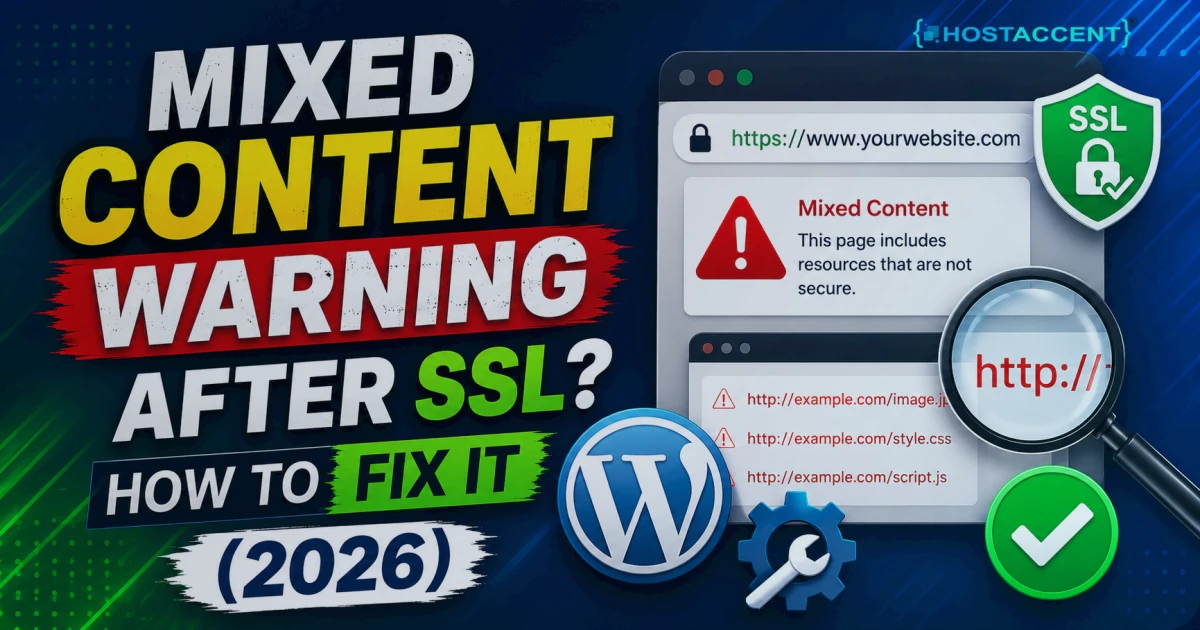
4. "Not Secure" Mixed Content Warning
Your page loads over HTTPS, but an image, script, or stylesheet still loads over HTTP. The padlock turns gray or breaks. Open your browser console — it lists the offending asset — then change the URL to https://. The MDN mixed content guide shows how to audit a page. On WordPress, a database search-replace of http:// to https:// usually clears it.
Pro Tip: Before hunting assets by hand, add a
Content-Security-Policy: upgrade-insecure-requestsheader. It tells the browser to pull every HTTP asset over HTTPS automatically — a one-line change that clears most mixed-content warnings instantly.
5. ERR_SSL_VERSION_OR_CIPHER_MISMATCH — Protocol Mismatch
The browser and server can't agree on a TLS version or cipher. TLS 1.0 and 1.1 were formally deprecated in 2021 (RFC 8996), and the major browsers removed support back in 2020 — so a server stuck on those old protocols fails the handshake. Enable TLS 1.2 and 1.3 in your web server config and disable the deprecated versions. Bonus: this lifts your security score too.
6. Incomplete Certificate Chain
The site works fine in your desktop browser but fails on phones or with curl. That's a missing intermediate certificate. Your CA hands you a chain (or "bundle") file — install the full chain, not just the leaf certificate. Most control panels do this for you; manual Nginx setups are where it gets skipped.
7. NET::ERR_TOO_MANY_REDIRECTS — The HTTPS Loop
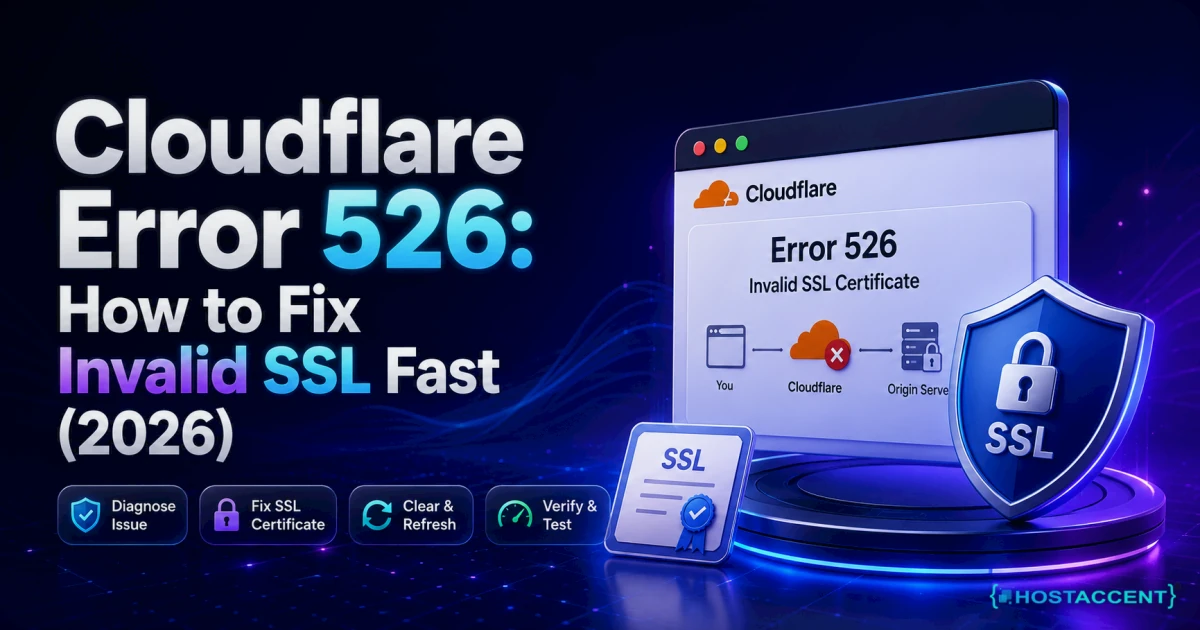
Often a Cloudflare problem. If Cloudflare's SSL mode is "Flexible," it talks to your server over HTTP while your server forces HTTPS — an endless loop. Switch Cloudflare to "Full (Strict)" and install a valid certificate on the origin. We hit this exact loop during a migration once; flipping to Full (Strict) fixed it in seconds.
8. NET::ERR_CERT_REVOKED — Revoked Certificate
The CA pulled the certificate, usually after a key compromise or a billing lapse. There's no client-side fix — you must issue a fresh one. If you didn't request the revocation, treat it as a security event; our Linux VPS security baseline guide covers what to check and rotate.
9. Wrong Certificate Served (SNI Issues)
Several sites share one IP, and the server hands out the wrong certificate. That's a Server Name Indication problem. Confirm each virtual host points to its own certificate, and make sure SNI is enabled — it's on by default in any current web server, but old configs sometimes turn it off.
10. HSTS Error With No Bypass Option
The page shows a warning and the usual "proceed anyway" link is gone. That's HTTP Strict Transport Security doing its job — once a site sends an HSTS header, the browser refuses any insecure connection. A typical header sets max-age=31536000, which locks the rule in for a full year. The only real fix is a valid certificate. For local testing, clear the domain's HSTS entry in your browser settings.
11. Certificate Not Trusted on Older Devices
A newer site fails on old phones or smart TVs. Their root certificate store is outdated and doesn't recognize newer authorities. You can't update every visitor's device, so pick a CA with broad, long-standing root coverage. For mainstream traffic this is rarely an issue now.
12. "Your Connection Is Not Private" on Localhost or Staging
Development environments throw this constantly because they use self-signed certificates. On a real domain you'd never ship that — but for local work, trust the self-signed cert in your OS keychain, or use a tool that issues locally trusted certs. Never carry this workaround over to production.
Insider Insight: Keep a free online SSL checker bookmarked. Paste your domain in after any certificate change and it flags a missing chain or weak protocol before your visitors ever see the error. Two minutes now saves a support ticket later.
Free SSL by Provider: A Quick Comparison
Every host on this list includes free SSL now — but how they issue and renew it varies, and that variance is where the real-world errors come from. Here's the practical breakdown.
| Provider | Free SSL Included | Certificate Type | Auto-Renewal | Wildcard on Free Tier | |----------|-------------------|------------------|--------------|-----------------------| | Hostaccent | Yes | Let's Encrypt | Automatic | Automatic | | Hostinger | Yes | Let's Encrypt / AutoSSL | Automatic | No | | Bluehost | Yes | Let's Encrypt | Automatic | No | | SiteGround | Yes | Let's Encrypt | Automatic | Limited | | Namecheap | First year free | PositiveSSL | Manual after year 1 | No | | DreamHost | Yes | Let's Encrypt | Automatic | No | | A2 Hosting | Yes | Let's Encrypt / AutoSSL | Automatic | No | | HostGator | Yes | Let's Encrypt | Automatic | No |
The detail that bites people is renewal. A certificate that renews automatically never expires on you. One that needs a yearly manual step eventually gets forgotten — and that's error #1 on our list.
Pro Tip: "Free SSL" and "free for the first year" are not the same product. Read the renewal terms before you commit, especially on cheaper introductory plans where the certificate quietly becomes a paid line item later.
Hidden SSL Costs and Red Flags
Free SSL is standard now, so be skeptical when a host charges extra for basic encryption. A few things worth watching for:
- Paid "premium SSL" upsells for sites that only need standard domain validation. Most blogs and small business sites never need a paid certificate.
- No automatic renewal, which turns a free cert into a yearly chore — and an outage waiting to happen.
- SSL gated behind higher plans, forcing an upgrade for something that should be included everywhere.
- No HTTP/2 or HTTP/3, which means you pay the HTTPS handshake cost without the speed modern protocols give back.
When a provider does encryption right, SSL is invisible — installed, renewing, and serving over a fast protocol without you thinking about it. That's the bar to hold any host to. Hostaccent's setup leans on Cloudflare and a tuned Nginx layer so certificates renew quietly in the background while pages stay fast on NVMe storage.
If you're hardening a server beyond SSL, our Linux VPS Security Baseline (Ubuntu 24.04): First 30 Minutes Setup and Nginx Rate Limiting on Linux VPS: Basic DDoS and Bot Protection walk through the next steps.
Your Pre-Launch SSL Checklist
With most SSL certificate errors, how to fix them before launch is the easy part — catching them after a customer does is the expensive one. Run through this before you point a domain at the world:
- Certificate covers both
wwwand non-www(or you redirect to one). - Auto-renewal is on, and you've confirmed it ran at least once.
- The full certificate chain is installed — not just the leaf.
- Every internal link and asset uses
https://. No mixed content. - TLS 1.2 and 1.3 are enabled; 1.0 and 1.1 are off.
- A redirect forces all HTTP traffic to HTTPS.
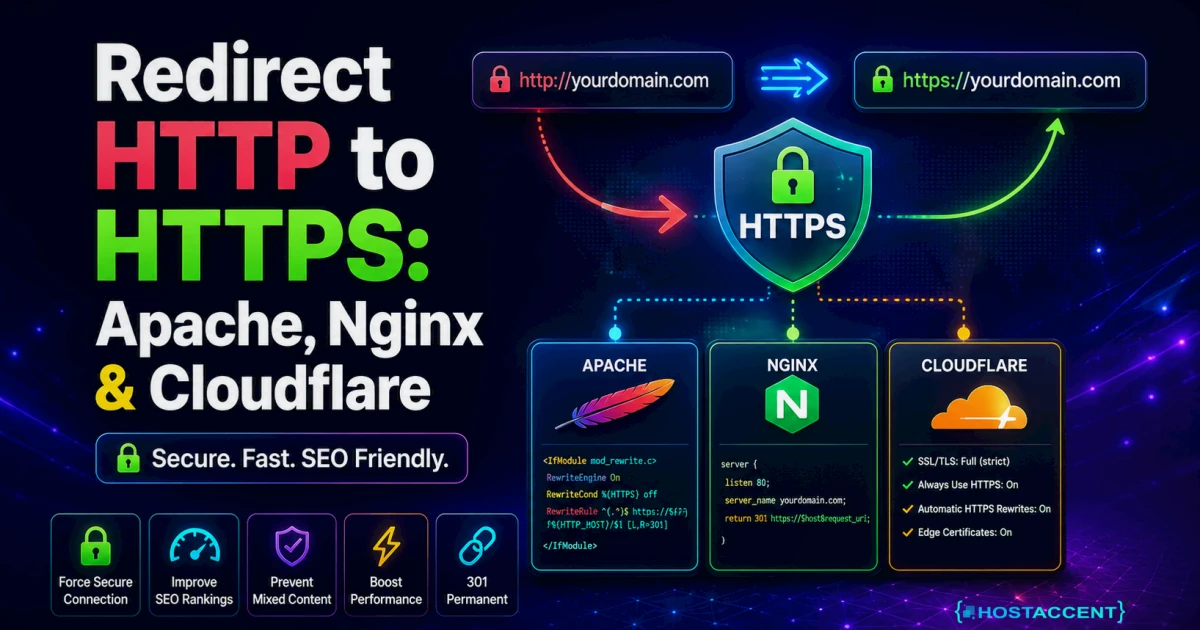
- If you use Cloudflare, SSL mode is Full (Strict).
Tick all seven, and the vast majority of SSL certificate errors never reach a visitor. For an ongoing routine that keeps certificates healthy over time, our SSL Certificate Management Guide: Setup, Renewal, and SEO Impact goes deeper, and the WordPress Security Hardening Guide covers the CMS-specific gotchas.
Skip the SSL Headaches Entirely
If certificate management sounds like one more thing you don't have time for, that's exactly what good hosting takes off your plate. Free SSL with HostAccent is installed and auto-renewing from day one — no cron jobs, no yearly reminders, no surprise expirations. Plans run on the same Cloudflare → Nginx → Apache stack with NVMe SSDs we use ourselves, with UK-based support if a certificate ever does act up. HostAccent's shared hosting Economy plan starts at $1.99/month, and SSL is included on every tier — never gated behind an upgrade. Point your domain over and have HTTPS live in minutes.
Frequently Asked Questions
SSL certificate errors: how to fix them fast?
Start with the error code. Expired certificate? Renew it. Name mismatch? Reissue to cover www and non-www. Mixed content? Force every asset to HTTPS. The code in the browser warning points straight at the cause, so read it first — it tells you which of the 12 fixes above you actually need.
Why is my SSL not working even though it's installed?
Usually the chain is incomplete, or an HTTPS redirect on your server conflicts with a proxy like Cloudflare. Confirm the full intermediate chain is installed and that Cloudflare's SSL mode is set to Full (Strict). An online SSL checker quickly tells you whether the chain is the culprit.
Can SSL certificate errors hurt my Google ranking?
Yes. HTTPS is a ranking signal, and a broken certificate blocks visitors behind a full-page warning, spiking your bounce rate. Search crawlers also struggle to read a site throwing SSL errors. Fixing the certificate protects both your rankings and your conversion rate at the same time.
Is free SSL good enough for a business website?
For almost every site, yes. Free Let's Encrypt certificates use the same encryption strength as paid ones and are trusted by every modern browser. Free SSL with Hostaccent, for instance, auto-renews so it never lapses. You only need a paid certificate for narrow cases like extended validation.
How long does it take to fix an expired SSL certificate?
With auto-renewal set up, minutes — the system reissues without you touching anything. Done manually, expect 5 to 15 minutes to request, validate, and install a new certificate. Validation for free domain certificates is near-instant; extended validation can take several days.
What does "your connection is not private" actually mean?
It means the browser couldn't verify your certificate — expired, wrong name, untrusted issuer, or a broken chain. It's a warning, not proof of an attack, but visitors won't know the difference. Match the exact message to the matching fix above, and the warning clears.

Discussion
Have a question or tip about this topic? Share it below — your comment will appear after review.