
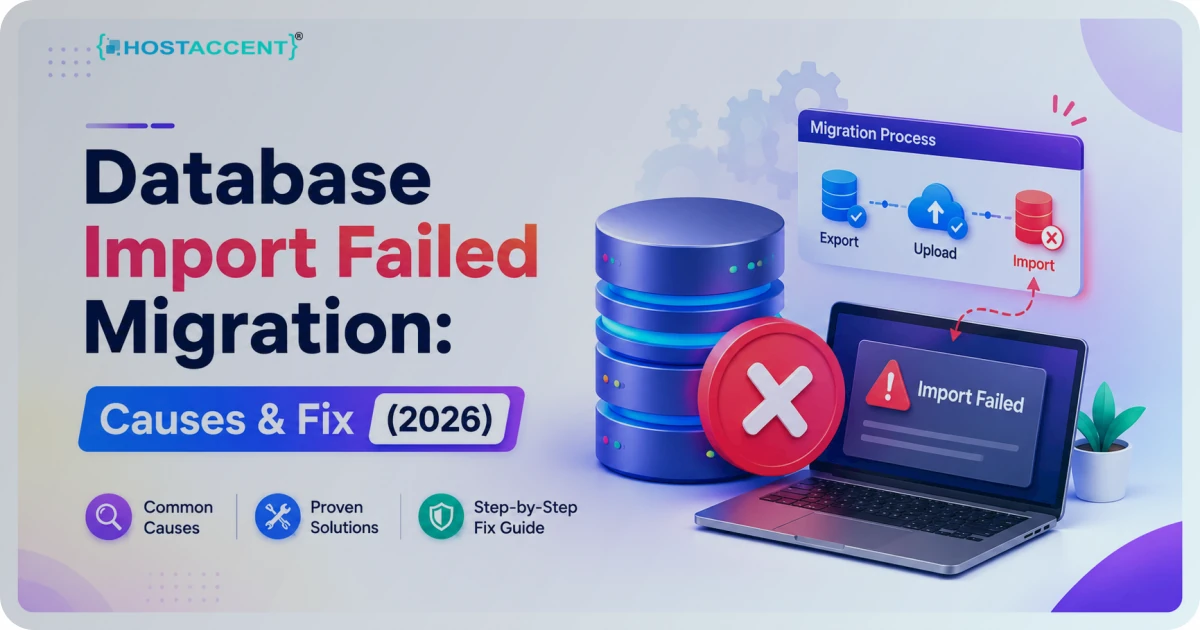
You hit import, watched the progress bar crawl, then — error. The new site sits empty, the old one's in limbo, and you're staring at a wall of red SQL text. Breathe. When a database import failed migration job stops cold, the cause is almost always one of five predictable things, and most fixes take minutes once you read the actual error.
Quick Answer: A database import that fails during migration is nearly always caused by a file that's too large, a script timeout, a charset or collation mismatch, a corrupted or truncated dump, or wrong database credentials. Fix it by raising
max_allowed_packetand PHP upload limits, importing over SSH instead of a browser, and matching the target collation to the source.
This guide walks each cause in the order we actually see it, with the exact commands and file paths. Whether you're on cramped shared hosting or a managed stack like Hostaccent, the symptoms read the same — and so do the fixes. Updated as of June 2026 by the Hostaccent infrastructure team, who handle migrations like this most weeks.
What "Database Import Failed Migration" Actually Means
First, the reassuring part. A failed import almost never means your data is gone. The original database — the one you exported with mysqldump or downloaded as a .sql file — is untouched. What failed is the destination server choking partway through reading that file.
Think of the .sql file as a long script of instructions: create this table, insert these 40,000 rows, set this character set. The import runs top to bottom. If the server hits a single instruction it can't process — a row bigger than its packet limit, a collation it doesn't recognise, a connection that drops — it stops and rolls back. The error you see is just the line where it gave up.
So a mysql import failed message is a symptom, not a verdict. Your job is to read the last few lines of the error, match them to one of the causes below, and clear the blocker.
The Real Causes Behind a Database Import Failed Migration Error
Ranked by how often they land in our queue. In the tickets we handle at Hostaccent, roughly three in four import failures are the first two on this list:
- File too large / packet limit exceeded (~45%) — the dump contains a row or query larger than
max_allowed_packet, or the upload itself exceeds the server limit. - Script execution timeout (~30%) — browser-based imports through phpMyAdmin die when the import runs past
max_execution_time. - Collation or charset mismatch (~12%) — an
Unknown collation: 'utf8mb4_0900_ai_ci'error when the source and target run different MySQL/MariaDB versions. - Corrupted or truncated dump (~8%) — the export was cut short, or the file got mangled in transfer.
- Credential or privilege failure (~5%) — wrong user, missing
GRANT, or the target database doesn't exist yet.
Pro Tip: Before you change a single setting, run
tail -n 50 yourfile.sql. If the file doesn't end with a cleanUNLOCK TABLES;or a finalINSERT, your dump is truncated — and no amount of config tuning will fix a half-written file. Re-export first.
If your real symptom is a slow site after a successful import, that's a different problem — start with our WordPress Site Slow: Complete Diagnosis and Fix Guide (2026) instead.
Fix the Big Two: Size Limits and Script Timeouts
These two cause most of the pain, so fix them together.
Raise the packet limit. The max_allowed_packet variable caps the size of a single query or row. A few large rows (think serialized WordPress options or BLOB data) will blow past the default. Raise it in my.cnf (or my.ini on Windows):
bash[mysqld] max_allowed_packet=512M
Then restart MySQL/MariaDB. No root access? Set it for the session before importing:
bashSET GLOBAL max_allowed_packet=536870912;
The full range and behaviour is documented in MariaDB's max_allowed_packet documentation.
Raise the PHP limits — only relevant for browser imports. In php.ini:
bashupload_max_filesize = 512M post_max_size = 512M max_execution_time = 600 memory_limit = 512M
These four control how big a file phpMyAdmin will accept and how long the script may run; see the PHP runtime configuration for file uploads. A sql import error migration timeout almost always traces back to max_execution_time being too low for a large file.
The better fix — skip the browser entirely. phpMyAdmin is the wrong tool for anything over ~50 MB. Import over SSH and the timeout problem disappears:
bashmysql -u dbuser -p target_database < /path/to/dump.sql
For very large files, add the packet flag inline:
bashmysql --max_allowed_packet=512M -u dbuser -p target_database < dump.sql
Insider Insight: On our own stack we set
max_allowed_packetand PHP limits high by default precisely because mid-migration failures are so predictable. If you're on a plan where these are locked low and support won't budge, that limit is your problem — not your file. More on that below.
If timeouts are also showing up as front-end errors, the same execution-time ceiling is often behind a 500 Internal Server Error WordPress: Fix It Fast (2026).
Fix Collation and Character-Set Mismatches
This one trips up nearly every cross-version move. You export from a newer MySQL 8 server and import into an older MariaDB, and you get:
bashERROR 1273 (HY000): Unknown collation: 'utf8mb4_0900_ai_ci'
The collation utf8mb4_0900_ai_ci only exists in MySQL 8+. The target doesn't know it. The fix is a find-and-replace inside the dump before importing:
bashsed -i 's/utf8mb4_0900_ai_ci/utf8mb4_unicode_ci/g' dump.sql sed -i 's/CHARSET=utf8mb4/CHARSET=utf8mb4/g' dump.sql
Always migrate toward utf8mb4, never plain utf8 — the older utf8 is only three bytes and silently mangles emoji and many non-Latin scripts. If you want the why, MDN's explanation of UTF-8 character encoding covers it cleanly.
Pro Tip: Match major versions on both ends before you export. A MySQL 8 → MariaDB 10.3 jump causes more collation headaches than any other pairing we see. If you control both servers, align them first and the problem never appears.
Fix Corrupted Dumps and Credential Failures
Corrupted or truncated dumps. If the file was cut off (interrupted download, disk full mid-export), re-export cleanly:
bashmysqldump --single-transaction --quick --default-character-set=utf8mb4 -u user -p source_db > dump.sql
--single-transaction gives a consistent snapshot without locking tables. After exporting, verify integrity with tail -n 20 dump.sql — a healthy dump ends predictably. If you gzipped it, test the archive with gzip -t dump.sql.gz before trusting it.
Credential and privilege failures. An Access denied or Unknown database 'xyz' error means the import never reached your data. Create the database first, then grant rights:
bashCREATE DATABASE target_database CHARACTER SET utf8mb4 COLLATE utf8mb4_unicode_ci; GRANT ALL PRIVILEGES ON target_database.* TO 'dbuser'@'localhost'; FLUSH PRIVILEGES;
Check the host part too. A user scoped to 'dbuser'@'localhost' won't authenticate over a remote connection — you'd need 'dbuser'@'%' or the specific IP.
How to Confirm Your Database Import Failed Migration Fix Held
Don't trust a clean import message alone — verify the data actually landed.
Compare row counts. On the source and destination, run the same checks and confirm they match:
bashSELECT COUNT(*) FROM wp_posts; SHOW TABLES;
If a database import failed migration retry now completes but a table count is off, the import partially applied — drop the database and re-import from a verified dump rather than patching live.
For WordPress specifically, update URLs safely with WP-CLI (never a blind SQL find-replace, which breaks serialized data):
bashwp search-replace 'https://old-domain.com' 'https://new-domain.com' --skip-columns=guid
Then confirm wp-config.php points to the new database name, user, and host. If the site then loads with Error establishing a database connection, those four credentials are the place to start. The official WordPress guide to migrating a site covers the surrounding steps.
Prevent recurrence. Import over the command line, not a browser. Keep max_allowed_packet and execution limits set high before you need them. And run automated backups so a failed move is never a data-loss event. If post-migration speed is your next worry, our How to Fix High TTFB in WordPress (2026 Guide) picks up there.
When the Server Itself Is the Bottleneck
Here's the honest part most guides skip. On a tightly capped shared plan, you often can't raise max_allowed_packet, lengthen max_execution_time, or reach the database over SSH at all — those controls are locked, and support may refuse to change them. When that's the case, the file isn't the problem. The plan is. That's exactly the kind of bottleneck Hostaccent's VPS and cloud plans remove: full root access, raised limits by default, NVMe SSD storage, and SSH so large imports run from the command line instead of dying in a browser tab. Plans run from $7.99/mo up to $95.00/mo, with the Professional tier at $22.00/mo covering most migration-heavy WordPress and WooCommerce sites. If repeated import failures are really a ceiling you can't lift, moving to a VPS is the durable fix.
Frequently Asked Questions
Why did my database import fail during migration?
Most often the dump contained a row larger than max_allowed_packet, or a browser import hit max_execution_time. Less commonly it's a collation mismatch between MySQL and MariaDB versions, a truncated file, or wrong credentials. Read the last lines of the error to identify which.
How do I fix a database import failed migration error caused by file size?
Raise max_allowed_packet to 512M in my.cnf and restart the database, or set it for the session with SET GLOBAL max_allowed_packet=536870912;. Better still, skip phpMyAdmin entirely and import over SSH with mysql -u user -p db < dump.sql, which sidesteps upload and timeout limits.
What does a database import failed migration message mean for my live site?
Nothing — your original database is untouched. The export is a separate copy, and a failed import only affects the destination, which usually rolls back automatically. Always keep the source intact until you've verified the new database with matching row counts.
How do I import a large SQL file without phpMyAdmin?
Use the command line. Run mysql -u dbuser -p target_db < /path/to/dump.sql over SSH. For very large files add --max_allowed_packet=512M. The CLI has no upload cap and ignores PHP execution timeouts, so it handles multi-gigabyte dumps that browsers can't.
Why do I get an unknown collation error during a sql import error migration?
You exported from a newer database (often MySQL 8 with utf8mb4_0900_ai_ci) into an older one that doesn't recognise that collation. Find-and-replace it in the dump: sed -i 's/utf8mb4_0900_ai_ci/utf8mb4_unicode_ci/g' dump.sql, then re-import. Aligning database versions beforehand prevents it.
Does a mysql import failed error mean my data is corrupted?
Usually not. A failed import means the destination rejected the file partway, not that your source data is damaged. Verify the dump itself with tail -n 20 dump.sql and, for compressed files, gzip -t file.sql.gz. If both pass, the file is fine and the blocker is a server setting.







Discussion
Have a question or tip about this topic? Share it below — your comment will appear after review.