
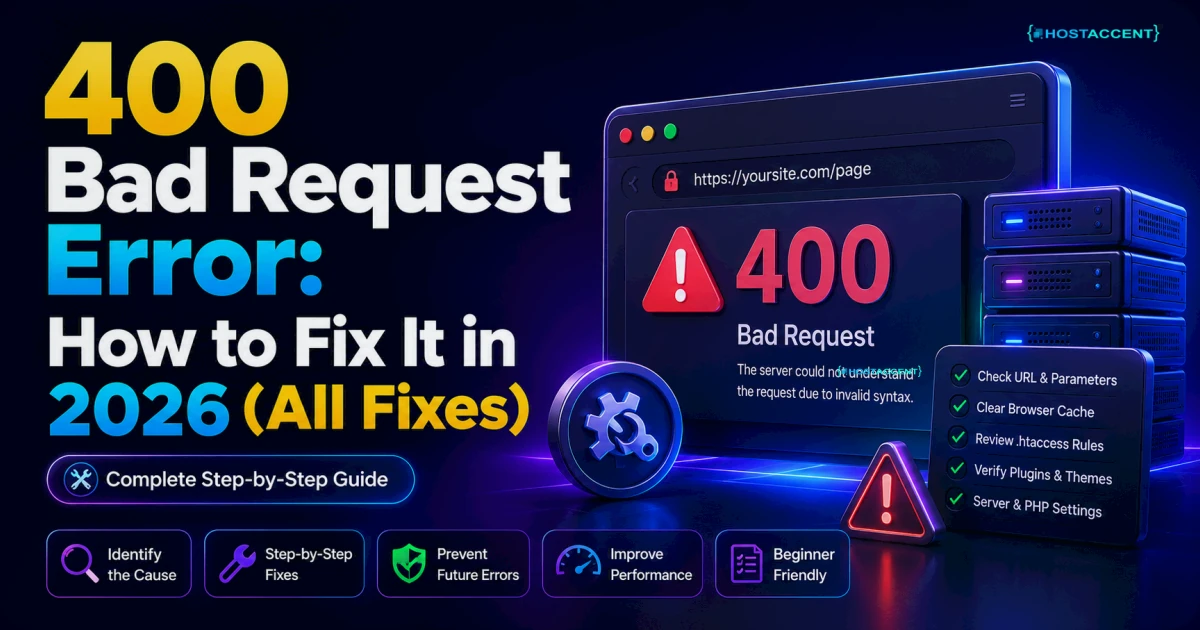
A 400 Bad Request means the server rejected your request before loading the page — something your browser sent was malformed, oversized, or unreadable. Nine times out of ten it's a corrupted cookie or a bloated header on your side, not a dead website. Most cases clear in under two minutes.
Quick Fix (clears it ~70% of the time): Delete the cookies for the exact site showing the error, then reload. In Chrome, click the padlock in the address bar → Cookies and site data → delete that domain's entry. No restart needed.
If that didn't fix it, work down the causes below — they're ordered by how often each is the real culprit.
What a 400 Bad Request Error Actually Means
The 400 status code is the server's way of saying "I got your request, but it's broken — I won't process it." Per the HTTP spec (RFC 9110), a 400 is a client error: the request is malformed, so the fault sits with what your browser sent. In the tickets we handle at Hostaccent, the 400 that panics people most shows up on a site they use daily — webmail, a bank, a dashboard. Worked yesterday, dead today.
Here's the mental shift that saves you time. A 500 is the server breaking. A 404 is a missing page. A 403 Forbidden is a permission block. But an http 400 error points back at the request itself — the URL, a cookie, a header, or the upload. MDN's reference says it plainly: the server won't process the request because of a client-side problem. That "worked yesterday" pattern? Almost always a cookie that went stale overnight.
What Causes a 400 Bad Request (Ranked by How Often We See It)
Not all causes are equal. Here's the real-world frequency order, based on the tickets that actually land on our desk:
- Corrupted or oversized cookies — the single most common cause. Old session cookies pile up and eventually break the request.
- A malformed URL — a typo, a stray space, or bad percent-encoding (a lone
%) in the address. - "Request Header Or Cookie Too Large" — too many cookies accumulated, blowing past the server's header size limit.
- Corrupted browser cache — stale cached data conflicting with the live site.
- An oversized file upload — sending a file bigger than the server accepts.
- A misbehaving browser extension — ad blockers and privacy tools sometimes mangle requests.
- Stale DNS cache — your machine holding an old IP for the domain.
- Server-side header limits set too low — the site owner's config rejecting legitimate large requests.
Notice the theme: the first six live on your device. That's why the fixes below start there.
How to Fix a 400 Bad Request (Step by Step)
Work these in order and reload after each one. No point doing all eight if step one solves it.
1. Clear cookies for the specific site
This is the 400 error fix that resolves the majority of cases. You don't need to wipe every cookie — just the ones for the affected domain.
- Chrome / Edge: Settings → Privacy and security → Cookies and other site data → See all site data and permissions → search the domain → trash icon.
- Firefox: Settings → Privacy & Security → Cookies and Site Data → Manage Data → search the site → Remove Selected.
- Safari: Settings → Privacy → Manage Website Data → search → Remove.
Pro Tip: Open the site in a private/incognito window first. Incognito ignores your saved cookies, so if the page loads there, you've confirmed it's a cookie problem — now you fix it deliberately instead of guessing.
2. Check the URL for typos and bad characters
Copy-pasted links are a frequent offender. Look for double slashes (example.com//page), trailing spaces, broken percent-encoding, or special characters ({ } | \ ^) that should be encoded but aren't. A lone % not followed by a valid code triggers an instant 400. Retype the core URL by hand and try again.
3. Clear your browser cache
If cookies weren't it, corrupted cache is next. A hard refresh often does the job: Ctrl + Shift + R (Windows/Linux) or Cmd + Shift + R (Mac). If that fails, clear cached images and files for the last hour in your browser's privacy settings.
4. Disable extensions (test in incognito)
Most browsers switch off extensions in incognito by default. If the site works there but not in a normal window, an extension is your culprit — turn them off one at a time. Ad blockers, VPN add-ons, and aggressive privacy tools are the usual suspects.
5. Flush your DNS cache
A stale DNS entry can route your request to the wrong place:
- Windows:
ipconfig /flushdns - macOS:
sudo dscacheutil -flushcache && sudo killall -HUP mDNSResponder - Linux (systemd):
sudo resolvectl flush-caches
6. Shrink the file you're uploading
If the 400 appears only when you upload something, the file is likely over the server's limit. Compress it or split it. If you own the site, the real fix is server-side — next section.
Fixing "Request Header or Cookie Too Large" (the Server-Side Angle)
If clearing cookies helps only briefly and the error keeps returning — especially the exact message "400 Bad Request: Request Header Or Cookie Too Large" — your request headers are genuinely exceeding what the web server allows. Most servers cap total header size around 8KB by default. Pile up enough cookies (or one fat auth token) and you cross that line.
For site owners on an Nginx → Apache stack, here's the fix.
Nginx — raise the header buffer in your server block, then reload:
bashlarge_client_header_buffers 4 16k; client_header_buffer_size 1k;
Apache — increase the field size:
bashLimitRequestFieldSize 16380 LimitRequestLine 8190
The Nginx core module docs list the exact directives and defaults. On our own stack at Hostaccent, we set these buffers a notch above default for customer sites running heavy authentication cookies — the alternative is a fresh support ticket every time a token grows.
For oversized uploads (a different 400 trigger), raise the body limit:
bash# Nginx client_max_body_size 64M;
…and match it in PHP (upload_max_filesize and post_max_size). If the two disagree, the smaller number wins.
Insider Insight: A misconfiguration we catch constantly during migrations is a
client_max_body_sizeleft at the default 1MB while PHP is set to 64MB. The upload sails through PHP's check, then Nginx rejects it with a 400. Match the two numbers and the phantom errors vanish.
How to Confirm the Fix and Stop It Coming Back
Once the page loads, confirm it properly:
- Test in a clean window — a fresh incognito session with no cookies proves the request is valid now.
- Reload a few times — a 400 that only appears now and then usually means a header is creeping back over the limit.
- Check another browser — fixed everywhere means it was server-side; fixed in one browser means it was local.
Prevention is mostly hygiene. Don't let one browser hoard months of cookies for sites with heavy logins. If you run the site, watch your header buffers after adding auth plugins or single sign-on, since those inflate cookie size fast. And set upload body limits deliberately rather than leaving defaults in place. If your 400s trace back to a server that keeps bumping into resource ceilings, that's a different beast — our guide on shared hosting resource limits walks through diagnosing that, and if pages are also crawling, the WordPress slow-site diagnosis guide helps you separate the two.
When the 400 Is the Server's Fault, Not Yours
Sometimes you've cleared everything and it persists across every device and browser. That's your signal the problem is server-side — a header limit set too low, a broken reverse-proxy rule, or a security layer (like a WAF) rejecting legitimate traffic. Cloudflare's Learning Center is a solid primer if a CDN sits in front of your site.
Underpowered or badly tuned hosting shows up here more than people expect. A server starved of resources, or one shipped with lazy default configs, throws these errors under load. In our experience running customer sites at Hostaccent, a properly tuned stack — sensible header buffers, matched upload limits, NVMe SSD storage for fast I/O, and 99.9% uptime — makes "mystery 400s" nearly disappear. If your host leaves you fighting config ghosts, the platform is the real bottleneck (the same root cause behind high TTFB in WordPress and failing Core Web Vitals, too).
The Fastest Path Back to a Working Site
Most 400 Bad Request errors are a two-minute cookie fix — do the browser steps first, always. But if yours keep coming back because the underlying server is misconfigured, underpowered, or fighting you at every turn, the durable fix is a host that ships sane defaults.
That's where we come in. Hostaccent has run production hosting since 2012 — UK-registered (with a Bangladesh branch), UK-based human support, WHMCS billing, Cloudflare out front, and a tuned Nginx → Apache stack on NVMe SSD storage. As of 2026, our Linux Shared Hosting starts at $1.99/mo on the Economy plan (renews at the same $1.99/mo — no bait-and-switch), with header and upload limits already sized so the common server-side 400 triggers never reach you. Honest limit: it won't fix a corrupted cookie in your browser — nothing on the server side can — but it removes the whole class of server-caused 400s from your plate.
Frequently Asked Questions
Why do I keep getting a 400 Bad Request on one specific website?
A single site throwing a 400 while others load fine almost always means a corrupted or oversized cookie for that one domain. Clear the cookies for that site (not your whole browser) and reload. If it returns within minutes, the site's header limit is too low and the owner needs to raise it.
How do I fix a 400 Bad Request in Chrome specifically?
For a 400 Bad Request in Chrome, click the padlock or tune icon in the address bar, open Cookies and site data, and delete the entry for that domain. If that fails, hard-refresh with Ctrl + Shift + R, then test in an Incognito window to rule out an extension. Chrome's cached data is the usual second cause.
What does "Request Header Or Cookie Too Large" mean?
It means your accumulated cookies, or a single large header, have exceeded the web server's size limit — commonly around 8KB by default. Clearing that site's cookies fixes it on your side. On the server side, raising the header buffer (Nginx large_client_header_buffers) resolves it permanently.
Is a 400 error the website's fault or mine?
Usually yours — a 400 is a client-side error, meaning the request your browser sent was malformed. But if it survives clearing cookies and cache across multiple browsers and devices, the cause is server-side configuration, and the site owner has to fix it.
Can a slow or cheap host cause 400 Bad Request errors?
Indirectly, yes. Underpowered servers with default, untuned configs reject legitimate large requests more often. A properly configured host — like Hostaccent's tuned stack — sets sensible header and upload limits so these don't surface. The 400 error fix on the server side is mostly about correct buffer sizing.
Does clearing cookies log me out of everything?
Only for the sites whose cookies you delete. If you clear cookies for just the affected domain, your logins elsewhere stay intact. That's exactly why targeting the single problem site — rather than wiping everything — is the smarter first move.




Discussion
Have a question or tip about this topic? Share it below — your comment will appear after review.