
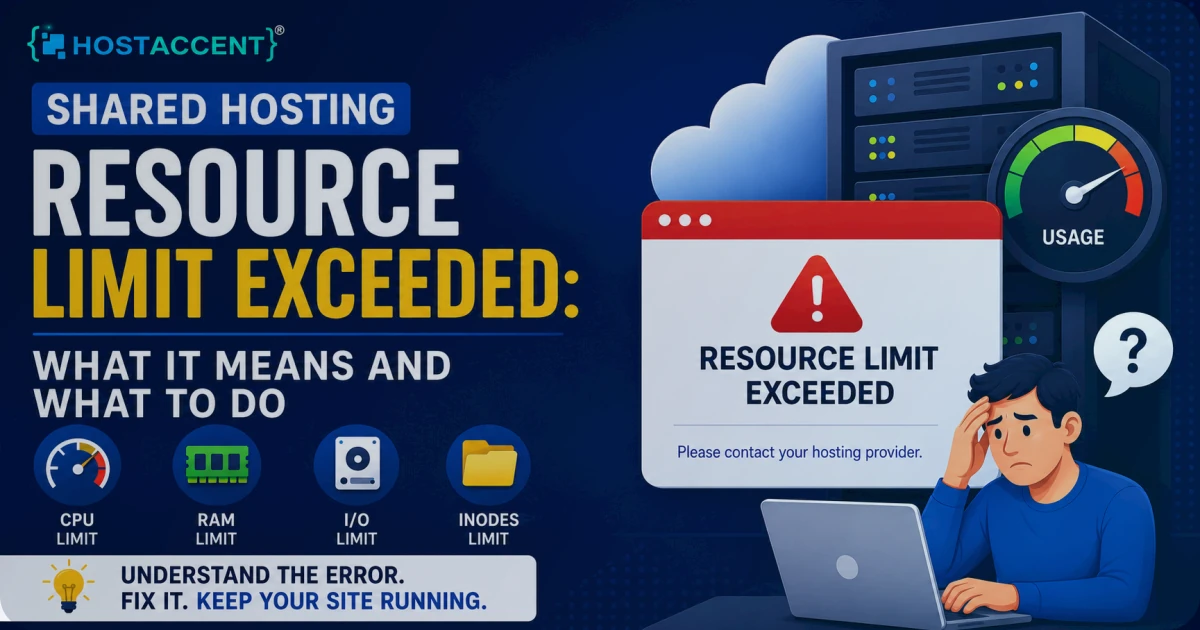
A shared hosting resource limit exceeded error is one of the most disruptive things that can happen to a growing website. You've hit a resource limit on your shared hosting. Maybe your host sent you a warning email, maybe your site started returning errors, or maybe pages just got noticeably slower during busy periods. Now you're trying to figure out what happened and what to do about it. Often it is the same root story as shared hosting being too slow: you have outgrown the plan limits.
Here's the honest explanation and your actual options.
Quick Answer: "Resource limit exceeded" means your account hit its shared-hosting CPU, RAM, entry-process, or I/O cap — so the host throttles your site or returns a 508 error. First, confirm caching is working, deactivate a suspect plugin, block bot traffic, and clean the database. If you've done all that and still hit the limit, your traffic has genuinely outgrown shared hosting and a VPS with dedicated resources is the real fix.
What "resource limit exceeded" actually means
Shared hosting puts many websites on the same physical server. To prevent one site from consuming all the CPU, RAM, or I/O and degrading everyone else, every host — Hostaccent included — sets per-account limits:
- CPU limit: Maximum processing time your account can use per unit of time (often expressed as CPU seconds per hour or as a percentage of one CPU core)
- RAM limit: Maximum memory your PHP processes can use simultaneously
- Entry processes: Maximum number of simultaneous PHP processes (concurrent requests being processed)
- I/O limit: Disk read/write speed limit per account
- Inode limit: Maximum number of files (each file uses one inode), independent of disk space used
- MySQL connections: Maximum simultaneous database connections
When you exceed these limits, different things happen depending on the limit:
- CPU throttling → pages become very slow but still load
- Entry process limit → visitors see 508 errors ("Resource Limit Is Reached")
- RAM limit → PHP processes crash, 500 errors
- MySQL connection limit → database connection errors
Why you're hitting the limit now
Something changed. Resource limits are usually hit suddenly, not gradually. Common causes:
Traffic growth. More visitors = more simultaneous PHP processes. If your site got mentioned somewhere popular or you ran a campaign, traffic spikes hit entry process limits fast.
A new or updated plugin. Poorly coded plugins can spike CPU usage significantly. A plugin that queries the database on every page load, or one that runs heavy background tasks, can push you over limits even without increased traffic.
Spam or bot traffic. Bots scraping your site, comment spam attempts, login brute-force attacks — these generate server load without real visitors. Check your access logs.
Database growth. A large database with unindexed queries runs slower over time. As your post count, order history, or user base grows, unoptimized queries use more CPU.
Missing caching. If your caching plugin got deactivated (plugin update conflict, configuration issue), every visitor suddenly runs the full WordPress PHP stack instead of getting cached HTML.
Immediate fixes to try first
Before deciding to upgrade, try these:
1. Check if caching is working
bashcurl -I https://yourdomain.com
Look for X-Cache: HIT. If cache is disabled or broken, re-enable it immediately. This alone can drop resource usage by 80%.
2. Find the problem plugin Log into WordPress Admin → Plugins → deactivate all non-essential plugins and see if resource usage drops. Re-enable them one by one to find the culprit. Query Monitor plugin shows which plugins are causing heavy database queries.
3. Check for bot traffic
In cPanel → Raw Access Logs, look for IPs making hundreds of requests per minute. Block aggressive bots in Nginx or .htaccess:
bash# Block a specific IP: deny from 123.45.67.89
4. Clean the database
bash# Via WP-CLI: wp transient delete --expired wp db optimize
Large numbers of expired transients and unoptimized tables cause slow queries that use CPU.
5. Check for runaway cron jobs WordPress's WP-Cron can accumulate stuck jobs. Install WP Crontrol plugin and check for jobs running every few seconds or stuck jobs piling up.
When fixes aren't enough: upgrade options
If you've addressed caching, cleaned up plugins, and blocked bots — and you're still hitting limits — the issue is genuine traffic growth. Your site has outgrown shared hosting.
Option 1: Upgrade your shared hosting plan
Your current host likely has higher-tier shared plans with increased resource limits. This is the path of least resistance — no migration required. Ask your host what the limits are on the next tier up and whether they'd solve your specific limit.
This buys time but doesn't change the fundamental constraint: you're still sharing resources with other sites.
Option 2: Move to VPS hosting
A VPS gives you dedicated resources — your CPU and RAM allocations are not shared with other customers. You won't hit "resource limits" in the same way because the resources are yours.
What this change does for you:
- Entry process limits go away (you control your PHP-FPM worker count)
- CPU throttling stops (dedicated vCPU is yours)
- RAM is dedicated (no other site competing for it)
What it requires: Either technical ability to configure a server, or a managed VPS provider with support.
Option 3: Stay on shared hosting, optimize more aggressively
If the issue is genuinely solvable at the application level (a bad plugin, missing caching, bot traffic), you may be able to stay on shared hosting with proper optimization. This is legitimate if your traffic isn't actually growing — it was a spike or a configuration problem.
The honest calculation
Moving to VPS costs more. The question is: what does staying on overloaded shared hosting cost you?
If your site generates revenue through leads, sales, or ecommerce:
- 508 errors during traffic spikes = lost sales
- Slow pages = higher bounce rate = less SEO value
- Customer trust damage from a broken site
Calculate what one hour of errors during a busy period is worth to your business. If it's more than the monthly cost difference between shared hosting and VPS — and it usually is for any active business — the upgrade pays for itself.
If your site is a personal blog or portfolio with no revenue attached, optimizing on shared hosting is reasonable.
What to do right now
- Check if caching is working (curl -I check above)
- Look for a misbehaving plugin (deactivate and test)
- Check for bot traffic (access logs)
- Clean the database (transients, optimize tables)
If those don't solve it, you've confirmed it's a capacity problem. At that point, VPS is the right next step.
HostAccent VPS plans start at a price point that makes sense for businesses that have outgrown shared hosting — dedicated resources, daily backups, and support that helps you make the transition without downtime.




Discussion
Have a question or tip about this topic? Share it below — your comment will appear after review.