
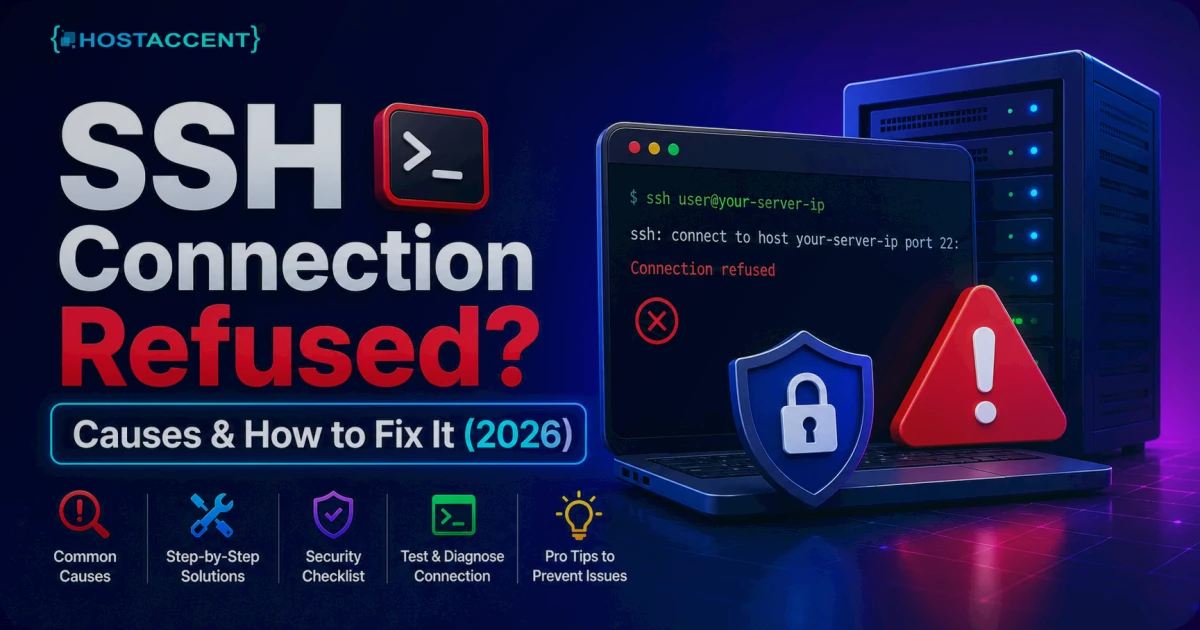
You run the command, hit Enter, and get slapped with ssh: connect to host ... port 22: Connection refused. The server was fine an hour ago. Now you're locked out — possibly mid-deploy — and the clock is running. Breathe. An SSH connection refused error is almost always one of five small things, and most of them clear in a few minutes once you know which one broke.
This guide walks those causes in the order they actually happen, with the exact commands to diagnose and fix each. No theory dumps up front. Action first, explanation second.
Quick Answer: "Connection refused" means your machine reached the server but nothing was listening on the SSH port — usually the SSH service (sshd) is stopped, SSH was moved to a non-standard port, or a firewall is actively rejecting the connection. Check the service, then the port, then the firewall. Most cases resolve in under five minutes.
"Connection Refused" vs "Connection Timed Out" — Read This First
Before you touch anything, look at the exact wording. It tells you where the problem lives.
Connection refused means the network path worked — your packets reached the box — but the door was shut. Something sent back an active rejection (a TCP reset). That points at the SSH service itself or a firewall rule set to REJECT.
Connection timed out is a different animal. Your packets vanished with no reply. That's usually a wrong IP, a server that's fully powered off, or a firewall set to DROP.
This article is about the first one. If you're seeing a timeout instead, start with the IP and whether the machine is even on — that's a separate path. (For a refresher on what SSH is and how it works, Cloudflare's primer is solid.)
On our own Nginx → Apache stack at Hostaccent, the first thing our team checks when a "refused" ticket lands is whether sshd is actually running — because that single cause covers most of them.
Pro Tip: Run
ssh -vvv user@your-server-ipfor verbose output. The last few lines before the failure tell you whether the connection was refused right at the port or dropped earlier — so you chase the right cause instead of the wrong one.
The Real Causes of SSH Connection Refused, Ranked by Frequency
Here's the order we see these in real support tickets, most common first:
- The SSH service (sshd) isn't running. Crashed, stopped, never re-enabled after a reboot, or killed by an out-of-memory event. No daemon listening means an instant refusal.
- SSH is on a different port. Someone moved it from port 22 to something like 2222 for security, and you're still dialing 22. Nothing answers there, so it refuses.
- A firewall is actively rejecting the SSH port. ufw, firewalld, raw iptables, or a cloud provider's network security group with a REJECT rule.
- Wrong IP address or hostname. You're connecting to a box that isn't your server — common right after a rebuild, which usually hands out a fresh IP.
- sshd is bound to the wrong interface. A
ListenAddressof 127.0.0.1 means SSH only answers locally and refuses everything from outside.
Figure out which one you're facing and the fix is quick. Let's work through them.
How to Fix SSH Connection Refused, Step by Step
You'll need a second way into the server for most of these — a provider web console (KVM/VNC), a serial console, or a second SSH session you left open. Most VPS dashboards include a browser console for exactly this moment. Find it before you start editing firewall rules.
1. Check (and start) the SSH service
Get in via the console and check the daemon:
bashsudo systemctl status ssh # Debian / Ubuntu sudo systemctl status sshd # RHEL / AlmaLinux / Rocky
If it's inactive or failed, start it — and enable it so it survives the next reboot:
bashsudo systemctl start ssh sudo systemctl enable ssh
If it refuses to start, the config is probably broken. Test before anything else:
bashsudo sshd -t
That prints the exact line number of any syntax error in /etc/ssh/sshd_config. Fix that line, then start the service. The OpenSSH project keeps the canonical reference if you need to confirm a directive.
Insider Insight: A surprising share of "sshd won't start" cases trace back to one typo after someone edited the config to harden security — a stray character in the
PortorAllowUsersline. Always runsshd -tbefore you restart. It's a two-second check that prevents a full lockout.
2. Confirm which port SSH is actually listening on
If the service is up but you're still refused, you may be knocking on the wrong door. Check what sshd is bound to:
bashsudo ss -tlnp | grep ssh grep -i port /etc/ssh/sshd_config
If it says 2222 (or anything other than 22), connect with the -p flag:
bashssh -p 2222 user@your-server-ip
This is one of the most common "cant connect to server ssh" traps — the port was changed months ago and everyone forgot.
3. Open the port in the firewall
A firewall set to REJECT is the textbook source of an active refusal. Check it, then allow your SSH port.
For ufw (Ubuntu's default — see Ubuntu's UFW firewall guide):
bashsudo ufw status sudo ufw allow 22/tcp # or your custom port
For firewalld (RHEL family):
bashsudo firewall-cmd --list-all sudo firewall-cmd --permanent --add-service=ssh sudo firewall-cmd --reload
For raw iptables, list the rules and look for a REJECT on your port:
bashsudo iptables -L -n --line-numbers
Don't forget the layer above the server. Most cloud and VPS platforms run their own network firewall or security group. If your local firewall looks open but you're still refused, check the provider dashboard's rules too — that's where "firewall blocking ssh" hides in plain sight.
Pro Tip: Never flush every firewall rule (
iptables -F) while you're locked out and panicking. On some setups that makes things worse or exposes other ports. Add the single ALLOW rule you actually need, and keep a console session open while you test the change.
4. Verify the IP, hostname, and DNS
Obvious, but it bites people constantly — especially after a rebuild, which usually assigns a new IP.
bashping your-server-ip dig your-domain.com +short
If the domain points at an old or wrong IP, your SSH attempt is hitting the wrong machine entirely. (Sorting out your domain and naming more broadly? Our breakdown of .com vs .net vs .io domain extensions covers the naming side.)
5. Check the ListenAddress binding
If sshd is running, the port's open, and the IP is right but it still refuses outside connections, check whether SSH is only listening on localhost:
bashgrep -i listenaddress /etc/ssh/sshd_config
If you see ListenAddress 127.0.0.1, comment it out or set it to 0.0.0.0, then restart sshd. Now it answers on every interface, not just the loopback.
How to Confirm the Fix — and Stop It Coming Back
Made a change? Test from a new terminal without closing your console session — that way a mistake doesn't strand you:
bashssh -p 22 user@your-server-ip
Back in? Good. Now harden against a repeat. The wider SSH spec is defined in the SSH transport layer spec (RFC 4253) if you want the protocol-level detail, but the practical prevention list is short:
- Enable the service on boot.
sudo systemctl enable ssh, so a reboot never strands you. Even a 99.9% uptime setup is useless if sshd doesn't auto-start. - Keep a console fallback. Know where your provider's browser/KVM console is before you need it.
- Test risky changes safely. When you change the port or firewall, keep one session open and verify the new rule in a second window before logging out.
- Watch fail2ban. If you keep getting refused after several tries, your own IP may be temporarily banned:
sudo fail2ban-client status sshd, then unban if needed. - Monitor the port. A simple alert on the SSH port tells you the daemon died before your users do.
Across the sites we host, a frequent pattern is exactly this: someone tightens security, skips the enable step or fat-fingers a firewall rule, and locks themselves out on the next reboot. Ten minutes of prevention beats an emergency console session every time.
To recap, fix an SSH connection refusal in this order: service, listening port, firewall, destination IP, and bind address. Once access is restored, use the VPS security hardening checklist to tighten authentication without locking yourself out again. If the same change prevents the web server from binding, the port 80 conflict guide explains how to identify the process holding the socket.
When It's Worth Handing the Server Off
Here's the honest trade-off. If you like owning every layer of the stack, an unmanaged VPS is great and these fixes become routine muscle memory. But if an SSH lockout mid-deploy is the kind of thing that wrecks your week, a managed server takes that whole category of problem off your plate — the host keeps sshd alive, configures the firewall sanely, and hands you console access when you need it.
That's the idea behind Hostaccent's Managed Linux VPS, from $7.99/mo for the Basic plan, on a Cloudflare → Nginx → Apache + NVMe SSD stack with UK-based human support. Hostaccent Limited has been operating since 2018, serving customers worldwide, as of 2026. It won't suit you if you want pure root-only control with zero hand-holding — but for most small teams, fewer 2 a.m. lockouts is the better deal. Weighing regions? Our Amsterdam VPS hosting guide breaks down the EU options.
Frequently Asked Questions
Why does SSH say "connection refused" but ping works?
Ping uses ICMP, which the server answers even when SSH is down, so a successful ping only tells you the box is online and reachable. It says nothing about the SSH service. A refused SSH connection alongside a working ping almost always means sshd is stopped or the port is closed.
How do I fix ssh connection refused on port 22 specifically?
Get in through your provider's console, then check the service with systemctl status ssh, confirm port 22 is the one sshd listens on, and make sure your firewall allows 22/tcp. Start the service, open the port, and test from a fresh session. That sequence clears most ssh connection refused cases.
Is "connection refused" the same as "connection timed out"?
No. Refused means your packets reached the server and were actively rejected — usually a stopped service or a REJECT firewall rule. Timed out means packets never got a reply, pointing at a wrong IP, a powered-off server, or a DROP rule. They need different fixes, so read the exact error first.
Can a firewall cause SSH connection refused?
Yes — it's one of the most common causes. A rule set to REJECT on the SSH port sends back an active rejection, which surfaces as "connection refused." Check ufw, firewalld, iptables, and your cloud provider's security group, and allow your SSH port (22 by default, or whatever you moved it to).
Why can't I connect to my server over SSH after a reboot?
Usually because sshd wasn't enabled to start on boot, or a firewall rule didn't persist. Run sudo systemctl enable ssh so the service auto-starts, and confirm your firewall rules are saved permanently. A managed host like Hostaccent handles this by default, so reboots don't lock you out.
How do I get into my server if SSH is completely refused?
Use an out-of-band method. Most VPS and cloud providers offer a browser-based console — KVM, VNC, or serial — in the dashboard that bypasses SSH entirely. From there you can restart sshd, fix the config, or adjust the firewall, then reconnect over SSH normally.







Discussion
Have a question or tip about this topic? Share it below — your comment will appear after review.