
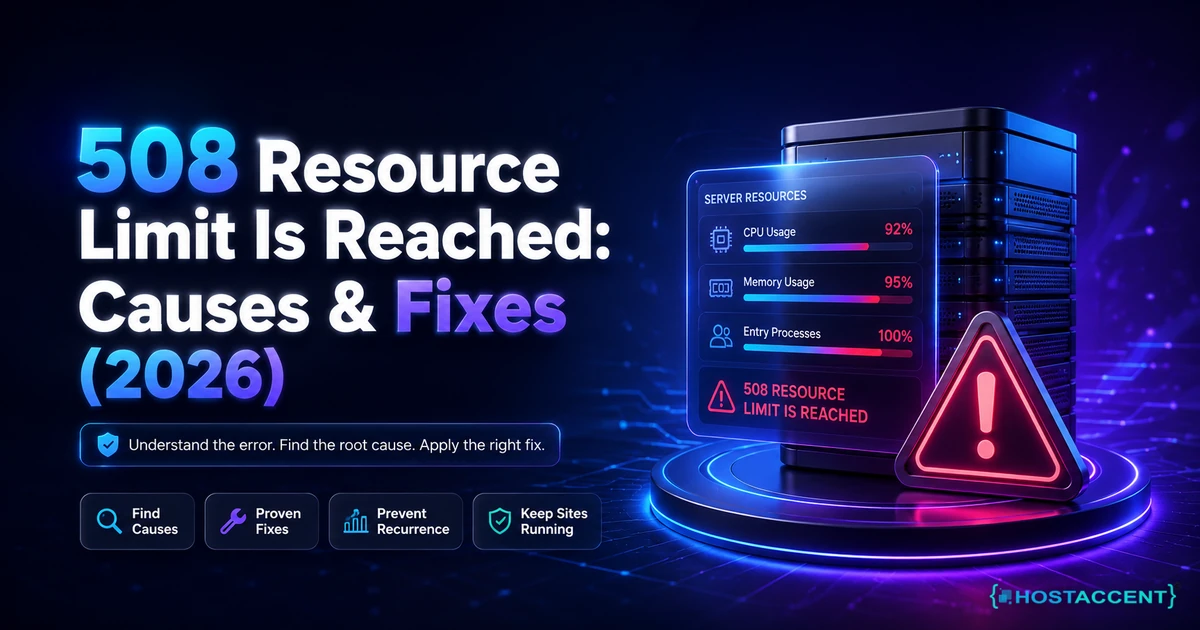
Your site was fine an hour ago. Now every visitor gets a blank page and three cold words: 508 Resource Limit Is Reached. Orders stall, the dashboard crawls, and you have no idea what you did.
Good news first: you probably didn't break anything. This error is your hosting account bumping into a ceiling, not your website falling apart. Most of the time it's fixable in the next 20 minutes, no code required.
Quick fix (clears most cases): Open cPanel, go to Metrics, then Resource Usage, and check which meter is red: entry processes, CPU, physical memory, or I/O. If it's entry processes on a WordPress site, switch on full-page caching and block xmlrpc.php. As of July 2026, that one combination resolves the large majority of these events, usually within minutes.
We resolve 20 to 30 site problems like this every day, and this guide is the same checklist we run internally, written so you can run it yourself. On the shared stacks we run at Hostaccent, this error nearly always comes down to one of five specific limits. Once you know which one, the fix picks itself.
What "508 Resource Limit Is Reached" Actually Means
A 508 Resource Limit Is Reached error in cPanel means your account tried to use more of a shared resource than your plan allows, so the server temporarily refused new requests to protect everyone else on the machine. It is a safety valve, not a crash.
On CloudLinux-based hosts (the setup most shared providers use, including ours), every account runs inside an LVE, a Lightweight Virtual Environment with hard caps on four things: entry processes, CPU, physical memory, and I/O. Hit any cap and the server returns the 508. You can read the exact definitions in CloudLinux's LVE resource limits documentation.
The most misunderstood cap is Entry Processes (EP). EP is not "visitors per day." It is the number of dynamic requests running at the same instant. A common default is 20. If 21 PHP requests fire in the same moment, request 21 gets the 508 while the rest load fine.
That is why the error feels random. It flares during a traffic bump or a bot run, then vanishes an hour later when the surge passes. Your site is not broken between spikes. It is sitting one busy moment away from the ceiling.
Worth saying plainly: this is closely related to the broader Shared Hosting Resource Limit Exceeded: Causes & Fix (2026) family of errors, and it is different from a 502 Bad Gateway Nginx: How to Fix It (Step-by-Step), which points at the web server, not your account's resource cap.
Step One: Find Which Limit You Hit (cPanel Resource Usage)
Do not start disabling plugins at random. Start by reading which of the four LVE limits actually tripped, because the correct fix is different for each one. In cPanel, go to Metrics, then Resource Usage (some panels label it "CPU and Concurrent Connections"). Click the Details or graph view.
Line up the timestamp of the outage against the graph. Whichever meter pegged at 100% is your answer:
- Entry Processes maxed: too many simultaneous dynamic requests. Usually bots or an uncached traffic spike. This is the classic cPanel Entry Processes limit event.
- CPU maxed: heavy code, a slow plugin, or a runaway query eating processor time.
- Physical Memory maxed: a script asking for more RAM than the plan grants per process.
- I/O maxed: heavy disk read/write, often a bloated database or a backup running mid-day.
Next, open your raw access log for the exact minute of the spike. In cPanel that lives under Metrics, then Raw Access, or in File Manager near public_html. Look for one IP hitting the same URL over and over, or repeated hits to xmlrpc.php and wp-login.php. That pattern is the signature of when your LVE limits are being exceeded by automated traffic rather than real humans.
Pro Tip: Note the exact minute Resource Usage shows the spike, then open your access log for that same minute. Nine times out of ten the offending IP or URL is sitting right there, hammering one endpoint. You will fix the problem far faster by reading the log than by guessing at plugins.
If the graph shows brief spikes that self-clear, you have a concurrency problem you can fix. If it shows a flat wall pinned at 100% all day, you may have genuinely outgrown the plan. Those are two different conversations, and the next section tells them apart.
The Concurrency Math Nobody Explains
Here is the piece almost every other guide skips, and it is the whole game. Entry processes are held for as long as each request takes to finish. So the number you need is not your daily traffic. It is your page-generation time multiplied by how many requests land at once.
We call it the worker-seconds check, and it is the single most useful thing to understand about this error.
Picture an uncached WordPress page that takes two seconds to build. If 15 visitors request dynamic pages inside that same two-second window, you need 15 entry processes held open at once. Add a small bot run on top and you sail past a 20-EP ceiling. Result: the 508.
Now cache that same page. A full-page cache serves stored HTML in roughly 50ms and runs zero PHP. Those same 15 visitors now hold their "worker" for a twentieth of a second each, not two full seconds. The odds of 15 of them overlapping in a 50ms window are tiny. The ceiling stops filling.
That is why caching fixes 508 errors that "more RAM" never touches. You are not adding capacity. You are shortening how long each request holds a slot. Slow pages are the hidden multiplier, which is also why a How to Fix High TTFB in WordPress (2026 Guide) tune-up quietly raises your real concurrency ceiling at the same time.
Do I actually need to upgrade, or can I fix this on my current plan?
If your Resource Usage graph shows short spikes that clear on their own, you almost certainly do not need a bigger plan yet. Cache aggressively, block the bots, and you buy a lot of headroom for free. You genuinely need more resources only when the graph sits pinned near its cap during normal, cached, human traffic. That is the honest line between a tuning job and an upgrade, and most sites are on the tuning side of it.
The Real Causes, Ranked by How Often They Happen
From years of working these tickets, the causes fall into a clear order. Fix them top-down.
- Uncached dynamic pages under bot traffic. By a wide margin the most common. Comment-spam bots and login-brute-force scripts flood
xmlrpc.phpandwp-login.php, and every hit spins up a PHP worker. This is the top trigger behind 508 resource limit on WordPress specifically. - A single heavy or broken plugin/theme. One badly written extension can consume more CPU or memory per request than the whole rest of the site combined.
- Slow or unindexed database queries. Autoloaded option bloat, missing indexes, and giant
wp_optionstables drag out page-generation time, which (see the math above) inflates entry-process demand. - Real, healthy traffic growth. Sometimes you just got popular. A campaign, a newsletter, a seasonal rush. Nothing is "wrong"; you have outgrown the box.
- Runaway cron jobs or mid-day backups. Heavy scheduled tasks stacking on top of live traffic spike I/O and CPU at the worst moment.
- A compromised site. Malware and unfamiliar processes that do not match your traffic. Less common, but it happens.
From the ticket queue: From Hostaccent's support queue (as of July 2026), WordPress issues make up about 30% of monthly tickets and Linux or server issues another 25%. Resource-limit errors like the 508 sit right where those two overlap, which is why we see them almost every single day.
Notice what is not near the top of that list: "your plan is a scam" or "your host throttled you for no reason." Limits exist to stop one noisy account from taking down forty others on the same server. The fix is almost always reducing what your site demands, and only sometimes buying more room.
Step-by-Step Fixes That Actually Work
Work these in order and re-test after each. Most sites are back to normal by step three.
1. Turn on full-page caching. This is your highest-leverage move. If your host offers a built-in caching suite (many CloudLinux hosts include one with page cache plus Redis object cache), enable it in cPanel. On WordPress without one, install a reputable page-cache plugin and switch on object caching if available. This alone clears a huge share of entry-process 508s.
2. Shut down the bot floods. If your access log showed xmlrpc.php hits, block the file. Add this to .htaccess in public_html:
bash## Block xmlrpc.php to stop entry-process floods <Files xmlrpc.php> Order Deny,Allow Deny from all </Files>
Then add a login-attempt limiter, and put a CDN or firewall in front so junk traffic never reaches your workers. Cloudflare's explainer on how a CDN and WAF absorb bot traffic is a solid primer if this is new to you.
Pro Tip: If you don't use the WordPress mobile app or Jetpack, blocking
xmlrpc.phpoutright removes one of the most common entry-process drains on the whole platform. Most sites never miss it, and the brute-force noise drops overnight.
3. Find the heavy plugin. Deactivate all plugins, confirm the error clears, then reactivate one at a time, re-testing after each. When the 508 returns, you have your culprit. Can't reach wp-admin? Rename the plugin's folder in File Manager (for example akismet to akismet_off) to force it off. A full WordPress Site Slow: Complete Diagnosis and Fix Guide (2026) walks this hunt in more depth.
4. Update PHP and enable OPcache. Move to PHP 8.3 in cPanel's MultiPHP Manager and confirm OPcache is on. Newer PHP plus a warm opcode cache measurably cuts CPU per request. The PHP OPcache manual covers the settings that matter.
5. Optimize the database. In phpMyAdmin, back up first, then optimize bloated tables and clear expired transients and post revisions. Lighter queries mean faster pages, which means fewer entry processes held open.
Live site, no time to experiment? Our engineers fix this exact error for a small one-time fee, and you get the full quote before anyone touches your server. Hosted with Hostaccent? Then a resource-limit error like this is simply covered by support, at no charge. Have an engineer fix it.
6. Raise the limit, or move up. If, and only if, your graph stays pinned after all of the above, the plan is genuinely too small. Ask your host to lift the EP or CPU cap, step up to a larger shared tier, or move to a VPS where these per-account limits don't apply.
Confirm the Fix and Keep It From Coming Back
You fixed the 508 Resource Limit Is Reached message only when the graph proves it. Go back to Resource Usage and watch for a full day of normal traffic. The meters should now breathe well under their caps during peaks, not kiss 100%. If they do, you are done.
To make sure it stays gone, lock in these habits:
- Keep caching on, permanently. This is your buffer against every future spike. Turning it off "to test something" and forgetting is a leading cause of repeat 508s.
- Watch your resource graph weekly. A slow creep upward is your early warning. You want to plan an upgrade calmly, not during an outage.
- Schedule backups and heavy cron for off-peak hours. Never let a 3am job collide with your traffic peak.
- Keep WordPress, plugins, and PHP current. Updates fix the memory leaks and slow queries that quietly inflate your load.
- Set an alert. Even a simple uptime monitor that pings you on a 508 means you hear it before your customers do.
One honest caveat: if you see the 508 Resource Limit Is Reached message return within days no matter what you cache or block, stop patching. That is the site telling you it has outgrown shared hosting, and the same underlying pressure shows up in related symptoms like Core Web Vitals Failing? Your Hosting Might Be the Problem and, on bigger boxes, Why Is My VPS Running Out of RAM? How to Diagnose and Fix It. Chasing the ceiling forever costs more in downtime than the upgrade would.
Your Next Move: Fix It, or Hand It Off
Now that you know a 508 resource limit is reached because too many dynamic requests hit your plan's ceiling at once, prevention is mostly one habit: keep full-page caching on so anonymous traffic never spins up PHP. Fixed it yourself? Nice work, that is real skill. On a well-run host, this class of problem is support's job, not yours, and honest flat pricing helps too. Our Economy shared hosting plan at $1.99/mo includes NVMe storage, free SSL, daily backups, and a 99.9% uptime guarantee, and it renews at the same $1.99/mo with a 30-day money-back guarantee. One caveat: Economy is not sized for several busy sites at once, so if that is you, Standard at $4.58/mo fits better. Still stuck after every step? Open a ticket and you'll see the exact price before any work starts. That's the model at Hostaccent, run by the same team since 2012 (UK-incorporated 2018).
Frequently Asked Questions About the 508 Resource Limit Error
What does "508 Resource Limit Is Reached" mean?
It means your hosting account briefly tried to use more of a shared resource than your plan allows, so the server refused new requests to protect other accounts on the machine. On CloudLinux hosts, that resource is one of four LVE caps: entry processes, CPU, physical memory, or I/O. It is a temporary safety valve, not a crash or a permanent fault, and it usually clears once the surge behind it passes.
How do I find which resource limit I hit?
Open cPanel, go to Metrics, then Resource Usage, and view the graph or details. Match the timestamp of your outage to whichever meter pegged at 100%: entry processes, CPU, physical memory, or I/O. That single reading tells you the correct fix, because each limit has a different cause. Then check your raw access log for the same minute to spot any bot or single-IP flood driving the spike.
Why does my WordPress site keep getting the 508 error?
Almost always because dynamic pages are uncached while bots hammer xmlrpc.php and wp-login.php. Every uncached hit spins up a PHP worker, and enough at once blows past your entry-process cap. Turn on full-page caching so most visitors get static HTML, block or limit those endpoints, and add a firewall. That combination alone resolves the majority of repeat 508s on WordPress before you ever consider a bigger plan.
Can I fix the 508 error myself, or do I need my host?
Most of the time, yes, you can fix it yourself. Enabling full-page caching, blocking xmlrpc.php floods, and disabling a heavy plugin resolves the large majority of cases with no server access at all. You need your host only to raise LVE caps or read server-side logs you can't reach. If you'd rather not experiment on a live site, the engineers at Hostaccent can trace it from the server side, and hosting clients pay nothing for that.
Is the 508 resource limit error a sign my site was hacked?
Usually not. Far more often it is uncached traffic, a heavy plugin, or normal growth. But it can be malware, so check your access log during the spike. If you see CPU or process activity that does not match your real traffic, or hits to files you don't recognize, treat it as a possible compromise: scan the site, change all passwords, and review recently modified files. If in doubt, ask your host to check server-side processes for you.
Will upgrading my plan actually stop the 508 error?
Only if the real cause is genuine capacity, not waste. Upgrading buys higher limits, so it helps when your resource graph sits pinned near its cap during normal, already-cached human traffic. But if the true problem is an uncached site or a bot flood, a bigger plan just delays the same error at a higher price. Fix caching and block abuse first. If the graph still maxes out afterward, then a larger tier or a VPS is the right, lasting move.




Discussion
Have a question or tip about this topic? Share it below — your comment will appear after review.