
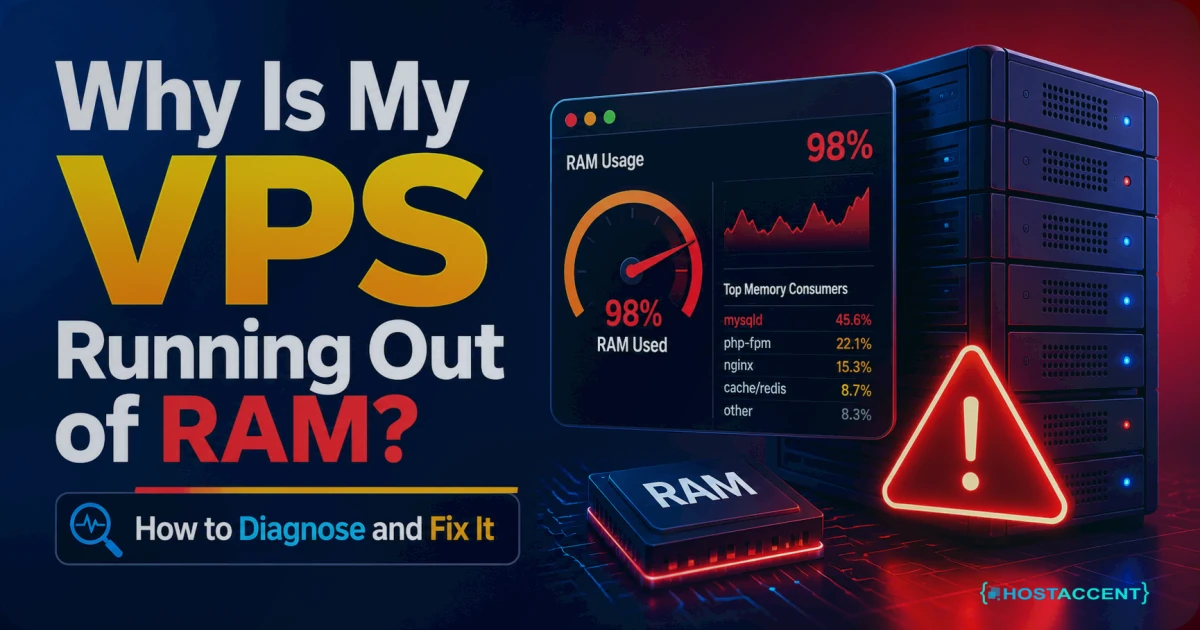
A VPS running out of RAM is one of the most common — and most fixable — Linux server problems. Your VPS is running out of RAM. Pages are slow, you're getting 500 errors, or the server is intermittently unresponsive. The Linux kernel might have already killed a process — the OOM (Out of Memory) killer activating is a sign you've been here for a while.
Here's how to find the cause, decide whether to optimize or upgrade, and fix it properly.
Step 1: Check what's actually using memory
Don't guess. Check the numbers first.
bashfree -h
Sample output:
bashtotal used free shared buff/cache available Mem: 3.9G 3.7G 200M 100M 500M 100M
available is the key number — that's memory the OS can give to new processes. If available is under 200MB on a 4GB VPS, you're operating too close to the limit.
bash# Top 10 processes by memory usage ps aux --sort=-%mem | head -12
This shows you exactly which processes are consuming the most memory. Common offenders: MySQL/MariaDB, PHP-FPM workers, Java-based applications, log aggregation tools.
bash# Real-time view top # Press 'M' to sort by memory
bash# Check if OOM killer has fired: sudo dmesg | grep -i "killed process" sudo grep -i "out of memory" /var/log/syslog
If you see OOM killer entries, processes have already been killed when memory ran out. MySQL being killed is particularly bad — it can cause database corruption. If it won't restart afterward, see can't connect to MySQL server on localhost.
Common cause 1: MySQL buffer pool too large
MySQL's InnoDB buffer pool is the single biggest RAM consumer on most WordPress/web hosting setups. It's configured to cache database tables in memory for faster queries. By default, MySQL sets this to 128MB — but some configurations set it to 70–80% of total RAM, which leaves very little for PHP-FPM and the OS.
Check current setting:
bashmysql -u root -p -e "SHOW VARIABLES LIKE 'innodb_buffer_pool_size';"
If it returns 2GB+ on a 4GB VPS where MySQL is sharing the server with Nginx and PHP-FPM, you've found your problem.
Fix — edit /etc/mysql/mysql.conf.d/mysqld.cnf:
ini# For 4GB VPS running MySQL + PHP-FPM + Nginx + Redis: innodb_buffer_pool_size = 768M # For dedicated database server (4GB, no other services): innodb_buffer_pool_size = 2G
Rule of thumb: MySQL buffer pool should be 30–40% of total RAM on a shared-use server. 50–70% if MySQL is the only major service.
bashsudo systemctl restart mysql
Common cause 2: Too many PHP-FPM workers
Each PHP-FPM worker uses 50–120MB of RAM (more for complex WordPress sites with many plugins). If you've set pm.max_children = 50 on a 4GB VPS, PHP-FPM alone can consume 2.5–6GB.
Check current PHP worker memory:
bashps aux | grep php-fpm | awk '{sum += $6} END {print sum/1024 "MB total"}'
This shows total memory used by all PHP-FPM workers currently running.
Check your PHP-FPM config:
bashsudo cat /etc/php/8.3/fpm/pool.d/www.conf | grep "pm\."
Fix — size workers based on available RAM:
ini# Sizing formula: (Available RAM for PHP) / (Memory per worker) # Example: 2GB available / 100MB per worker = 20 max_children pm = dynamic pm.max_children = 20 # Adjust based on your RAM pm.start_servers = 5 pm.min_spare_servers = 5 pm.max_spare_servers = 10 pm.max_requests = 500 # Restart workers periodically to clear memory leaks
bashsudo systemctl restart php8.3-fpm
After restarting, run the ps aux check again to verify total PHP-FPM memory is now within budget.
Common cause 3: Memory leak in a PHP application
WordPress and its plugins can have memory leaks — code that allocates memory and doesn't release it. Over time, PHP-FPM workers grow in memory usage until they consume gigabytes.
Signs: Memory usage creeps up over hours or days and doesn't come back down even when traffic decreases.
Fix: Set pm.max_requests in PHP-FPM config (example above). This restarts PHP workers after N requests, clearing any accumulated memory. 500 requests per worker is a reasonable default.
For WordPress specifically, investigate which plugin is leaking:
bash# Monitor memory via WordPress (add to functions.php temporarily): add_action('shutdown', function() { error_log('Peak memory: ' . memory_get_peak_usage(true) / 1024 / 1024 . 'MB'); });
Check /var/log/php8.3-fpm.log for which pages consume the most memory.
Common cause 4: Redis or Memcached consuming too much
Redis is memory-based by default — it'll use as much as you give it without evicting old data unless configured with a max memory limit.
Check Redis memory:
bashredis-cli info memory | grep used_memory_human
Set a memory limit in /etc/redis/redis.conf:
confmaxmemory 512mb maxmemory-policy allkeys-lru
allkeys-lru evicts least-recently-used keys when the limit is reached, which is the right behavior for an object cache.
bashsudo systemctl restart redis
Common cause 5: Log files consuming memory via log aggregation
If you're running centralized logging (Elasticsearch, Logstash, Graylog, or even heavy rsyslog configurations), these can consume significant RAM. Check if any logging services are running:
bashps aux | grep -E "elastic|logstash|graylog|fluentd"
For a production VPS without dedicated logging infrastructure, disable heavy log aggregation and use lightweight file-based logging instead.
The RAM budget model
On a 4GB VPS running a typical LEMP + WordPress stack, RAM should be allocated roughly like this:
| Service | Allocation | |---------|-----------| | OS + system processes | ~400MB | | Nginx | ~50–100MB | | MySQL (buffer pool) | ~1GB | | PHP-FPM (10–15 workers) | ~1–1.5GB | | Redis | ~256–512MB | | Headroom for spikes | ~500MB |
Total: ~3.2–3.5GB of the 4GB. The remaining 500MB–800MB is headroom for traffic spikes and background processes. If your actual usage exceeds this model, you need to either reduce allocations or upgrade RAM.
Should you optimize or upgrade?
Optimize first if:
- You haven't tuned MySQL buffer pool, PHP-FPM workers, and Redis limits yet
- You've never set
pm.max_requests(memory leak prevention) - Your configuration was done by default install, not deliberate sizing
Upgrade if:
- You've applied all the above fixes and still hit memory limits
- Your traffic is genuinely growing (more concurrent PHP workers needed)
- Your database has grown significantly (needs more buffer pool to be effective)
The honest test: after optimization, what's your available memory during peak traffic? Under 300MB consistently = you need more RAM. 500MB+ headroom = you're fine.
HostAccent VPS plans scale from entry-level to high-RAM configurations — and if your current VPS is the wrong size, our support can help you identify the right tier before you over- or under-buy.









Discussion
Have a question or tip about this topic? Share it below — your comment will appear after review.