

Quick answer: A WordPress dashboard not loading is almost always a plugin conflict, a theme fault, or an exhausted PHP memory limit, not a dead site. The fastest fix is to deactivate every plugin by renaming the /wp-content/plugins folder over FTP or cPanel, then reload wp-admin. As of July 2026, those three causes explain the large majority of admin lockouts we see.
You type your domain, add /wp-admin, hit Enter, and nothing happens. A blank white screen. Or an endless spinner. Or you log in fine and the dashboard sits there half-built, menus dead and widgets missing. Meanwhile your public homepage loads for visitors like nothing is wrong. That gap is what makes this so unnerving: you're locked out of your own house while the lights are still on inside.
Here is the reassuring part. In our experience, this is one of the most fixable problems in WordPress, and you almost never touch your posts or database to solve it. On a well-run managed stack, the kind Hostaccent runs for its WordPress clients, this class of lockout traces back to one of eight causes. Our team resolves 20 to 30 site issues like this every day, and the steps below are the exact ones we run, written so you can do them yourself without waiting on anyone.
What "WordPress Dashboard Not Loading" Actually Means
The admin area is heavier than your front end. It loads more plugins, more scripts, and more database queries on every request, which is why the dashboard can fail while your public pages stay perfectly fine. Nine times in ten, a dashboard that won't render is a symptom of a hidden PHP error, a plugin or theme conflict, or a memory ceiling, not corrupted content. Spot the symptom first and you roughly halve your fix time.
Before you edit a single file, run what our team calls the 3-Layer Lockout Check. Layer one: is it just your browser? Layer two: is it WordPress itself, meaning a plugin, a theme, or memory? Layer three: is it the server? Answering those three in order stops you rebuilding core files when the real culprit was a cached stylesheet.
Match your exact symptom to its most likely cause here:
| Symptom | Most likely cause | Try this fix first | |---|---|---| | Blank white screen at /wp-admin | PHP fatal error, plugin conflict, low memory | Deactivate all plugins (Fix 1) | | wp-admin spinning forever, never loads | JavaScript conflict, browser extension, failing asset | 60-second checks, then Fix 2 | | Dashboard loads but half-built or unstyled | Broken admin CSS/JS, stale cache, low memory | Clear cache, then Fix 3 | | Keeps redirecting back to the login page | Cookie or session issue, or site URL mismatch | Fix 6 | | 500 Internal Server Error | Server-side PHP error, bad .htaccess, memory | Fix 4, then Fix 3 | | "You do not have permission to access this page" | User-role corruption or plugin override | Fix 1, then Fix 7 |
Ranked by how often they actually cause this, plugin conflicts lead by a wide margin, followed by theme faults and PHP memory exhaustion. Plugins top the list because so many auto-update overnight, and a single incompatible release can throw a fatal error the moment the admin loads it. After those come a corrupted .htaccess file, a failed core update, browser or cache problems, a WordPress address mismatch, and finally database or file-permission errors. If your screen shows a full 500 Internal Server Error WordPress: Fix It Fast (2026) instead of a blank page, start there, since the server is already handing you a clue. WordPress keeps a plain-language list of these failure states in its official common WordPress errors guide, worth a glance if your exact symptom isn't in the table above.
The 60-Second Checks to Run Before You Touch Any Files
Start with the changes that carry zero risk. A large share of "dashboard won't load" reports are not server problems at all, they are a stale browser cache or an extension blocking a script the admin needs. These checks take about a minute and can save you an hour of file editing, so don't skip them just because they feel too simple.
Open wp-admin in a private or incognito window first. If it loads there, the issue is your browser, so clear your cache and cookies and disable ad blockers or privacy extensions one at a time. Next, try a different browser, or a phone on mobile data rather than your home Wi-Fi. If wp-admin not loading follows you across every device and network, the problem is server-side, and you move on to the real fixes. Finally, check whether it's host-wide: if you run a second site on the same account and both dashboards are down, or your pages feel sluggish, the server itself may be struggling, which our WordPress Site Slow: Complete Diagnosis and Fix Guide (2026) walks through in detail.
Pro Tip: Open the dashboard in incognito before anything else. It loads with no extensions and no old cookies, so if the admin appears there, your fix is a cache clear, not a server change. That one check closes a surprising share of dashboard tickets in under a minute, and it costs you nothing if it fails.
If the whole site, front end included, is crawling, a slow server response is the likely root, and pushing your host on time-to-first-byte (see How to Fix High TTFB in WordPress (2026 Guide)) matters more than any plugin tweak.
The 8 Fixes That Actually Work, Ordered by How Often They Solve It
Work these in order. The list runs from the most common cause to the rarest, so most readers are back in the dashboard within the first three. Every fix below has been used on live sites, and none of them touch your published content. As of 2026, Fixes 1 through 3 resolve the clear majority of cases we handle.
Do I need FTP for this, or can I do it all from cPanel?
Either works. Everything here needs file access, and you get that two ways: an FTP client like FileZilla, or your host's control panel File Manager (in cPanel, Plesk, or a custom dashboard). File Manager is usually faster for a single quick edit because there's nothing to install. FTP is better when you're changing several files. Whichever you pick, copy any file before you edit it, so a mistake is a paste-back and not a crisis.
Fix 1: Deactivate Every Plugin Without Dashboard Access
Since a plugin conflict is the top cause, rule it out first. Open your files over FTP or File Manager, go to /wp-content/, and rename the folder "plugins" to "plugins_off". Reload wp-admin. If the dashboard returns, a plugin was the culprit. Rename the folder back to "plugins" (that reactivates nothing yet), then switch plugins on one at a time until the dashboard breaks again. That last one is your problem. If you have WP-CLI, wp plugin deactivate --all does the same thing in one line, documented in the official WP-CLI plugin command reference.
Fix 2: Switch to a Default Theme
If plugins are innocent, suspect the theme. In /wp-content/themes/, rename your active theme's folder. WordPress can't find it, so it falls back to a default theme like Twenty Twenty-Four. Reload the dashboard. If it works, your theme, or a recent theme update, was breaking the admin. Restore the folder and either roll back to the previous version or contact the theme developer. Custom code dropped into a child theme's functions.php is a frequent offender here, so check there too.
Fix 3: Raise the PHP Memory Limit
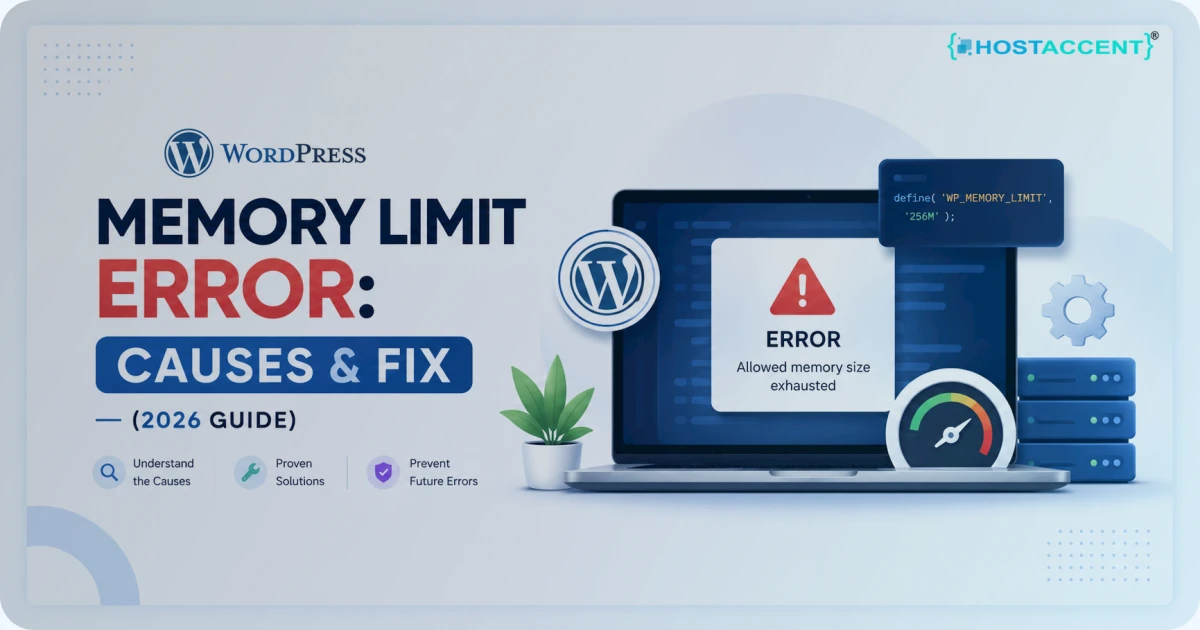
The admin needs more memory than the front end, and a low ceiling shows up as a blank WordPress admin page or a frozen load. Edit wp-config.php and add this line just above the comment that says "That's all, stop editing":
bashdefine('WP_MEMORY_LIMIT', '256M');
Reload the dashboard. If it recovers, memory was the wall. Some plugin-heavy sites need 512M. Anything as low as 32M is far too little for a modern install. If the change does nothing, your host may cap memory at the server level in php.ini or a .user.ini file (the memory_limit directive is covered in the PHP core configuration manual), so ask them to lift it.
Fix 4: Reset a Corrupted .htaccess File
A broken .htaccess can scramble admin requests while leaving the front end alone. In your site root, rename .htaccess to .htaccess_old, then reload wp-admin. If it loads, the old file was the problem. Log in, open Settings, then Permalinks, and click Save Changes without altering anything. That regenerates a clean default .htaccess for you automatically, no manual editing required.
Fix 5: Turn On Debug Logging and Use Recovery Mode
When the screen is blank with no message, your host is hiding the PHP error. Switch logging on in wp-config.php:
bashdefine('WP_DEBUG', true); define('WP_DEBUG_LOG', true); define('WP_DEBUG_DISPLAY', false);
Reload wp-admin, then open /wp-content/debug.log to read the exact file and line that failed. That single line usually names the guilty plugin or theme. WordPress also emails a recovery-mode link to your admin address when a fatal error hits, which lets you log in and disable the broken component from a safe screen. The full process is in the WordPress debugging documentation.
Live site and no time to experiment? Editing wp-config.php and reading server logs is where one small typo can turn a single broken screen into two. Our engineers fix this exact lockout for a small one-time fee, and you'll see the precise quote before anyone touches a file. Hosted with Hostaccent? Then a stuck dashboard is simply covered by support, at no extra cost. Have an engineer fix it
Fix 6: Fix a WordPress Address (URL) Mismatch
If wp-admin keeps bouncing you back to the login page or redirects to the wrong domain, your saved site URLs are likely wrong. Add these two lines to wp-config.php, using your real domain:
bashdefine('WP_HOME', 'https://yourdomain.com'); define('WP_SITEURL', 'https://yourdomain.com');
That overrides the values stored in the database. If you'd rather fix the source, open phpMyAdmin, find the wp_options table, and correct the siteurl and home rows to match your live domain.
Fix 7: Repair the WordPress Database
A database table can corrupt after a crash or a bad update, leaving the dashboard stuck loading or throwing partial errors. Add this to wp-config.php:
bashdefine('WP_ALLOW_REPAIR', true);
Now visit yourdomain.com/wp-admin/maint/repair.php and run the repair. When it finishes, delete that line from wp-config.php immediately, because leaving it live is a security hole (the repair page is reachable without logging in). phpMyAdmin's "Repair table" option under the Databases section does the same job if you prefer working there.
Fix 8: Re-upload Fresh wp-admin and wp-includes Files
If nothing else works, a core file may be damaged, often after a failed update or a malware clean-up. Download the matching WordPress version from wordpress.org, then over FTP overwrite only the wp-admin and wp-includes folders with the fresh copies. Never touch wp-content, since that holds your themes, plugins, and uploads. This repairs the admin engine without affecting a single post.
How to Confirm the Fix Held and Stop It Coming Back
Confirm before you celebrate. Hard-refresh the dashboard, then load it once in incognito to rule out a cached success that isn't real. Open /wp-content/debug.log and check it's no longer filling with fresh errors. Then undo anything temporary: remove the WP_ALLOW_REPAIR line, and once you're stable, set WP_DEBUG back to false so you're not logging on a production site and quietly bloating disk usage.
Prevention is mostly discipline. Keep real memory headroom, since 256M is a sane floor for a plugin-heavy site. Run a current PHP version, 8.1 or newer, because old branches drop security support and misbehave with modern plugins. Update one plugin at a time rather than clicking "update all", and test big changes on a staging copy before they reach your live site. Automated daily backups turn any future lockout into a rollback instead of a rescue, which is the single cheapest insurance you can buy.
Insider Insight: The plugin that broke your dashboard today is often one that auto-updated last week, not one you installed today. In the cases we see, "it was working yesterday" almost always means an overnight update slipped through. Turn on nightly backups and staging, and a two-hour panic becomes a two-minute restore. That's the habit that separates sites that break once from sites that break every month.
If your admin loads but drags, the deeper cause is usually hosting performance rather than WordPress itself, which our guide on Core Web Vitals Failing? Your Hosting Might Be the Problem unpacks with real numbers.
Why This Keeps Happening on Underpowered Hosting
Here's the honest part most guides skip. On a cheap, oversold shared plan, PHP memory is often capped low (sometimes 64M or 128M), CPU is throttled at peak, and there's no staging environment and no one-click rollback. So the same lockout returns every time a plugin updates, because the environment never had the headroom to absorb it. The fix is not always in your files. Sometimes it's the plan underneath them, especially when a host packs too many accounts onto one machine.
From the ticket queue: According to Hostaccent's own support-queue data (July 2026), WordPress issues make up about 30% of the tickets we handle each month, and admin-dashboard lockouts sit near the top of that share. The pattern barely changes: low memory ceilings and unmanaged plugin auto-updates on underpowered plans.
A properly managed WordPress environment sets sane memory defaults, runs current PHP, keeps automatic backups and staging on hand, and puts your site on NVMe SSD storage so the admin loads fast even under load. As a host trading since 2012 and UK-incorporated in 2018, we've cleaned up enough of these to know the fix that lasts is rarely another line in wp-config. In the 20 to 30 site problems our team clears daily, the ones that recur almost always live on plans with a hard memory cap below 128M. If you're weighing a move, our rundown of the Best Hosting for High Traffic WordPress Sites in 2026 covers which specs actually matter.
Your Next Move: Back In, or Still Locked Out?
Now that you know a WordPress dashboard not loading is usually a plugin, a theme, or a memory ceiling and not a lost site, the last question is where your site lives. If you fixed it yourself, turn on backups and give WordPress real memory headroom so it doesn't repeat. On a properly managed home, this whole class of problem becomes support's job, not yours, which is what Hostaccent's managed plans are built around. You can move to Managed WordPress Hosting from $22.99/yr on the Basic WordPress plan, backed by a 30-day money-back guarantee, or start lighter on Shared Hosting at Economy $1.99/mo if you run a single small site. Still locked out and out of time? Open a repair ticket and you'll get the exact quote before any work begins.
Frequently Asked Questions About WordPress Dashboard Not Loading
Why is my WordPress dashboard not loading but the site works fine?
Because the admin area runs far more code than your front end. Every wp-admin request loads more plugins, scripts, and database queries, so a plugin conflict, a theme fault, or a low PHP memory limit can crash the dashboard while your public pages, which are lighter and often cached, keep serving normally. That split is normal and usually points to a hidden PHP error rather than a broken or hacked website.
Can a plugin cause the WordPress dashboard to go blank?
Yes, and it's the single most common cause. A poorly coded or incompatible plugin, especially one that just auto-updated, can trigger a PHP fatal error that leaves the admin blank. Deactivate every plugin by renaming the /wp-content/plugins folder over FTP or File Manager, then reload wp-admin. If it returns, switch plugins back on one at a time to find the exact one breaking your dashboard, then update, replace, or remove it.
Why is wp-admin spinning forever and never finishing?
An endless spinner usually means a browser or asset problem rather than a server crash. A JavaScript conflict between two plugins, a browser extension like an ad blocker, or a stylesheet that fails to load can all leave wp-admin spinning forever. Test in an incognito window first, clear your cache, and disable extensions. If it still hangs everywhere, deactivate plugins and switch to a default theme to isolate the conflict.
How do I increase the PHP memory limit if I can't reach the dashboard?
Edit wp-config.php through FTP or your host's File Manager and add define('WP_MEMORY_LIMIT', '256M'); just above the "stop editing" comment. Save and reload the admin. If nothing changes, your host may cap memory at the server level, in which case you'll need it raised in php.ini or a .user.ini file. If you're unsure of your current ceiling, Hostaccent's support team can confirm it in about a minute.
Will fixing a blank WordPress admin page delete my content or posts?
No. Every fix in this guide touches plugins, themes, configuration, or core engine files, never your content. Your posts, pages, and media live in the database and the wp-content/uploads folder, which none of these steps modify. Even re-uploading fresh wp-admin and wp-includes leaves wp-content untouched. That said, always take a quick backup before editing wp-config.php or the database, so a slip is a restore and not a rebuild.
Should I reinstall WordPress if the dashboard won't load?
Almost never, and not as a first move. A full reinstall risks your data and rarely fixes the real cause. Instead, re-upload only fresh wp-admin and wp-includes files, which repairs a corrupted core without a full wipe. Work through the plugin, theme, memory, and database fixes first, since one of them resolves the vast majority of cases. Reserve any full reinstall for a genuine last resort, after a complete backup.


Discussion
Have a question or tip about this topic? Share it below — your comment will appear after review.