
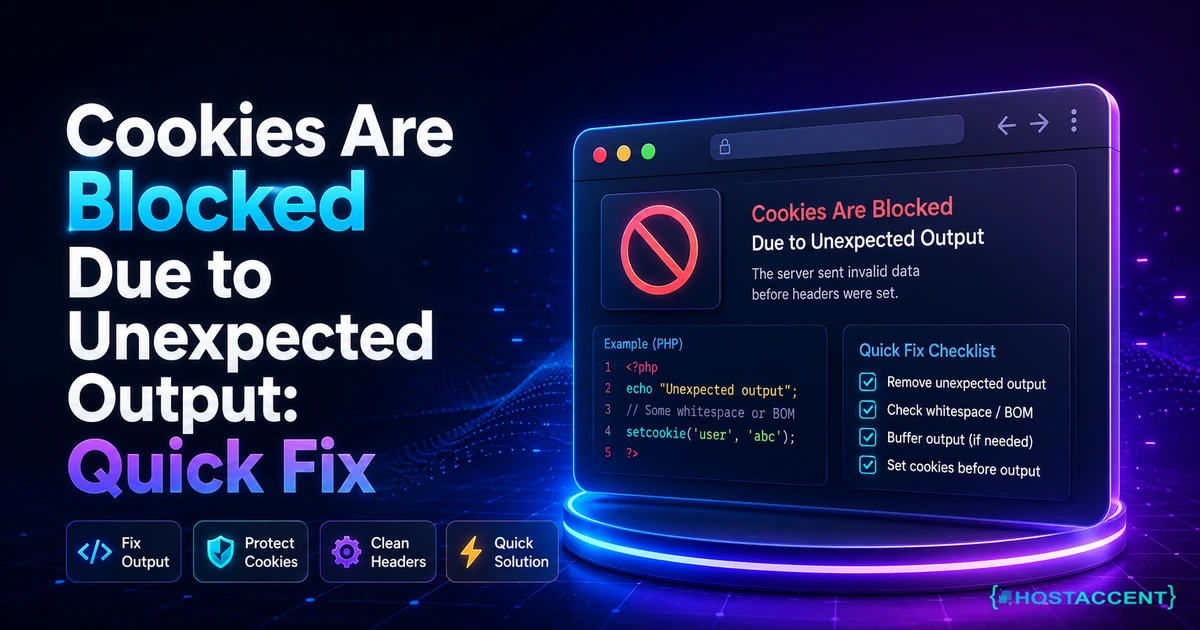
You went to log in, entered your password, and WordPress threw you straight back with a red banner reading "Cookies are blocked due to unexpected output." Your browser is fine. Your cookies are fine. This is a WordPress error, and it almost always means a single stray character in one of your PHP files is printing to the screen before WordPress can set your login cookie.
That sounds alarming when you're locked out of your own site. It isn't. Most of the time the fix takes under five minutes once you know where to look.
Quick answer: The "cookies are blocked due to unexpected output" error appears when something prints to the browser before WordPress can set its login cookie. As of 2026, the most common trigger is a blank line or a trailing newline after
?>in your wp-config.php file. A single space, or a hidden 3-byte BOM, is enough to break login. Remove it, clear your site cookies, and log back in.
This guide walks the fix in the exact order our own engineers use on live customer sites. We resolve 20-30 client issues every day, and a login lockout like this is a weekly regular in the queue, so the steps below are the real triage, not textbook theory. Action first, explanation after.
The Fastest Fix: Clean Up wp-config.php First
Start here, because this one file is behind the error more often than everything else combined. Open wp-config.php over SFTP or your host's file manager (you're locked out of wp-admin, so the built-in editor is off the table). Look at the very top and the very bottom of the file.
At the top, there must be nothing before <?php. Not a space, not a blank line, not an invisible character. Any whitespace before the PHP tag counts as output. At the bottom, if the file ends with a closing ?> tag, check for any blank line or space after it. That trailing whitespace is the classic culprit.
The safest move: delete the closing ?> from wp-config.php entirely. PHP does not need it, and removing it means no trailing character can ever leak output again. Save the file, clear your browser's cookies for the site, and reload wp-login.php.
On a stack like Hostaccent's, where Cloudflare sits in front of Nginx and Apache, this specific error string points at file output rather than the network layer, which is exactly why we open wp-config.php before we ever look at the cache or the CDN.
Why does one space matter this much? Because login cookies are sent as HTTP headers, and headers must go before any page body. The moment PHP prints even a single byte, headers are locked and the PHP setcookie() function silently fails. WordPress spots the failure and shows the cookie error instead of logging you in.
Pro Tip: Never edit wp-config.php in Notepad or a rich text editor. Both can inject a hidden Byte Order Mark (the 3-byte sequence EF BB BF) at the very start of the file, and that BOM counts as output. Use a code editor like VS Code, Notepad++, or your host's file manager, and save as UTF-8 without BOM.
If cleaning wp-config.php gets you back in, you're done. If the banner is still there, the stray output is coming from somewhere else, and the next sections track it down. A related lockout worth bookmarking if you ever meet it is the 500 Internal Server Error WordPress: Fix It Fast (2026) guide, since the two share a root cause: broken PHP execution.
What "Cookies Are Blocked Due to Unexpected Output" Actually Means
The mechanism fits in one paragraph. WordPress sets a small test cookie when it loads the login page, then checks for it when you submit. To set that cookie, PHP writes an HTTP header, and headers can only be sent before any visible output. If your theme, a plugin, or wp-config.php prints even one character first, the header is refused, the cookie never lands, and WordPress reports that cookies are blocked due to unexpected output.
There's a detail almost every other guide skips, and it's the fastest diagnostic you have. WordPress shows two different cookie messages, and they mean different things:
- "Cookies are blocked due to unexpected output" fires specifically when PHP's headers_sent() function returns true, meaning output already left the server. This points straight at a file printing something early.
- "Cookies blocked or not supported by your browser" fires when the test cookie simply didn't come back, which points more often at caching, a security plugin, or an SSL or COOKIE_DOMAIN mismatch.
Knowing which message you have tells you where to look. The "unexpected output" wording is WordPress saying, in effect, "I caught output before I could set the cookie." That's a server-file problem, not a browser problem, and no amount of clearing cookies or switching browsers will fix it while the file is still leaking a character.
Is this the same as "cookies blocked or not supported"?
Not quite, and the difference saves you an hour. If you see the "not supported" version instead, the cookies blocked or not supported WordPress message usually points at a caching layer serving wp-login.php from cache, or a plugin rewriting the login flow. For the exact "unexpected output" text, stay on the file hunt below. Mixing up the two is the single most common reason people apply the wrong fix and stay locked out.
The Real Causes, Ranked by How Often We See Them
Every fix below targets a specific source of premature output. In the tickets we handle, they show up in a consistent order, so work them top to bottom.
- Trailing whitespace in wp-config.php. A blank line or space after
?>. By far the most frequent, and the first thing to rule out. - A BOM at the start of a PHP file. Usually wp-config.php or the active theme's functions.php, added by editing in the wrong tool.
- Theme functions.php output. An echo, a stray closing
?>with whitespace, or HTML sitting outside a function. This is where the unexpected output error in wp-config isn't the cause, so you move to the theme. - A plugin printing early. Debug prints, notices, or a poorly coded plugin that echoes before headers.
- PHP warnings shown on screen. If display_errors is on and a plugin throws a deprecation notice, that notice is output too.
From the Ticket Queue: According to Hostaccent's support-queue data for 2026, WordPress issues make up about 30% of the tickets we open, and SSL or configuration mismatches account for roughly another 20%. Login lockouts from premature output sit inside that WordPress slice, and across the 4,000+ site migrations we've handled since 2012, a trailing newline in wp-config.php is the cause we confirm most often for this exact error.
Notice what's missing from the top of that list: your browser. The error names cookies, so people clear cookies, switch browsers, and disable extensions for an hour. Useful for the "not supported" variant, close to useless for this one. The official WordPress documentation treats these login failures as server-side for good reason.
There's one honest exception. If several people on different devices hit the error at once, and you recently changed hosts or turned on a CDN, a caching rule may be serving the login page from cache. That's rare for the "unexpected output" text specifically, but it happens, and it's worth a glance if the file hunt comes up empty. If your wider symptom is slowness rather than lockout, the WordPress Site Slow: Complete Diagnosis and Fix Guide (2026) covers that path instead.
Step-by-Step: The 3-File Sweep to Find the Stray Output
When wp-config.php is clean and you're still locked out, run what we call the 3-File Sweep. It's the exact order our engineers check, and it finds the leak in three moves instead of randomly disabling things.
Move 1: wp-config.php, properly this time. Open it in a hex-aware editor if you can. Look at byte zero for the sequence EF BB BF (a BOM). Confirm nothing sits before <?php. Delete the closing ?> if it's there. You've likely done this already, but do it with a real editor, not a preview pane.
Move 2: the active theme's functions.php. Rename your active theme's folder over SFTP (for example, change twentytwentyfour to twentytwentyfour-off). WordPress falls back to a default theme automatically. Try logging in. If it works, the output was in your theme, almost always a blank line after the closing ?> in functions.php or in a file it includes. Fix the whitespace, then rename the folder back.
Move 3: mu-plugins, then plugins. Rename wp-content/mu-plugins to mu-plugins-off and retry. If still stuck, rename wp-content/plugins to plugins-off, which deactivates every plugin at once. Log in. If that clears it, restore the folder and reactivate plugins one at a time until the error returns. The last one you switched on is your culprit.
Live site and no time to experiment? Our engineers fix this exact error for a small one-time fee, and you'll see the exact quote before we touch a single file. Hosted with Hostaccent? Then a lockout like this is simply covered by support, at no extra cost. Have an engineer fix it and keep working while we sort the file.
The part nobody explains: you can confirm the exact file and line before you start renaming anything. Turn on logging by adding these lines to wp-config.php (above the "stop editing" comment):
bashdefine( 'WP_DEBUG', true ); define( 'WP_DEBUG_LOG', true ); define( 'WP_DEBUG_DISPLAY', false );
With WP_DEBUG_DISPLAY set to false, warnings go to wp-content/debug.log instead of the screen. (Printing them to the screen would cause the very output problem you're chasing.) Reload the login page, open debug.log, and look for a "headers already sent by" line. It names the file and line number of the leak. That one line turns a 30-minute hunt into a 30-second fix.
Insider Insight: Set WP_DEBUG_DISPLAY to false every time you debug a cookie or headers error. Displaying errors on screen is itself output, so leaving it on can mask, or even worsen, the lockout you're trying to diagnose.
Confirm the Fix and Stop It Coming Back
Once you're back in, verify properly instead of assuming. Log out fully, clear your site cookies, and log in again in a private window. If the dashboard loads with no banner, the leak is gone. For a deeper check, open your browser's developer tools, go to the Network tab, submit the login, and confirm the response includes a Set-Cookie header for wordpress_test_cookie. If that header is present, the cookie is setting correctly and your WordPress login cookies are no longer blocked.
Prevention is mostly editing discipline. Three habits stop this error cold:
- Drop the closing
?>tag from wp-config.php and functions.php. No closing tag means no trailing whitespace can ever leak. This is standard practice in the PHP world for exactly this reason. - Always save PHP files as UTF-8 without BOM. Set it once in your editor and forget it.-US/docs/Web/HTTP/Guides/Using_HTTP_cookies), you'll see why one early byte breaks the whole exchange.
- Keep a backup before you edit. A dated backup turns a bad save into a 60-second restore instead of a crisis.
Pro Tip: Add an
.editorconfigfile to your project withinsert_final_newline = falsefor wp-config.php, or simply keep the closing tag deleted. On the sites we manage, removing the closing?>is the single change that stops this error from ever recurring.
A well-run host also lowers your exposure here. Automated daily backups, staging environments to test plugin changes, and NVMe SSD storage with a sane PHP configuration mean risky edits happen off the live site. If email delivery becomes your next headache after login, the WordPress Emails Going to Spam? Here's the Actual Fix guide is the companion piece most site owners need. And if uptime and performance feel shaky in general, Core Web Vitals Failing? Your Hosting Might Be the Problem and How to Fix High TTFB in WordPress (2026 Guide) are both worth the read.
Fixed It, or Still Locked Out? Your Two Paths
Path A: you cleared the whitespace, the "cookies are blocked due to unexpected output" banner is gone, and you're back in. Before you close the tab, delete that closing ?> from wp-config.php so it can't happen again. Then ask whether chasing stray PHP output at 2am is really your job. On a managed platform, it's support's. Managed WordPress Hosting starts at $1.99/mo with a 99.9% uptime guarantee, daily backups, and engineers who fix exactly this. That's the standard at Hostaccent, backed by a 30-day money-back guarantee. It suits single sites and growing stores; a larger plan fits better for ten-client agency setups.
Path B: still staring at the banner? Don't keep guessing on a live site. Open a ticket and an engineer will locate the stray byte for you, with the exact quote shown before any work begins.
Frequently Asked Questions About Cookies Blocked by Unexpected Output
What does "cookies are blocked due to unexpected output" actually mean?
It means WordPress tried to set your login cookie but something printed to the browser first. Cookies are delivered as HTTP headers, and headers must be sent before any page content. When a file leaks even one character, usually whitespace in wp-config.php or a theme file, the header is refused and the cookie never sets. WordPress detects this with PHP's headers_sent() check and shows the error instead of logging you in. The fix is finding and removing that stray output.
Can a plugin cause this error even if I never edited any files?
Yes. A plugin can print output before WordPress sets cookies, through debug statements, PHP notices, or HTML placed outside a function. This often appears right after you activate or update a plugin. To test it, rename your wp-content/plugins folder over SFTP to deactivate everything at once, then log in. If the error clears, restore the folder and reactivate plugins one by one until it returns. The last plugin you switched on is the source, so update or replace it.
How do I edit wp-config.php if I'm completely locked out of wp-admin?
You edit it outside WordPress entirely. Connect over SFTP with a client like FileZilla, or use the file manager in your hosting control panel, both of which work without a WordPress login. Download wp-config.php, fix the whitespace or BOM, and upload it back. Good hosts like Hostaccent give you SFTP and file-manager access straight from the billing dashboard, so a lockout never blocks you from the one file you need. Always keep a copy of the original before you change anything.
Is this error caused by my browser or my cookies?
Almost never, despite the wording. The "unexpected output" variant is a server-side problem: a PHP file is sending output before the cookie header. Clearing browser cookies, switching browsers, or disabling extensions rarely helps here. Those steps do matter for the separate "cookies blocked or not supported" message, which can involve caching or SSL settings. So if your exact error mentions unexpected output, skip the browser troubleshooting and go straight to your PHP files, starting with wp-config.php.
Will deleting the closing PHP tag from wp-config.php break my site?
No, and it's actually recommended. PHP does not require a closing ?> tag at the end of a file that contains only PHP. Removing it is a well-established best practice precisely because it stops trailing whitespace or newlines from leaking output after your code ends. WordPress core files ship without a closing tag for this reason. Delete it from wp-config.php and functions.php, save as UTF-8 without BOM, and you remove the most common cause of this login error for good.
What's the difference between "unexpected output" and "cookies blocked or not supported"?
They point to different problems. "Unexpected output" means PHP already sent output when WordPress tried to set the cookie, so you hunt for a leaking file. "Cookies blocked or not supported" means the test cookie never came back, which usually points to a caching layer serving the login page, a security plugin, or an SSL or COOKIE_DOMAIN mismatch. Reading the exact wording first saves you from applying the wrong fix and staying locked out longer than you need to.



Discussion
Have a question or tip about this topic? Share it below — your comment will appear after review.