
You moved your site to a new host, typed /wp-admin, and hit a wall — a redirect loop, a white screen, or a login page that keeps bouncing you back. If your wp-admin not working after migration has you locked out mid-launch, take a breath. Your content is almost certainly fine. This is one of the most predictable post-move problems, and in the vast majority of cases it comes down to a handful of settings that didn't travel cleanly. Here's the fastest fix first, then every cause ranked by how often it actually happens.
Quick Answer: wp-admin usually breaks after a migration because WordPress's saved site address still points to the old server, which triggers redirect loops or login failures. The fastest fix is to override it in
wp-config.php— adddefine('WP_HOME','https://yourdomain.com');anddefine('WP_SITEURL','https://yourdomain.com');above the "stop editing" line. That forces the correct address and restores dashboard access in most cases within a minute.
What wp-admin Not Working After Migration Really Means
WordPress stores its own web address in the database — two values called siteurl and home. A migration copies your files and database, but it does not copy the surrounding environment: DNS, server config, PHP version, SSL setup, and cached values are all new. The admin area is the first thing to break because it's the most redirect-sensitive and cookie-sensitive part of the site.
Here's the reassuring part: your posts, pages, images, and settings live in that database and filesystem you just copied. They're safe. A broken login screen is a routing problem, not a data-loss problem.
In the migration tickets our team handles at Hostaccent, roughly 8 out of 10 "locked out of wp-admin" cases trace back to just two things — a stale site URL and a redirect loop. Neither means anything is gone. And this pattern has held steady as of 2026, exactly as it did five years ago.
The Real Causes, Ranked by How Often We See Them
A dashboard broken after migration nearly always maps to one of these six culprits, in rough order of frequency:
- Site URL / Home URL mismatch — the stored address still points to the old domain or old server, so WordPress redirects you away from the new one.
- SSL / Cloudflare scheme mismatch — an
ERR_TOO_MANY_REDIRECTSloop that hits/wp-adminspecifically. - Broken
.htaccessor permalink rules — wp-admin throws a 404 "Not Found." - PHP version jump — the new server runs a newer PHP, and a plugin or theme fatals into a white screen.
- File permission or ownership errors — wp-admin returns a 403 Forbidden.
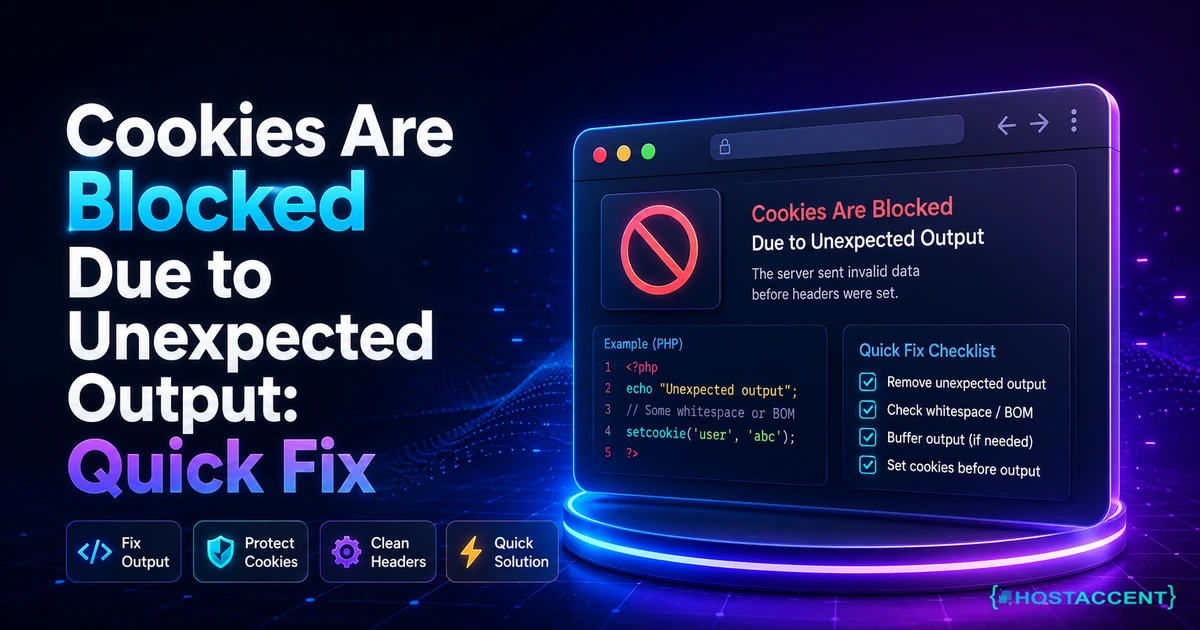
- Login cookies set for the wrong domain — the "cookies are blocked" error on the login form.
Pro Tip: Before you change a single file, note your exact symptom — a redirect back to the old domain,
ERR_TOO_MANY_REDIRECTS, a blank white page, or a 403/404. Each one points to a different cause. Matching the symptom to the right fix below saves you from editing files that were never the problem.
Fix the Site URL Mismatch (Cause #1)
This is the fix that resolves most cases, so start here. You have three ways to correct the stored address, from fastest to most thorough.
Method A — override it in wp-config.php (fastest, reversible). Connect over SFTP or your file manager, open wp-config.php in your site root (usually /public_html/wp-config.php), and add these two lines above the line that reads /* That's all, stop editing! */:
bash## Force the correct site address after migration define('WP_HOME','https://yourdomain.com'); define('WP_SITEURL','https://yourdomain.com');
Save, reload /wp-admin, and you're usually back in. These two lines outrank the database values, so they win instantly — and you can remove them later.
Method B — edit the database in phpMyAdmin. Open the wp_options table, find the siteurl and home rows, and update both to your new https://yourdomain.com. Watch your table prefix — if it isn't the default wp_, the table will be named something like xyz_options.
Method C — WP-CLI (cleanest). If you have shell access, run wp option update home 'https://yourdomain.com' and wp option update siteurl 'https://yourdomain.com'.
One gotcha that bites people: if you also changed domains in the move, old URLs are hardcoded across your posts and settings — and much of that data is serialized, so a raw SQL find-and-replace will corrupt it. Use wp search-replace 'https://old.com' 'https://new.com' or a plugin built for serialized data instead. The official WordPress guide to changing the site URL walks through every method if you want the full reference. For the wider move itself, our Move WordPress to New Host Without Downtime (Guide) covers the order of operations that avoids this entirely.
Rebuild .htaccess and Flush Permalinks
If wp-admin loads a 404 "Not Found" rather than redirecting, your rewrite rules didn't survive the move. On Apache, WordPress relies on a .htaccess file in the site root; migrations sometimes drop it or overwrite it with the old host's rules.
Once you can log in, the easy fix is Settings → Permalinks → Save Changes (you don't need to change anything — saving regenerates the file). If you can't log in yet, replace your root .htaccess with the default WordPress block:
bash## BEGIN WordPress RewriteEngine On RewriteBase / RewriteRule ^index\.php$ - [L] RewriteCond %{REQUEST_FILENAME} !-f RewriteCond %{REQUEST_FILENAME} !-d RewriteRule . /index.php [L] ## END WordPress
On our Nginx → Apache + NVMe stack, we see this most when a site moves from an Nginx-only host — there's no .htaccess to copy, and the front-controller rewrite has to be recreated in the server block (try_files $uri $uri/ /index.php?$args;). If your new host runs pure Nginx, that line lives in the server config, not a .htaccess file.
Server-Side Culprits: PHP, Permissions, Cookies, and SSL
When the site URL is correct but wp-admin still misbehaves, the environment is the suspect. Work through these by symptom.
White Screen or Fatal Error: PHP Version and Plugins
A blank white admin usually means a fatal PHP error, and after a move the trigger is almost always a version jump — say the old host ran PHP 7.4 and the new one defaults to PHP 8.2, breaking an outdated plugin. First, turn on debugging: set define('WP_DEBUG', true); in wp-config.php to see the actual error, following the WordPress debugging documentation.
To deactivate every plugin without dashboard access, rename /wp-content/plugins to /wp-content/plugins-off over SFTP, then load wp-admin. If it works, one plugin was the culprit — rename the folder back and re-enable them one at a time. You can also temporarily match your old PHP version in the control panel while you patch the offender. Check the PHP supported versions list so you're not falling back to a build that's already end-of-life. If the whole front end also shows a 500, our 500 Internal Server Error WordPress: Fix It Fast (2026) breakdown covers the same root causes.
403 Forbidden: File Permissions and Ownership
A 403 on wp-admin means the web server can't read the files — a permissions or ownership mismatch from the transfer. The correct baseline is 755 for directories, 644 for files, and 640 (or 600) for wp-config.php. Ownership also has to match the web user; files copied as root won't serve. From the site root:
bashfind . -type d -exec chmod 755 {} \; find . -type f -exec chmod 644 {} \;
Then reset ownership to your hosting user (your panel or host can confirm the exact user).
ERR_TOO_MANY_REDIRECTS: SSL and Cloudflare
If the front end loads but /wp-admin loops forever, it's almost never a WordPress bug — it's an SSL scheme mismatch. The classic cause is Cloudflare set to Flexible SSL while your WP_HOME uses https://: Cloudflare talks to your origin over HTTP, WordPress forces HTTPS, and they bounce the request back and forth. Set your encryption mode to Full (Strict) when you have a valid certificate on the origin — the Cloudflare SSL/TLS encryption modes docs explain the difference. On Hostaccent's managed stack we standardise the origin certificate and SSL mode so this loop doesn't appear, but on a fresh manual move it's one of the first things to check.
Insider Insight: A redirect loop that hits only
/wp-adminwhile the homepage loads fine is your tell that it's an SSL-scheme problem, not a plugin. Line up three things — the origin certificate, the Cloudflare SSL mode, and thehttps://inWP_HOME— and the loop disappears.
"Cookies Are Blocked" on Login
If the login form rejects you with a cookie warning, WordPress is setting cookies for a domain that doesn't match the one you're visiting — usually a www vs non-www mismatch. Make sure the URL you type matches siteurl exactly, clear your browser cookies for the site, and try again in an incognito window.
Confirm the Fix and Prevent It From Happening Again
Once you're back in, verify cleanly. Purge every cache layer — browser, any caching plugin or object cache, and Cloudflare's "Purge Everything." Then test /wp-admin in a fresh incognito window, confirm the padlock (valid SSL), load a permalink to check rewrite rules, and try both www and non-www.
To stop a repeat on your next move, three habits prevent nearly all of it:
- Match the PHP version first, then migrate — don't discover a fatal error after DNS has switched.
- Run a proper URL search-replace with WP-CLI or a serialized-safe plugin, never raw SQL.
- Keep the old host live for 24–48 hours while DNS propagates, so a stale cache never lands you on the dead server.
Across the sites we move to Hostaccent, the migrations that go cleanly all share that discipline — version-matched, URL-corrected, old host kept warm. If the move surfaces deeper performance issues afterward, our How to Fix High TTFB in WordPress (2026 Guide) and WordPress Site Slow: Complete Diagnosis and Fix Guide (2026) pick up where this leaves off, and the Migrate Shared Hosting to Linux VPS: Practical Checklist is the pre-flight list worth running before your next big move.
Managed Hosting: When You'd Rather Not Debug This Mid-Launch
If wp-admin not working after migration is what brought you here, and you'd rather not edit wp-config.php while your launch clock is running, a managed move takes the guesswork off your plate. Hostaccent — a UK-registered host operating since 2018 with UK-based support — handles the URL correction, SSL mode, PHP matching, and permissions that cause most post-move lockouts, on a Cloudflare → Nginx → Apache stack with NVMe SSD storage. Our WordPress Hosting plans start at $1.99/yr. One honest limitation: managed hosting won't rescue a plugin that's simply abandoned and incompatible with PHP 8.2 — you'll still need to replace it — but it removes the routing headaches that lock you out in the first place.
Frequently Asked Questions
Why is wp-admin not working after migration when the rest of my site loads?
Because the front end tolerates a loose site address, but wp-admin is strict about redirects and cookies. When siteurl still points to the old server, or the SSL scheme mismatches, the homepage may render while the admin login loops or fails. Fix the stored URL first — that resolves most cases.
Can't access wp-admin after a move — is my data gone?
No. Your posts, pages, media, and settings live in the database and files you copied, not in the login screen. A blocked wp-admin is a routing or configuration issue, not data loss. Correct the site URL or SSL mode and the dashboard returns with everything intact.
How do I deactivate all plugins without dashboard access?
Connect over SFTP, rename the /wp-content/plugins folder to plugins-off, and reload wp-admin. That disables every plugin at once. If you get in, a plugin was the culprit — rename the folder back and re-enable them one by one until the fault reappears.
How do I fix the WordPress redirect loop on the login page?
A loop that only hits /wp-admin is almost always an SSL scheme mismatch. If you use Cloudflare, switch it from Flexible to Full (Strict) with a valid origin certificate, and make sure WP_HOME and WP_SITEURL both use https://. Then purge the cache.
Do I need to update the database after moving WordPress?
Only if the domain changed. If it did, run a URL search-replace from old to new using WP-CLI's wp search-replace or a serialized-safe plugin — never a raw SQL find-and-replace, which corrupts serialized data. If the domain stayed the same, correcting siteurl and home is enough.
Why does my new site keep redirecting to the old domain?
The old domain is still saved in siteurl and home, or hardcoded in content. Override both in wp-config.php with WP_HOME and WP_SITEURL, then run a search-replace to clean up any old URLs baked into posts, widgets, and theme settings.
Should I fix this myself or let a host migrate the site?
If you're comfortable editing wp-config.php and the database, the fixes above solve it in minutes. If you'd rather not risk a live-site edit mid-launch, a managed migration like Hostaccent's handles the URL, SSL, PHP, and permissions matching for you — the four things that cause most post-move lockouts.


Discussion
Have a question or tip about this topic? Share it below — your comment will appear after review.