
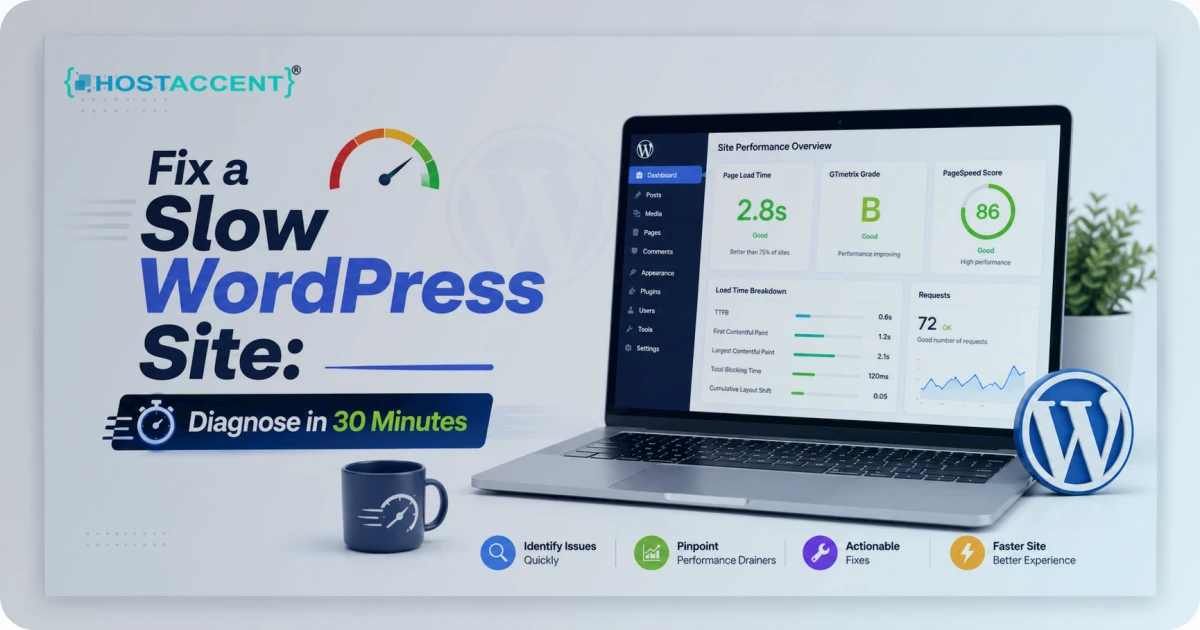
Your page is still loading. You're watching the little spinner. And somewhere out there, a visitor just hit the back button.
That's not a small problem. Google found that 53% of mobile users abandon a site that takes longer than three seconds to load, and the probability of someone bouncing jumps 32% as load time climbs from one second to three. So if you're here to fix a slow WordPress site before it costs you any more traffic, good — because the real cause is almost always one of a handful of things you can find and correct in half an hour. We've run this same diagnosis across the major shared hosts — Hostaccent, Hostinger, Bluehost, SiteGround and the rest — and the bottleneck nearly always traces back to the same short list.
This guide walks you through a real 30-minute process: find the actual problem, fix the high-impact stuff first, and figure out whether your hosting is quietly throttling everything else.
Quick Answer: How to Fix a Slow WordPress Site Fast
Most slow sites have one of five causes: a slow server response (your host), bloated images, too many plugins, no page caching, or a heavy theme. Run one speed test, read the server response time, and within five minutes you'll know whether the problem lives on your server or in your site. To fix a slow WordPress site quickly, tackle caching and images first — those two changes alone often cut load time in half.
Here's the order of operations:
- Measure first (don't guess).
- Separate server problems from site problems.
- Fix the highest-impact item.
- Re-test and confirm.
The 30-Minute Diagnosis: Stop Guessing, Start Measuring
You can't fix what you haven't measured. Before you touch a single plugin, get a baseline.
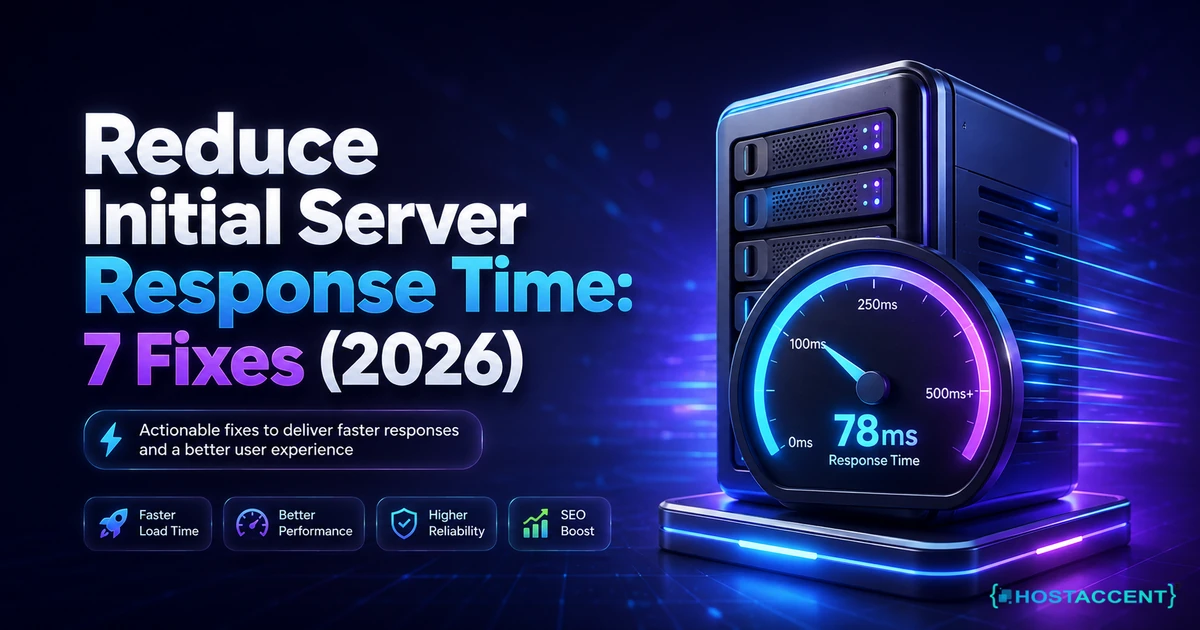
Run your homepage and one inner page through Google PageSpeed Insights. Write down three numbers: Largest Contentful Paint (LCP), Total Blocking Time, and — the one most people ignore — server response time, also called Time to First Byte (TTFB).
That TTFB number is your fork in the road.
- Under 200ms? Your server is fine. The problem is on your site.
- 200-600ms? Borderline. Worth improving, but not your only issue.
- Above 600ms? Your hosting is the bottleneck. No plugin will fully fix this.
Pro Tip: Test the same page three times, a minute apart. Shared servers fluctuate under load, and a single test can lie to you. If your TTFB swings wildly — say 300ms, then 1,400ms — that inconsistency is the diagnosis. You're sharing an overcrowded box with noisy neighbors.
Next, check your page weight. A healthy blog post should weigh under 1.5MB. If yours is 5MB, you've found a major cause right there. The Core Web Vitals guidance from web.dev explains exactly what Google measures and why each metric matters for users and rankings alike. If your scores are failing specifically because of hosting, our Core Web Vitals failing guide walks through the hosting-side fixes in detail.
Want the full, structured walkthrough of every lever? Our Website Speed Optimization Guide goes step by step. For now, keep moving — you've got 25 minutes left.
The 6 Most Common Reasons Your WordPress Site Is Slow (and Their Fixes)
WordPress powers roughly 42% of all websites, according to W3Techs — which means most slow sites share the same predictable problems. Here's what we see over and over.
1. No page caching. Without a cache, WordPress rebuilds every page from the database on every visit. Install a caching plugin (WP Super Cache, W3 Total Cache, or LiteSpeed Cache if your server supports it). This is the biggest quick win — often a 40-60% improvement. Five minutes. (One trade-off: cached copies can make your edits not show up right away — clear the cache after big changes.)
2. Unoptimized images. That 4,000-pixel hero photo straight off a phone camera is murdering your load time. Compress everything, serve modern formats like WebP, and add lazy loading. Ten minutes with a compression plugin.
3. Too many plugins (and the wrong ones). It's not the count — it's the weight. One bloated page-builder can add more drag than twenty lean plugins. Deactivate them one at a time and re-test after each. The offender usually reveals itself fast.
4. An outdated PHP version. Sites still on PHP 7.4 are leaving huge performance on the table. PHP 8.2+ can be noticeably faster. Check your version in your control panel and upgrade.
5. No CDN. If all your visitors are local, this matters less. But for global traffic, a content delivery network caches your content close to users and can shave hundreds of milliseconds off latency. Check your hosting provider's CDN options or services like Cloudflare to get set up.
6. A bloated theme. Some themes load 30 stylesheets and a dozen scripts on every page. If you've optimized everything else and you're still slow, the theme may be the weight.
Insider Insight: We ran this exact diagnosis on our own infrastructure — Cloudflare to Nginx to Apache on NVMe SSDs — and found that for typical blog content, caching plus image optimization closed about 70% of the gap before we touched anything server-side. Start there. It's free and it's fast.
Still chasing the performance bottleneck?
Share the slow pages, timing data, and recent changes. We can isolate application, database, network, and server bottlenecks before recommending work.
Is Your Hosting the Real Bottleneck? (Usually, Yes)
Here's the uncomfortable truth a lot of "speed up WordPress" guides skip: you can do everything right on-site and still be slow if your server is the problem.
Think about it. Caching, image compression, a lean theme — those all reduce how much work the browser does. But TTFB measures how fast your server even starts responding. On an overcrowded shared plan running spinning hard drives instead of NVMe SSDs, with capped CPU and an old PHP version, there's a floor you simply can't get below.
This is where a lot of WordPress performance issues actually start. We've migrated sites that scored a perfect cache hit rate and still posted a 900ms TTFB — purely because the underlying server couldn't keep up. The day they moved to faster infrastructure, that number dropped to under 150ms with zero other changes. That's the whole premise behind how we built Hostaccent's stack: get the server out of the way first, so your on-site tuning actually shows up.
Trying to decide whether you even need a specialized plan? Managed WordPress Hosting vs Shared Hosting breaks down what actually matters versus what's marketing.
Pro Tip: Before you blame your theme, look at your hosting plan's resource limits. If your I/O or CPU usage regularly hits 100% in your control panel's stats, you've outgrown your plan. No amount of on-site tuning fixes a capped server.
Hosting Compared: Speed, Price, and the Renewal Trap
When hosting is the cause, the fix is a faster plan — but the market is full of teaser pricing that quietly triples at renewal. Here's how representative entry-level shared plans stack up. (Advertised prices change often; confirm before buying.)
| Provider | Intro Price | Storage | Free SSL | Support | Renewal Price | |---|---|---|---|---|---| | Hostaccent (Economy) | $1.99/mo | 10 GB NVMe | Yes | UK-based, 24/7 | Low, transparent | | Hostinger | $2.99/mo | 25 GB | Yes | 24/7 chat | ~$8.99/mo | | Bluehost | $2.95/mo | 10 GB | Yes | 24/7 | ~$13.99/mo | | SiteGround | $3.99/mo | 10 GB | Yes | 24/7 | ~$17.99/mo | | Namecheap | $1.98/mo | 20 GB | Yes | 24/7 chat | ~$4.48/mo | | DreamHost | $2.95/mo | 50 GB | Yes | Limited hours | ~$7.99/mo | | A2 Hosting | $2.99/mo | 100 GB | Yes | 24/7 | ~$12.99/mo | | HostGator | $3.75/mo | Unmetered | Yes | 24/7 | ~$9.99/mo |
Notice the pattern. The teaser price is the bait; the renewal is where the real cost lives. A plan advertised at $2.95/mo that renews at $13.99/mo is really a $13.99 plan with a one-year discount.
The performance backbone matters more than the sticker. NVMe storage, a modern PHP version, and a properly tuned web server do far more for your load times than an extra few gigabytes of disk you'll never use.
Hidden Costs and Red Flags When Hosting Is the Problem
Cheap hosting can be a genuine bargain — or a trap. Watch for these:
- Renewal cliffs. The number-one hidden cost. Always check the renewal rate before you commit, not the intro rate.
- "Unlimited" everything. Unlimited storage and bandwidth usually means "until our fair-use policy says otherwise." Real limits exist; they're just buried.
- Paid SSL. In 2026, free SSL should be standard. If a host charges for basic SSL, walk away.
- Backup fees. Some hosts charge monthly for backups that should be included. Check before you're locked in.
- Migration fees. Moving in should be free or assisted. If you're switching because your current host is slow, you shouldn't pay to leave one trap for a better home. Our Move WordPress to a New Host guide covers doing it yourself safely.
- Throttled support. "24/7 support" means nothing if every ticket takes six hours.
The cheapest plan is rarely the one with the lowest intro price. It's the one with the lowest total cost over two or three years — including renewals, add-ons, and the traffic you'd lose to a slow server.
Your Checklist Before You Buy to Fix a Slow WordPress Site
Before you pay for any plan, run down this list:
- NVMe SSD storage — not standard SSD, definitely not HDD.
- PHP 8.2 or newer available and selectable.
- Free SSL included, no upcharge.
- Free or assisted migration so switching costs you nothing.
- Transparent renewal pricing — you know the year-two cost today.
- Server-level caching or support for a caching plugin.
- Real uptime commitment — 99.9% or better, in writing.
- Responsive support in a timezone that overlaps yours.
Tick all eight and your hosting stops being the thing holding you back. Building your very first site? Our WordPress Website Launch Checklist covers setup end to end.
Ready to Stop Fighting a Slow Site?
You've diagnosed the problem and fixed what you can on-site. If your TTFB is still high, the server is the ceiling — and that's the one thing you can't plugin your way out of. HostAccent's Economy plan starts at $1.99/mo on NVMe SSD storage with a Cloudflare to Nginx to Apache stack, free SSL, and UK-based support, built so your baseline response time is fast before you optimize a single image. If you've done the on-site work and still need to fix a slow WordPress site, it's a low-risk way to find out how much of the slowness was the server all along. See the plan and specs here.
<!-- ha:inbound-repair:start -->Related guides: Discovered Currently Not Indexed: How to Fix It in 2026 · WordPress HTTP Error Uploading Images: 9 Fixes (2026) · WordPress Permalinks Not Working 404: 7 Real Fixes (2026)
<!-- ha:inbound-repair:end -->Frequently Asked Questions
Why is my WordPress site slow all of a sudden?
A sudden slowdown usually points to one of three things: a recently updated or newly installed plugin, a traffic spike your shared server can't absorb, or a caching layer that broke after an update. Deactivate plugins one by one to find the culprit, then check your host's resource usage in your control panel. For a deeper walkthrough, see our complete WordPress site slow diagnosis guide.
How do I fix a slow WordPress site fast?
Run the page through PageSpeed Insights and note the server response time (TTFB). If TTFB is above 600ms, your hosting is the bottleneck. If page weight is high, your images and scripts are. Fix the highest-impact item first. A caching plugin and image compression usually buy the biggest wins in minutes.
Can a caching plugin really speed up WordPress that much?
Yes. A good caching plugin serves a pre-built HTML copy of your page instead of rebuilding it from the database on every visit. On a typical blog this can cut load time by half or more. It's the single highest-return change most site owners can make in under ten minutes.
Does cheap hosting cause WordPress performance issues?
Often, yes. Overcrowded shared servers, spinning hard drives instead of NVMe SSDs, and outdated PHP versions all drag performance down. The fix isn't always more money — HostAccent's Economy plan starts at $1.99/mo on NVMe storage with a modern stack, proving fast and cheap aren't mutually exclusive.
How fast should a WordPress site load in 2026?
Aim for a Largest Contentful Paint under 2.5 seconds and a fully loaded time under 3 seconds. Google's research shows 53% of mobile visitors leave a page that takes longer than three seconds, so anything slower is actively costing you traffic and conversions.
Will switching hosts fix a slow WordPress site if my code is the problem?
Not entirely. A faster host lowers your baseline response time, but a bloated theme, unoptimized images, and twenty plugins will still drag you down. Fix the on-site issues first, then move to better hosting — together they compound into the biggest gains.


Discussion
Have a question or tip about this topic? Share it below — your comment will appear after review.