
Your shared plan buckled, so you bought a VPS. Now there's a root prompt blinking at you and absolutely nothing installed on the box. No control panel. No web server. Nothing.
That's where most tutorials lose people — twenty commands pasted in a row, no explanation of which one quietly breaks your site three weeks later.
This guide shows you how to install WordPress on VPS running Ubuntu with Nginx, PHP-FPM and MariaDB — the LEMP stack — from a bare server to a live site over HTTPS. Every command is copy-paste. We resolve 20-30 client issues every day, and the same three steps cause most of the "I installed it but it's broken" tickets, so those get extra attention.
Quick answer (as of July 2026): To install WordPress on a VPS, update Ubuntu, install Nginx, PHP 8.3-FPM and MariaDB, create a database and a dedicated user, download WordPress into /var/www, write an Nginx server block that passes .php requests to the PHP-FPM socket, set ownership to www-data, issue a free Let's Encrypt certificate, then finish the five-field setup in your browser. Budget about 20 minutes.
The install is not the hard part. On stacks like Hostaccent's, the fifteen minutes of typing below is trivial — what separates a server that runs for four years from one that dies in month two is the permission model and the sizing, and almost nobody writes those down. So they're in here.
Before You Start: What Your Server Needs (and What to Skip)
Three things need to be true before you type a single command.
You need root or sudo access over SSH. Your provider emailed you an IP and a password, or you added an SSH key at checkout. Key-based login is the right choice — passwords get brute-forced within hours of a fresh IP going live.
You need Ubuntu 24.04 LTS. Not 22.04, unless you have a reason. LTS releases get five years of security updates, and 24.04 ships PHP 8.3 in its repositories, which means one less third-party PPA to babysit.
You need a domain with an A record pointing at your VPS IP. Do this first, not last. DNS propagation isn't instant, and you can't issue an SSL certificate for a name that doesn't resolve to your server yet. Set the TTL to 300 while you're working, then raise it once things settle.
Now the sizing question, because it decides everything downstream. For a WordPress VPS setup: 1GB RAM runs a small blog if you add swap, 2GB is the honest floor for a business site with a page builder, and 4GB is where WooCommerce starts behaving. The same numbers apply to WordPress on cloud server instances — the label changes, the memory arithmetic doesn't.
Pro Tip: MariaDB will start on a 1GB box and then get OOM-killed the first time a plugin runs a heavy query, and the error you'll see is a MySQL connection failure that has nothing to do with MySQL. Add a 2048MB swap file before you install anything. It costs you disk, not money.
What to skip: cPanel and phpMyAdmin. You do not need either. A control panel eats 400-600MB of RAM you just paid for, and phpMyAdmin is one of the most-scanned paths on the internet. If you want the reasoning behind the specs rather than the defaults, Best VPS for WordPress in 2026: Specs That Actually Matter breaks it down.
How to Install WordPress on VPS: The 8-Step LEMP Walkthrough
Eight steps, in order. Don't reorder them — Steps 6 and 7 depend on 5.
Step 1 — Update and secure the base system
bash## refresh the package index and patch everything first sudo apt update && sudo apt upgrade -y sudo apt install ufw -y sudo ufw allow OpenSSH sudo ufw allow 'Nginx Full' sudo ufw enable
That firewall opens 22, 80 and 443 and closes everything else. Do it now, while the box is boring — not after WordPress is live and interesting.
Step 2 — Install Nginx
bashsudo apt install nginx -y sudo systemctl enable --now nginx
Visit your server IP in a browser. The Nginx welcome page means the web server is answering. If it isn't, your firewall or provider's network rules are in the way, not Nginx. The Nginx configuration reference is worth a bookmark before you edit anything.
Step 3 — Install PHP-FPM and the extensions WordPress actually uses
bashsudo apt install php8.3-fpm php8.3-mysql php8.3-curl php8.3-gd \ php8.3-mbstring php8.3-xml php8.3-zip php8.3-intl php8.3-imagick -y
Miss php8.3-gd or php8.3-imagick and image thumbnails fail silently. Miss php8.3-mbstring and half the plugin ecosystem throws fatals. The PHP manual documents what each extension covers if you want to trim the list.
Step 4 — Install MariaDB and create the database
bashsudo apt install mariadb-server -y sudo mysql_secure_installation
Answer yes to everything the hardening script asks. Then:
bashsudo mysql -u root -p
sqlCREATE DATABASE wp_site DEFAULT CHARACTER SET utf8mb4 COLLATE utf8mb4_unicode_ci; CREATE USER 'wp_user'@'localhost' IDENTIFIED BY 'a-long-random-password-here'; GRANT ALL PRIVILEGES ON wp_site.* TO 'wp_user'@'localhost'; FLUSH PRIVILEGES; EXIT;
Note ON wp_site.* — that user can touch one database and nothing else. Never point WordPress at the root account. If a plugin gets popped, the blast radius is one site instead of the whole server. Connection errors at this stage usually trace to the host value rather than the credentials; Can't Connect to MySQL Server on localhost: Quick Fix covers that specific wall.
Step 5 — Download WordPress
Here's where you install WordPress on Ubuntu properly:
bashcd /tmp curl -O https://wordpress.org/latest.tar.gz tar xzvf latest.tar.gz sudo mkdir -p /var/www/yourdomain.com sudo cp -a /tmp/wordpress/. /var/www/yourdomain.com/
Use cp -a, not cp -r. The archive flag preserves the dot-files, and .htaccess-style hidden files are the classic thing people lose here. Always pull the tarball from the official WordPress source — never a mirror somebody linked in a forum.
Step 6 — Write the Nginx server block
bashsudo nano /etc/nginx/sites-available/yourdomain.com
nginxserver { listen 80; server_name yourdomain.com www.yourdomain.com; root /var/www/yourdomain.com; index index.php index.html; location / { try_files $uri $uri/ /index.php?$args; } location ~ \.php$ { include snippets/fastcgi-php.conf; fastcgi_pass unix:/run/php/php8.3-fpm.sock; } location ~ /\.ht { deny all; } }
bashsudo ln -s /etc/nginx/sites-available/yourdomain.com /etc/nginx/sites-enabled/ sudo nginx -t && sudo systemctl reload nginx
That try_files line is WordPress permalinks. Without it, every URL except the homepage 404s and you'll spend an hour blaming the plugin you just installed.
Step 7 — Fix ownership and permissions
bashsudo chown -R www-data:www-data /var/www/yourdomain.com sudo find /var/www/yourdomain.com -type d -exec chmod 755 {} \; sudo find /var/www/yourdomain.com -type f -exec chmod 644 {} \;
Directories 755, files 644, everything owned by www-data. This is the step people skip, and it's the one that comes back. Skip it and the first symptom is usually the media uploader — our dedicated fix for the "unable to create directory" error covers that exact failure in more depth.
Step 8 — Issue SSL and finish in the browser
bashsudo apt install certbot python3-certbot-nginx -y sudo certbot --nginx -d yourdomain.com -d www.yourdomain.com
Certbot edits your server block, adds the 443 listener, and sets up auto-renewal. Let's Encrypt certificates are free and renew every 60 days without you touching them. Now load your domain, pick a language, enter the database name, user and password from Step 4, and set your admin account. Done.
The Three Settings Most Guides Get Wrong
Your site loads. These three decide whether it still loads in November.
Ownership versus permissions. Guides tell you to chmod 777 when the media uploader fails. Never do that — it makes every file world-writable, and a single vulnerable plugin turns into a shell. The uploader fails because wp-content isn't owned by www-data. Fix ownership, not permissions. If you edit files over SFTP as your own user, add yourself to the www-data group instead of loosening the mode.
The PHP-FPM pool. Ubuntu's default pm settings assume a machine with far more RAM than a 2GB VPS has. On a small box, pm = ondemand with a modest pm.max_children beats dynamic every time — otherwise a traffic spike spawns children until the OOM killer picks a victim, usually MariaDB. In the tickets we handle, "my site went down but the server is up" is this, roughly half the time. Nginx + PHP-FPM Performance Tuning on Linux VPS has the exact numbers per RAM tier.
WP-Cron. WordPress fires its scheduler on page loads, which means on a quiet site your scheduled posts and backups just… don't run. Disable it in wp-config.php and let system cron call wp-cron.php every five minutes. If yours goes silent, Cron Job Not Running on Linux? Fix It Step-by-Step walks the diagnosis.
Insider Insight: Set
define('DISALLOW_FILE_EDIT', true);in wp-config.php before you launch. It removes the theme/plugin code editor from wp-admin. If someone ever phishes an admin password, that editor is how a stolen login becomes a compromised server — and turning it off costs you nothing you'll miss.
Lock It Down: SSL, Firewall, and Backups That Actually Restore
You've got HTTPS and ufw. Three things left.
Disable root SSH login and use a key. Set PermitRootLogin no in /etc/ssh/sshd_config, reload sshd, and confirm your normal user's sudo works before you close that terminal window. Locking yourself out of a fresh VPS is a rite of passage nobody enjoys twice.
Put Cloudflare or a WAF in front. Our team at Hostaccent provisions these on KVM/Proxmox with Cloudflare's WAF and rate-limit rules ahead of Nginx, and the single highest-value rule is a rate limit on /wp-login.php. Brute-force traffic finds a new WordPress install within days of the A record going live. That's not a theory — it's what the logs show on every new box.
Test the restore, not the backup. A backup you've never restored is a hypothesis. We run offsite backups and have done full restores under real pressure, including after hardware failure, and the lesson is always the same: the database dump is the part that fails, usually on character-set mismatch. Database Import Failed Migration: Causes & Fix (2026) covers exactly why.
Do a dry-run restore into a subdirectory this week, while the site is empty and nothing is at stake.
Common Mistakes We See in the Ticket Queue
The failures repeat. Here are the four that cost people the most time.
Browser downloads the PHP file instead of running it. Your location ~ \.php$ block is missing, or the fastcgi_pass socket path doesn't match your PHP version. Check with ls /run/php/ — if it says php8.3-fpm.sock and your config says php8.1, that's your bug.
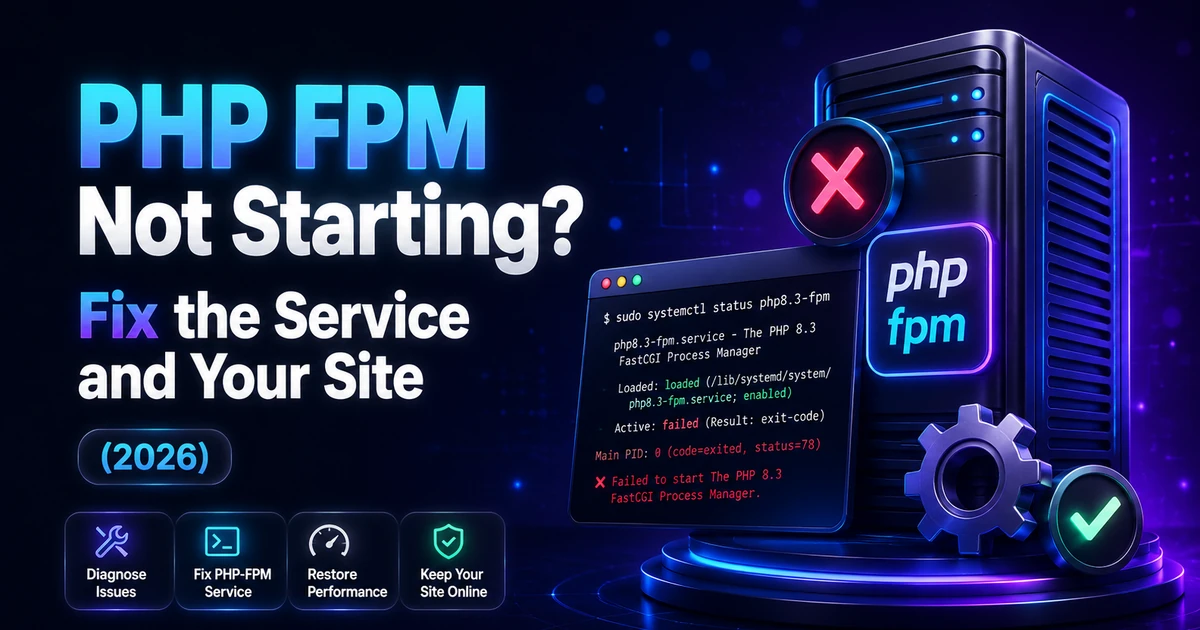
502 Bad Gateway right after install. PHP-FPM isn't running, or Nginx can't reach its socket. sudo systemctl status php8.3-fpm answers it in one line.
Everything works until you add a plugin, then white screen. Memory. Add define('WP_MEMORY_LIMIT', '256M'); and raise memory_limit in php.ini to match. A 1GB box with no swap will keep doing this.
Site is fast for you, slow for everyone else. No caching layer and no CDN. Nginx serving PHP on every request means every visitor waits for a database round trip.
From the Ticket Queue: Across our monthly support volume, WordPress issues account for 30% of tickets, brute-force and malware 25%, general Linux server issues 25%, and SSL problems 20% — our own first-party numbers. The pattern worth noticing: the WordPress and security buckets together are more than half, and both are mostly preventable at install time by the steps above.
After 14 years of running everything from single root servers to cPanel/WHM and Plesk fleets, the honest pattern is this — self-managed VPS hosting is cheaper in dollars and more expensive in evenings. If your site earns money and you'd rather not be the one debugging PHP-FPM at 11pm, that trade stops making sense. Best Hosting for High Traffic WordPress Sites in 2026 is the honest version of that conversation.
Pro Tip: Before you point live traffic at the new box, edit your local hosts file to resolve the domain to the VPS IP. You get to click through the whole site — checkout, forms, media — on the real server, at the real domain, while the rest of the world still sees the old one. Sixty seconds of setup, zero-downtime cutover.
Your Next Step: A Server Where the Stack Is Already Built
You now know how to install WordPress on VPS by hand — LEMP, the server block, the ownership model, the certificate. You can spend an evening doing that yourself, or start on a box where it's already provisioned and watched. The Basic VPS plan — $7.99/mo, and it renews at $7.99/mo — runs NVMe storage across our 15 datacenter locations, with a 99.9% uptime guarantee, a 30-day money-back guarantee, and real engineers answering support. Need the name too? Register your domain in the same dashboard — .com at $13.99/yr, flat at renewal — so one login and one renewal date cover both. One honest caveat: if you want to never see a terminal again, an unmanaged VPS isn't your fit, and Hostaccent will say so before you buy rather than after.
Frequently Asked Questions About How to Install WordPress on VPS
How long does it take to install WordPress on a VPS?
About 20 minutes of typing if DNS is already pointed and you paste the commands in order. Add 15 minutes for the permission and PHP-FPM tuning that keeps it stable. First-timers should budget an hour — most of that is reading, not waiting.
Do I need cPanel to run WordPress on a VPS?
No. A control panel consumes 400-600MB of RAM and adds a licence cost for something you can do in eight commands. It's genuinely useful if you're hosting multiple client sites and want email plus DNS in one interface — which is the reason our team at Hostaccent still runs cPanel/WHM and Plesk fleets alongside bare stacks.
Can I install WordPress on a 1GB RAM VPS?
Yes, for a small blog with a 2048MB swap file and a lightweight theme. Without swap, MariaDB gets OOM-killed under the first real query load. For any business site with a page builder, 2GB is the honest floor and 4GB is where WooCommerce stops struggling.
Is Nginx faster than Apache for WordPress?
For static files and high concurrency, Nginx uses less memory per connection, which matters on a small VPS. Apache with mod_php is simpler to configure and handles .htaccess rules natively. The real speed difference comes from caching and PHP-FPM tuning, not the web server badge.
Do I need a domain before installing WordPress?
Point the A record first. Installing on a bare IP means WordPress hardcodes that IP into siteurl and home, and you'll be rewriting database rows later to fix it. Register the name, set the A record with a 300-second TTL, then install once it resolves.
Why does my WordPress site show 404 on every page except the homepage?
Your Nginx server block is missing the try_files $uri $uri/ /index.php?$args; line inside the root location. Nginx has no .htaccess equivalent, so permalinks need that rewrite explicitly. Add it, run sudo nginx -t, reload, and every URL resolves.
Written by The Hostaccent Team — Hostaccent Limited is a UK-registered hosting company (Companies House 11431799, incorporated 2018), trading since 2012, with 10,000+ websites launched and 4,000+ migrations behind it. Reviewed as of July 2026.

Discussion
Have a question or tip about this topic? Share it below — your comment will appear after review.