
Quick Answer (as of July 2026): A WordPress site broken after update is almost always one plugin, theme, or PHP incompatibility failing to load — not lost data. Deactivate everything at once by renaming /wp-content/plugins to plugins-off over FTP or File Manager. If the site comes back, rename it back and re-enable plugins one at a time until the guilty one reveals itself. Then roll that single update back and leave the rest alone.
Your site was fine an hour ago. You clicked Update All, the page spun, and now you're looking at a blank white screen, a fatal error, or a homepage that's lost every stylesheet it ever had. Breathe. Your posts, pages, images, and database are still sitting exactly where they were. Something is failing to load — a much smaller problem than something being deleted.
Handling 20-30 client issues every day, the Hostaccent support desk clears a fresh wave of these after every core release and the plugin scramble that follows it. This guide is that queue, written out in full — every step, nothing held back, no scare tactics. Work it top to bottom and most people are back online inside ten minutes.
What a WordPress Site Broken After Update Actually Means
A WordPress site broken after update means PHP hit an error it couldn't recover from and stopped rendering the page. That's it. The database wasn't touched.
WordPress runs a chain: your host's PHP interpreter loads WordPress core, core loads your active theme, then core loads every active plugin in alphabetical order. If any link in that chain calls a function that no longer exists — because a plugin update removed it, or core deprecated it, or your PHP version doesn't support it — PHP throws a fatal error and the response dies. What you see depends on your settings:
- Blank white page (WSOD): a fatal error with error display switched off. The most common outcome.
- "There has been a critical error on this website": the same fatal error, caught by WordPress's own recovery mode.
- HTTP 500: the server-level version of the same event — worth reading the 500 Internal Server Error WordPress: Fix It Fast (2026) breakdown if that's your symptom. The HTTP response status codes reference explains what the server is actually signalling.
- Site loads but looks unstyled: not a fatal error at all — a cache or asset-path problem, and the easiest one on this list.
- "Briefly unavailable for scheduled maintenance": the update crashed halfway and left a lock file behind. Thirty-second fix, covered below.
None of these delete content. The WordPress core documentation is blunt about this too: updates replace files, not your database rows.
The Real Causes, Ranked by How Often We See Them
WordPress issues make up 30% of our monthly support tickets — the single largest slice, ahead of brute-force and malware at 25%. Within that slice, when a site broke after a WordPress update, this is the frequency order we actually observe:
- A plugin update collided with another plugin. Roughly half of them. Two plugins load the same library at different versions and the second one loses.
- A plugin or theme wasn't ready for your PHP version. Your host moved you to PHP 8.3, or the plugin author dropped support for 7.4. Both directions break things.
- The theme — usually a customised parent theme. Someone edited the parent instead of a child theme, the update overwrote it, and years of changes vanished from the render.
- The core update was interrupted. A dropped connection mid-update leaves a
.maintenancefile and a half-copied/wp-admin. - Memory exhaustion. The new version needs more than your 64M default. This one masquerades as a plugin conflict for hours if you don't check the log.
- Cache serving a corpse. The site is fixed; you're looking at a cached copy of the broken version. It happens more than anyone admits.
Pro Tip: Before you touch anything, note the exact time the update ran. Your host's PHP error log is timestamped, and matching the first fatal error to that minute names the file for you in about sixty seconds — which beats guessing for an hour.
Step 1: Get Back In Before You Fix Anything
You can't fix what you can't reach. Recover access first, diagnose second.
If you see "Briefly unavailable for scheduled maintenance": connect over FTP or your control panel's File Manager, open your site root (usually public_html), and delete the hidden file named .maintenance. Enable "show hidden files" if you can't see it. That's the whole fix.
If wp-admin throws a fatal error: turn on logging. Edit wp-config.php and, above the /* That's all, stop editing! */ line, set:
phpdefine( 'WP_DEBUG', true ); define( 'WP_DEBUG_LOG', true ); define( 'WP_DEBUG_DISPLAY', false );
Reload the broken page once, then read /wp-content/debug.log. The last fatal error names the file and line number. Nine times out of ten the file path contains the plugin's own folder name — that's your culprit, identified without a single guess.
If you can't get in at all: rename the plugins folder. Over SSH:
bash## Deactivate every plugin at once without touching wp-admin cd ~/public_html/wp-content mv plugins plugins-off
Or right-click → Rename in File Manager. WordPress can't find the folder, so it deactivates everything, and wp-admin loads clean. Rename it back to plugins immediately afterwards — WordPress will remember they're deactivated but keep every setting intact.
Insider Insight: In the tickets we handle, the step people most often get wrong is deleting the plugins folder instead of renaming it. Renaming is reversible. Deleting takes your settings with it. Rename. Always.
Step 2: Find the Culprit With the Half-Split Hunt
Reactivating plugins one by one is how you burn an afternoon on a site with 30 plugins. Use the half-split hunt instead — it finds the broken one in 3-4 reloads, not 30.
Activate the first half of your plugins. Reload the front end.
- Site breaks? The culprit is in that half. Deactivate half of those.
- Site fine? It's in the other half. Switch over.
Repeat, halving each time. Sixteen plugins takes four reloads. Sixty-four takes six. It's the fastest triage method there is, and it works whether you're on shared hosting or a self-managed server.
Rule out the theme in the same pass. Switch to Twenty Twenty-Four temporarily. If the site returns, your theme is the problem — and if you'd edited the parent theme directly, the update just erased that work. Restore it from a backup and redo it in a child theme this time.
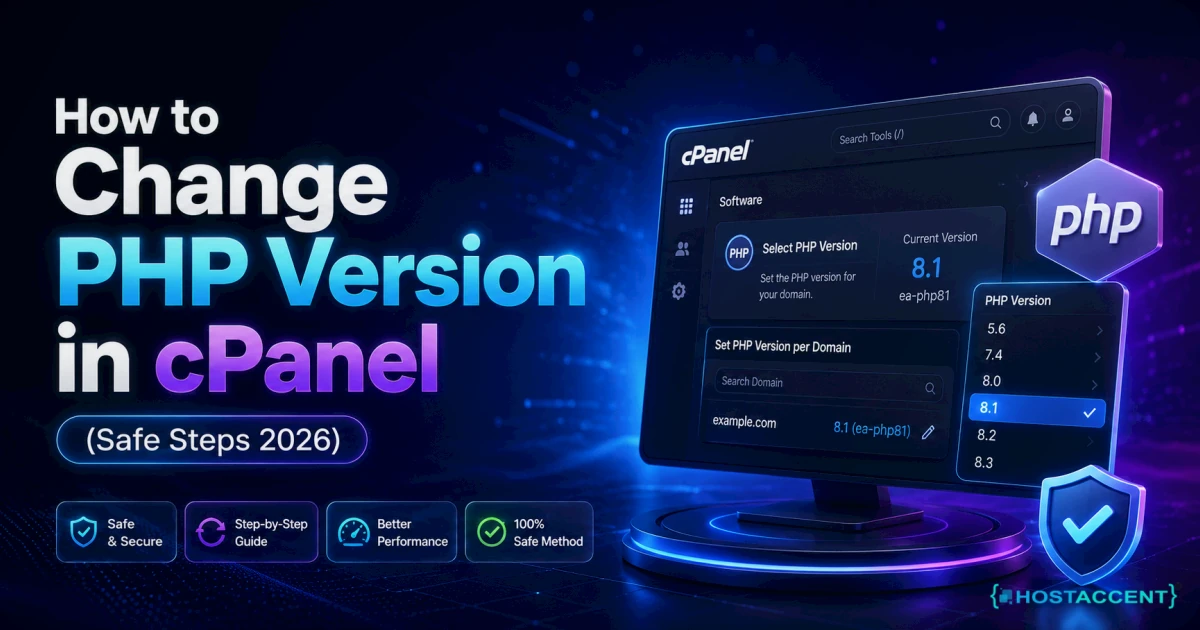
Check PHP last, but do check it. In cPanel or Plesk, look at your active PHP version. If it moved recently, the update didn't break your site — the version change did. The PHP supported versions list shows what's still receiving security fixes, which matters when you're deciding whether to step back temporarily or push the plugin author for a fix. If you do need to move it back, our guide to changing your PHP version in cPanel covers the MultiPHP Manager steps safely.
Live site and no time to experiment? Our engineers work this exact failure daily and can have it triaged for a small one-time fee — you'll see the exact quote before anyone touches your files, and nothing starts until you approve it. Hosted with Hostaccent? Then issues like this are simply covered by support, at no cost. Have an engineer fix it
Step 3: Roll Back the Update That Broke It
Now you know the name. Roll back that one thing — not everything.
To downgrade a plugin in WordPress the safe way: go to the plugin's page on wordpress.org, scroll to Advanced View, and pick the previous version from the "Previous Versions" dropdown. Download the zip. Deactivate and delete the broken version (your settings live in the database and survive this), then upload the older zip via Plugins → Add New → Upload. Reactivate.
The WP Rollback plugin does the same thing from inside your dashboard in two clicks. Install it if you'd rather not touch zip files, but only if you can reach wp-admin.
To rollback a WordPress update at core level: download your previous version from the WordPress release archive, then replace /wp-admin and /wp-includes over FTP — and only those two. Never overwrite /wp-content, and never touch wp-config.php. Core downgrades are the last resort; in practice, core is almost never the guilty party.
To restore your site after an update goes badly wrong, use a restore point instead. Your control panel's backup section is faster than any plugin, because it restores files and database together at a matched timestamp — half-restores cause a second outage. We run offsite backups and have done full restores under genuine pressure, including after hardware failure, and the lesson is always the same: a backup you've never tested isn't a backup, it's a hope.
One honest caveat: if you have no backup at all and the theme overwrote your customisations, some of that isn't recoverable. Nobody can un-break that. Which is exactly why the next section matters more than this one.
How to Confirm the Fix and Stop It Happening Again
Confirming is not "the homepage loaded". Purge every cache layer — plugin cache, object cache, and your CDN — then check in a private window. Load a post, a category page, and one form. A fix that only holds on the homepage isn't a fix.
Then close the loop so this doesn't repeat:
Use staging. One-click staging clones your site, takes the update hit there, and lets you look before you leap. On Hostaccent's own stack — Cloudflare in front of Nginx, Apache behind it, NVMe SSD storage underneath, across 15 of our datacenter locations from London to Tokyo — staging is where every client update goes first. Across the 4,000+ sites we've migrated since 2012, the ones that never have update outages all share this one habit.
Keep auto-updates, but sort them. Auto-updates are not the enemy — turning them all off is worse, because unpatched plugins are how sites get compromised. Leave security and core minor releases on automatic. Set the five plugins that touch checkout, forms, or page building to manual, and update those on a Tuesday morning when you can watch.
Raise the memory ceiling before you need it. define( 'WP_MEMORY_LIMIT', '256M' ); in wp-config.php prevents an entire class of phantom failure. If your plan won't allow it, that's a signal — see Shared Hosting Resource Limit Exceeded: Causes & Fix (2026), or if you're already on a server, Why Is My VPS Running Out of RAM? How to Diagnose and Fix It.
Watch what the update did to speed. A site that came back but feels sluggish usually has a cache that never rebuilt. Start with How to Fix High TTFB in WordPress (2026 Guide), then WordPress Site Slow: Complete Diagnosis and Fix Guide (2026) if it persists. If Search Console starts complaining afterwards, Core Web Vitals Failing? Your Hosting Might Be the Problem covers the hosting side, and web.dev is the reference for the metrics themselves.
Pro Tip: Take a manual restore point before you click Update — not after. It takes eleven seconds and it turns every future update from a gamble into a two-minute undo.
Your Next Step: Fixed It, or Still Stuck?
Path A — you're back online. Then take one thing from this: a wordpress site broken after update is a five-minute problem when you have staging and a fresh restore point, and a ruined weekend when you don't. Worth knowing: on a properly managed host, this whole class of problem is support's job, not yours — that's the part Hostaccent treats as included rather than extra. WordPress Hosting starts at $22.99/yr with staging and daily restore points; if you just need solid ground, start on the Economy plan at $1.99/mo, and it renews at $1.99/mo — the signup price is the price. Honest fit-check: Economy is sized for a single site, so if you're running client projects, VPS Hosting at $7.99/mo is the right shelf. Everything sits in one dashboard, and you can register your domain there too — .com at $13.99/yr, flat at renewal — so it's one renewal date and one team. Backed by a 30-day money-back guarantee and a 99.9% uptime guarantee.
Path B — still stuck. Stop guessing and hand it over. Open a ticket and our engineers will diagnose it, quote you the small one-time fee before any work starts, and fix it properly. You'll know the number before you commit.
Written by The Hostaccent Team — Hostaccent Limited, a UK-registered hosting company (Companies House 11431799, incorporated 2018), trading since 2012, with 10,000+ websites launched. Reviewed as of July 2026.
Frequently Asked Questions About a WordPress Site Broken After Update
Why is my WordPress site broken after update?
Almost always a plugin conflict, a theme incompatibility, or a PHP version mismatch causing a fatal error. Your content is untouched — PHP simply stopped rendering the page. Enable WP_DEBUG_LOG, read /wp-content/debug.log, and the last fatal error names the exact file responsible.
Will I lose my posts if I roll back a WordPress update?
No. Posts, pages, media, users, and settings live in your MySQL or MariaDB database, and rolling back replaces PHP files only. The one exception is customisations made directly to a parent theme's files — those are overwritten by the update itself, not by the rollback.
How do I downgrade a plugin in WordPress?
Open the plugin's wordpress.org page, expand Advanced View, and download the previous version from the dropdown. Deactivate and delete the current version, then upload the older zip via Plugins → Add New → Upload. Settings survive because they're stored in the database, not the plugin folder.
How do I disable all plugins without access to wp-admin?
Connect via FTP or File Manager, open /wp-content, and rename the plugins folder to plugins-off. WordPress deactivates everything instantly and wp-admin loads. Rename it back to plugins right away — your plugins stay deactivated but keep all their settings intact.
What should I do if I have no backup?
Work from the live files: name the failing file from debug.log, downgrade only that plugin from wordpress.org, and switch to a default theme to isolate the rest. Hostaccent's engineers restore from offsite backups daily, and the pattern is consistent — sites without a tested restore point lose hours, not data.
Should I turn off WordPress auto-updates completely?
No — unpatched plugins are one of the most common ways sites get compromised. Keep core security releases and low-risk plugins automatic. Set only the plugins that touch payments, forms, or page building to manual, and run those updates on staging first when you can watch the result.


Discussion
Have a question or tip about this topic? Share it below — your comment will appear after review.