
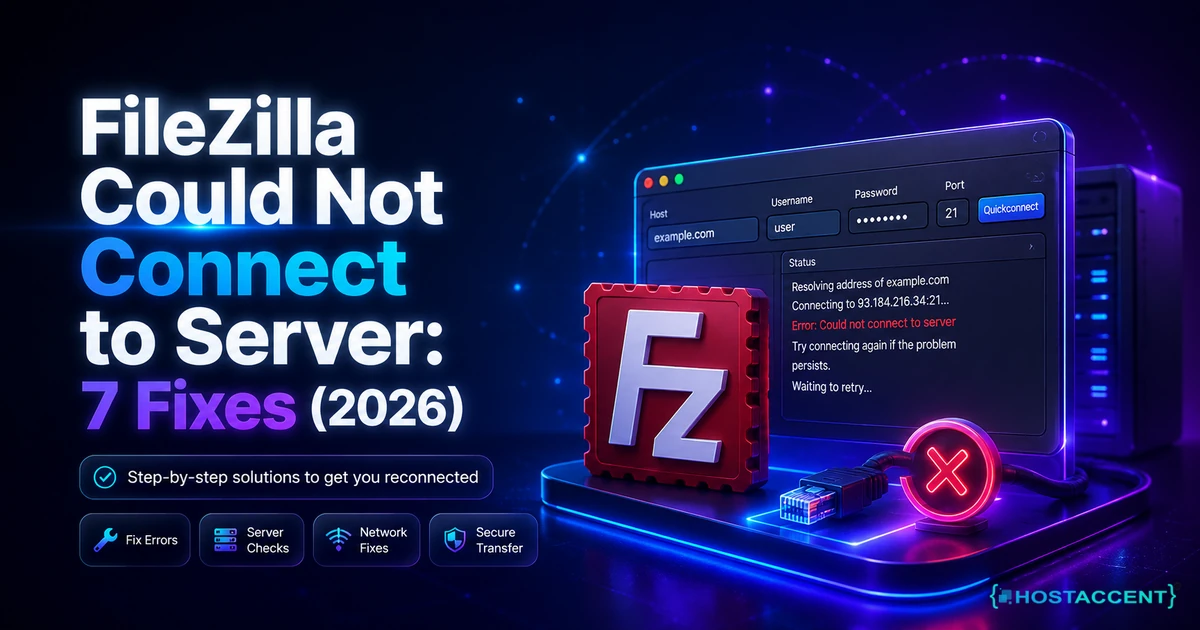
You hit Connect, watched the log scroll for a second or two, and there it was in red: FileZilla could not connect to server. Nothing uploads. The site edits sitting on your laptop are going nowhere. If this hit you in the middle of a deploy, take a breath first, because this is one of the most fixable errors in all of web hosting.
Here is the reassuring part. The error almost never means your website is down or your files are lost. It means the FTP handshake between your computer and the server broke at one specific step, and there are only about seven places that handshake can break.
We resolve 20 to 30 client issues every day, and a failed FTP connection is a regular visitor to that queue. What follows is the exact triage our engineers run, written so you can work through it yourself in a few minutes instead of waiting on anyone. On a well-managed stack, a host like Hostaccent, for one, rules most of these causes out before you ever notice them. When the failure does land on your side, though, it is usually quick to clear once you know which of the seven doors is locked.
Quick answer (2026): The "could not connect to server" error means FileZilla's FTP or SFTP handshake failed before it finished. The seven usual causes are a protocol or port mismatch, active mode instead of passive, wrong login details, a local firewall or antivirus block, a timeout value set too low, too many open connections, and a server-side IP block. Work down that list in order and most connections return within a few minutes.
What "FileZilla Could Not Connect to Server" Really Means
Every FTP session uses two channels: a control channel that carries commands and logins, and a data channel that carries the file list and the transfers themselves. When FileZilla reports it could not connect, one of those two channels never finished its TCP handshake. Reading the log tells you which one, and that single detail decides your fix.
Open the log pane at the top of FileZilla and look at the last line before the red error. A failure at USER or PASS is a login problem. A failure right after PASV or PORT is a passive/active mode or firewall problem on the data channel. A failure before any welcome banner (no "220" response at all) means the control channel never reached the server, pointing to a wrong host, wrong port, or a firewall in the middle.
That log-first habit is the core of what we call the Three-P Check, the first thing our engineers run on any FTP ticket: confirm the Protocol, confirm the Port, then confirm Passive mode. Roughly three out of four "could not connect" cases we see are solved by one of those three, and the whole check takes about 30 seconds before you change a single setting.
Here is a log pattern we see constantly. The control channel connects fine, you get "230 Logged on", then the session dies on "MLSD" or "LIST" with a timeout. That is not a login failure at all, even though people assume it is. It is the data channel failing, and the answer is almost always passive mode (Fix 2), not a new password. Misreading that one line sends people down an hour-long rabbit hole re-entering credentials that were never wrong.
A quick word on what this is not. It is not a sign your account is suspended, and it is not usually a server outage. FTP is an old protocol (its original spec, the original FTP specification (RFC 959), dates to 1985) and its quirks are well understood. If you want the deeper networking background, FileZilla publishes a thorough network configuration guide covering active and passive transfers in detail. For everyone else, the seven fixes below are ordered most-likely-first, so start at the top.
Fix 1: Match the Protocol and Port (SFTP vs FTP, Port 21, 22, 990)
The most common reason a first-time connection fails is a mismatch between the protocol you picked and the port you typed. Align those two and a surprising number of "could not connect" errors vanish instantly.
Three protocols, three default ports:
- Plain FTP uses port 21. Unencrypted, and increasingly refused by modern hosts.
- FTPS (FTP over TLS) uses port 21 for explicit TLS, or port 990 for implicit TLS.
- SFTP (SSH File Transfer) uses port 22, the same port as SSH.
The classic mistake in the SFTP vs FTP decision is choosing "SFTP" in the protocol dropdown while leaving port 21 in the box, or picking plain FTP and typing 22. Point FileZilla at port 21 with SFTP selected and it will always fail, because nothing that speaks SSH is listening there. In the tickets we handle, this exact mismatch is the number one cause of a brand-new Site Manager entry that never connects.
To set it correctly, open File > Site Manager > New Site. In the Protocol dropdown choose either "FTP - File Transfer Protocol" or "SFTP - SSH File Transfer Protocol" to match what your host gave you. Leave the Port field blank and FileZilla fills in the correct default automatically. That blank-port trick alone prevents most mismatches.
Which should you use? If your host offers it, choose SFTP on port 22 every time. It rides a single encrypted channel, needs no separate data port, and sidesteps the active/passive headache entirely. We steer clients toward SFTP wherever the server supports it, because it removes two of the seven failure modes in this article before they can happen. Plain FTP on port 21 still works, but treat it as the fallback, not the default.
Pro Tip: If you are not sure which protocol your account uses, check your hosting welcome email or control panel for the words "SFTP", "SSH", or "port". Never assume port 21. On modern NVMe SSD stacks, SFTP is usually enabled by default and is the faster, safer choice.
Fix 2: Switch FileZilla to Passive Mode
If your control channel connects and logs in but the directory listing hangs and times out, active mode is fighting your router. Switching FileZilla to passive mode fixes this more often than any other single change.
Here is the mechanic in plain English. In active mode, the server tries to open a connection back to your computer for the data channel. Almost every home and office router blocks unsolicited inbound connections by default, so that channel never forms and the session stalls. In passive mode, your computer opens both connections outward, which routers and firewalls happily allow. If you sit behind a NAT router (and nearly everyone does), passive is almost always correct.
To switch it globally: Edit > Settings > Connection > FTP, then set Transfer Mode to Passive. Click OK and reconnect. You can also set it per-site in Site Manager under the Transfer Settings tab. Across the 4,000+ sites we've migrated since 2012, flipping this one setting resolves the "connects then hangs on MLSD" pattern the large majority of the time.
One subtle trap worth knowing. If the server sits behind its own misconfigured firewall, passive mode can still fail because the server's passive port range was never opened or forwarded. You will see the log reach "227 Entering Passive Mode" and then time out trying to reach the data port. That half is the server owner's job to fix, not yours. If it is your own server, open the passive port range in the firewall; if it is shared hosting, that is exactly the kind of thing support should handle.
There is also the "server returns a private IP" edge case: some servers answer the PASV command with an internal 192.168.x.x address your client cannot reach. FileZilla has a Passive-mode setting for exactly this (fall back to the server's external IP), but if you hit it on shared hosting, flag it to your host rather than fighting the config yourself.
Insider Insight: "Default" transfer mode is not a magic auto-detect. It uses whatever your settings specify and does not reliably try both. If a connection is flaky, explicitly set Passive rather than leaving it on Default, then test again.
Fix 3: Fix Wrong Credentials and the ECONNREFUSED Trap
If the log fails right at the login step, or throws "ECONNREFUSED", the problem is either your credentials or the server actively turning you away. Both are quick to diagnose.
Start with credentials, because they cause more failed logins than anything else. Your FTP username and password are usually not the same as your website or control panel login. Look for a separate "FTP Accounts" section in cPanel or your welcome email. Two silent killers we see daily:
- Copy-paste whitespace. Pasting a password often drags in a trailing space or a hidden character. Type it by hand once to rule this out.
- Wrong Logon Type. In Site Manager, set Logon Type to "Normal" or "Ask for password", not "Anonymous". Most servers refuse anonymous logins outright.
Now the "ECONNREFUSED - connection refused by server" message, which reads scarier than it is. It means your computer reached the server, but the server said no at the door. According to Hostaccent's own support-queue data for 2026, Linux server and connection issues like this make up about 25% of the tickets our engineers handle, so we see the full range of causes. The usual four: the FTP service is stopped, you are hitting the wrong port, the server has hit its connection limit, or your IP has been temporarily blocked by a security tool like Fail2ban after too many failed attempts.
That last one catches people off guard. Enter the wrong password four or five times in quick succession and many servers will firewall your IP for 15 to 30 minutes as a brute-force defense. The connection then refuses instantly, before any login prompt. The fix is simply to wait, confirm your correct details, and try again from the same network. If you are on a server that limits simultaneous FTP sessions, closing old FileZilla windows or lowering your max connections also clears a "connection refused" caused by hitting that cap. Our guide on Shared Hosting Resource Limit Exceeded: Causes & Fix (2026) covers those server-side ceilings in more depth. For a plain-English refresher on the protocol itself, MDN's overview of how FTP works is a good five-minute read.
Live site and no time to experiment? If files need to move right now and you would rather not test firewall settings on a production server, our engineers fix this exact error for a small one-time fee, and you see the exact quote before anyone touches anything. Hosted with Hostaccent? Then issues like this are simply covered by support, at no extra charge. Have an engineer fix it.
Fix 4: Unblock FileZilla in Your Firewall or Antivirus
If the connection works on one network but not another, or broke right after a security-software update, your local firewall or antivirus is almost certainly blocking FileZilla. Grant it an exception and the connection returns.
Security software blocks outbound FTP for two reasons: FTP is unencrypted and old, so aggressive antivirus tools treat it as suspicious, and the data channel opens on unpredictable ports that firewalls flag. The quickest test is honest but blunt: temporarily disable your firewall and antivirus, try to connect, and see if it works. If it does, you have found your culprit. Re-enable protection immediately and add an exception rather than leaving it off.
On Windows, open Windows Defender Firewall > Allow an app or feature through Windows Defender Firewall, find FileZilla (or filezilla.exe), and tick both Private and Public. Save and reconnect. For third-party antivirus, look for an "allowed apps", "exclusions", or "exceptions" list and add the FileZilla executable there.
Two details people miss. First, after a FileZilla update the executable path can change, which quietly invalidates an old firewall rule, so if it broke right after updating, re-add the exception. Second, on a corporate or campus network the block may be upstream on the network firewall, not your machine, and no local change will help. In that case you need the network administrator to open the FTP ports, or you switch to SFTP on port 22, which is far more likely to be allowed through because it looks like ordinary SSH traffic.
If you installed FileZilla from a third-party download bundler rather than the official site, uninstall it and reinstall the clean build from the FileZilla project directly. Bundled installers sometimes ship altered behavior that interferes with connections, and starting from the official binary removes that variable entirely.
Pro Tip: Test from a phone hotspot. If FileZilla connects over mobile data but not your home Wi-Fi, the block is your local network or router, not the server. That 30-second test saves you from changing server settings that were never the problem.
Fixes 5, 6 & 7: Timeouts, Connection Limits, and Server-Side Blocks
The last three fixes cover a connection that starts but cannot finish. A low timeout, too many open sessions, or a server-side block are the remaining causes once protocol, mode, credentials, and your firewall are ruled out.
Fix 5: Raise the timeout (and check DNS). FileZilla's default timeout is 20 seconds, which is too short on slow links or busy servers. When you see "FileZilla connection timed out" after a pause, go to Edit > Settings > Connection and raise Timeout in seconds to 60. If you connect by hostname rather than IP, a slow DNS lookup can also eat those seconds before the session even starts, so try the server's raw IP address to rule DNS out. A stable link matters too, so if your FTP not connecting reliably tracks with a flaky network, test on a wired connection before blaming the server.
Fix 6: Lower simultaneous connections. FileZilla opens multiple parallel connections to transfer faster, but if the server caps you at, say, 8 and FileZilla opens 10, the extras get refused and the session looks broken. In Site Manager > Transfer Settings, tick Limit number of simultaneous connections and set the maximum to 2. For lots of small files a single connection is often faster anyway, because it skips the overhead of opening new sessions.
Fix 7: Server-side blocks. If everything on your end is correct and it still fails, the cause is on the server: a stopped FTP daemon, a passive port range that was never forwarded, a full disk, or your account's home directory not being set (the log shows "550 Home directory does not exist"). These are not settings you can change as a user. On our own stack, an overloaded or resource-starved server is a common hidden cause, which is why we watch server health closely; if you suspect that, our write-ups on Why Is My VPS Running Out of RAM? How to Diagnose and Fix It and the WordPress Site Slow: Complete Diagnosis and Fix Guide (2026) show how server strain surfaces as connection failures.
How do I make sure it stays fixed?
Once you connect, confirm it is stable, not lucky. Upload one small test file, request a full directory listing, then disconnect and reconnect once. If all three succeed, you are genuinely fixed. To keep it that way: save the working connection in Site Manager so you never retype settings, prefer SFTP on port 22, keep FileZilla updated from the official site, and store credentials in a password manager to kill the copy-paste whitespace problem for good. A well-run host handles the server-side half (passive ports, connection limits, uptime) so the only variable left is your client.
Your Next Step: Fixed It, or Still Stuck?
If you fixed it: nice work. You just cleared a FileZilla could not connect to server error that stops plenty of people cold, and you did what our support team does every day. The one habit that prevents a repeat is saving the working connection in Site Manager and defaulting to SFTP on port 22. Here is the honest observation after 14 years of this: on a well-run host, FTP connection failures are support's problem to prevent, not yours to chase at midnight. If yours breaks often, the hosting is the variable worth changing, and our Core Web Vitals Failing? Your Hosting Might Be the Problem piece explains why a strained server surfaces as exactly these errors. A calm, NVMe-backed stack with a 99.9% uptime guarantee removes most of them, and we've been doing this since 2012 (UK-incorporated in 2018). You can start on the Economy shared hosting plan at Economy — $1.99/mo, which includes free SSL, daily backups, and a 30-day money-back guarantee. The renewal price is the price you signed up at, which is the whole idea behind how Hostaccent prices hosting. One honest caveat: it is sized for a single busy site, so if you run several client projects, Standard fits better.
If you are still stuck: open a ticket and our own engineers will fix this exact error for you. You get the quote first, and hosting clients pay nothing because it is covered by support. Have an engineer take a look.
Frequently Asked Questions About FileZilla Connection Errors
Does "FileZilla could not connect to server" mean my site is down?
No. FileZilla could not connect to server is a client-side FTP handshake failure, not a sign your website is offline. Your site keeps serving visitors normally while FTP is broken, because the web server and the FTP service run separately. The error means one of seven things: a protocol or port mismatch, active mode, wrong login, a firewall block, a low timeout, too many connections, or a server-side block. Fix the FTP side and your live site stays unaffected throughout.
How do I fix ECONNREFUSED connection refused in FileZilla?
"ECONNREFUSED - connection refused by server" means your computer reached the server but was turned away at the door. Check four things in order: confirm you are using the correct port for your protocol, make sure the FTP service is actually running, close extra sessions if you have hit the connection limit, and wait 15 to 30 minutes in case a security tool temporarily blocked your IP after failed logins. Correct credentials plus the right port clears most cases.
Should I use SFTP or FTP in FileZilla?
Use SFTP whenever your host supports it. In the SFTP vs FTP comparison, SFTP wins on almost every count: it runs on a single encrypted channel over port 22, needs no separate data port, and avoids the active and passive mode problems that cause most connection failures. Plain FTP on port 21 sends your password in clear text and is increasingly refused by modern servers. Only fall back to FTP or FTPS if your host does not offer SSH-based transfers.
Why does my FileZilla connection keep timing out?
A FileZilla connection timed out error usually means the data channel could not form. The top fix is switching to passive mode, since active mode fails behind most home and office routers. If passive is already on, raise the timeout from the default 20 seconds to 60, try the server's IP instead of its hostname to rule out slow DNS, and test on a wired connection. Persistent timeouts after all that point to a server-side firewall issue.
Is FileZilla safe to use in 2026?
Yes, FileZilla remains safe and widely used in 2026, as long as you download it from the official filezilla-project.org site and use SFTP or FTPS rather than plain FTP. Avoid third-party download bundlers, which sometimes wrap the installer in unwanted extras. For maximum safety, use SFTP on port 22 with a key-based login where your host allows it, and store your credentials in a password manager instead of inside the client itself.
What should I do if FTP still will not connect after every fix?
If you have worked through all seven fixes and FTP still refuses, the cause is almost certainly server-side: a stopped daemon, an unforwarded passive port range, a full disk, or an IP block you cannot see. At that point it is your host's job, not yours. Hostaccent clients, for example, can simply open a support ticket and have an engineer resolve it, usually faster than continued solo troubleshooting, and on a managed plan this class of problem is covered rather than billed.





Discussion
Have a question or tip about this topic? Share it below — your comment will appear after review.