
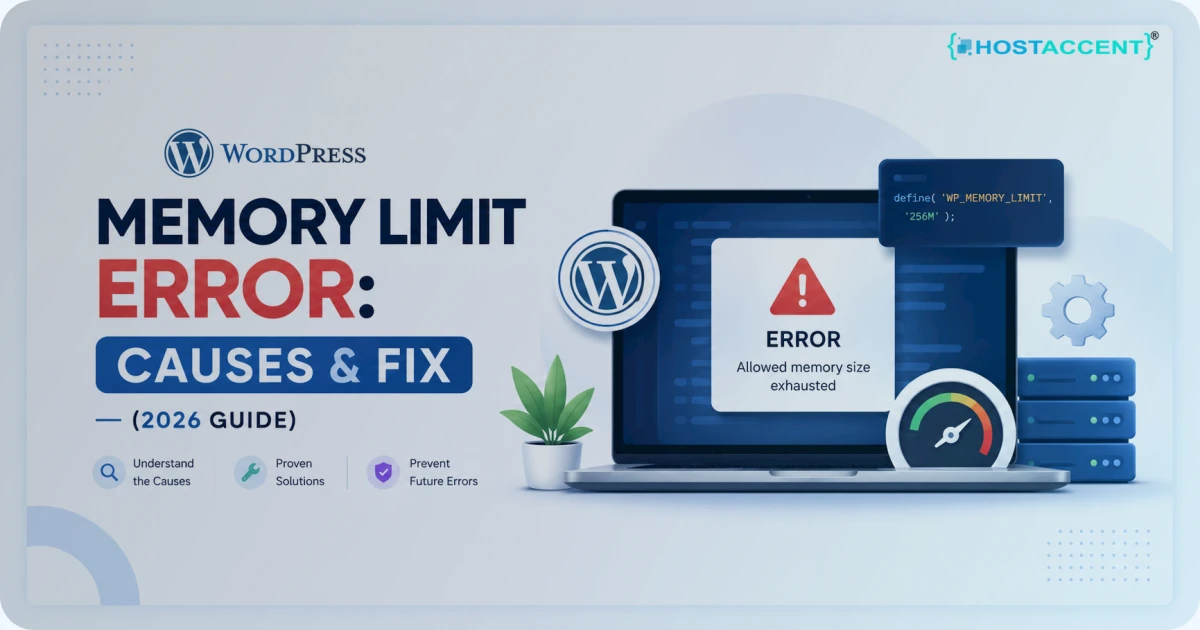
Quick Answer: The WordPress memory limit error — "Fatal error: Allowed memory size of X bytes exhausted" — means PHP ran out of the RAM assigned to your site. The fastest fix is to open
wp-config.phpand adddefine('WP_MEMORY_LIMIT', '256M');just above the line that reads "That's all, stop editing!" If that doesn't hold, raise PHP's ownmemory_limitinphp.inior.user.ini. Most sites recover in under five minutes.
Few errors look scarier than a white screen with "Allowed memory size exhausted" printed across it. One minute your site works; the next, the dashboard won't load and visitors see a blank page. Take a breath. This is almost never permanent damage, and it rarely means your site is broken — it means PHP hit a ceiling, and ceilings can be raised.
On a managed WordPress stack — the kind Hostaccent runs on Nginx → Apache with NVMe storage — this limit sits high enough that most sites never trip it. When the error does appear, the cause is usually one greedy plugin or a heavy import job, not your whole server. Below is the exact path we walk customers through, ordered by what fixes it most often.
What "Allowed Memory Size Exhausted" Actually Means
Your site runs on PHP, and PHP hands each request a fixed slice of memory to work with. When a process — loading a plugin, resizing an image, running a backup — needs more RAM than that slice allows, PHP stops and throws the fatal error instead of letting the request run wild.
There are two limits in play, and confusing them is the number-one reason people "fix" this and watch it come right back.
- PHP's
memory_limitis the hard server-level cap, set inphp.ini. Common values sit at 128M or 256M — 256M is the figure to plan for, as our WordPress hosting requirements guide explains. - WordPress's
WP_MEMORY_LIMITis a softer cap WordPress applies on top, defaulting to 40M for a single site and 64M for multisite. There's alsoWP_MAX_MEMORY_LIMIT(default 256M) for heavier admin work like image processing.
Here's the catch: WordPress can never give itself more memory than PHP allows. If php.ini says 64M, setting WP_MEMORY_LIMIT to 512M does nothing. You can only raise WordPress's ceiling up to PHP's ceiling — no higher.
Read the error's "tried to allocate" number too. If a request already used 256M and asked for another 100M, you don't have a config problem — you have a plugin or a query problem. No healthy page load needs 350M.
Pro Tip: The exact byte numbers in the error are a diagnostic, not noise. A site exhausting 64M is starved; a site exhausting 512M has something genuinely wrong. Match your fix to which one you're seeing.
What Causes the WordPress Memory Limit Error (Ranked by Frequency)
In the support tickets our team handles, the same handful of causes show up again and again. Here they are in rough order of how often they're the real culprit.
- PHP
memory_limitset too low at the server. Budget and older shared plans still ship 64M or even 48M. That was fine in 2015; a modern theme plus a dozen plugins eats it alive. - A single memory-hungry plugin. Page builders, WooCommerce, migration and backup tools, and security scanners can each demand 128M–256M on their own during certain operations.
- Large media or import jobs. Bulk-importing products, resizing big images, or running a full backup spikes memory for a few seconds — long enough to hit the wall.
- Theme bloat or a buggy plugin loop. Code that loads everything on every request, or an outright infinite loop, drains memory no matter how high you set the cap.
- Too many plugins firing at once. Forty active plugins isn't automatically bad, but each adds baseline overhead, and the totals add up fast.
In our experience, cause 1 usually hides behind cause 2 — the host's limit was always too low, and a new plugin simply pushed it over the edge. When we migrate customer sites, we repeatedly see this exact pairing. Raise the limit, audit the plugin, and the error normally stays gone for good.
How to Increase Your WordPress Memory Limit (Step by Step)
You have four places to raise the limit. Work top to bottom — the first one that holds is the one to keep.
Method 1 — Edit wp-config.php (works on most hosts)
This is the cleanest fix and the one to try first. Connect over SFTP or your host's File Manager, open wp-config.php in the root folder, and add these lines above the comment that reads /* That's all, stop editing! */:
phpdefine( 'WP_MEMORY_LIMIT', '256M' ); define( 'WP_MAX_MEMORY_LIMIT', '512M' );
Save, reload your site, and the error should clear. The official guide to editing wp-config.php is worth a look if you've never opened the file. Placement matters — anything added below the "stop editing" line is ignored.
Method 2 — Edit php.ini
If wp-config didn't help, PHP's own cap is your real ceiling. Find or create php.ini in your site root (or use your control panel's PHP settings tool) and set:
inimemory_limit = 256M
The accepted values are listed in the PHP manual entry for memory_limit. Many panels expose this as a simple dropdown, so you may not need to touch the file by hand at all.
Method 3 — Edit .htaccess (Apache with mod_php only)
On Apache servers running mod_php, you can add one line to .htaccess in your root:
apachephp_value memory_limit 256M
One warning: if your host runs PHP-FPM or CGI — which most modern stacks do, including ours — this line throws a 500 error instead of helping. If your site breaks right after adding it, remove it immediately. The Apache .htaccess documentation explains when these directives apply.
Method 4 — Edit .user.ini (PHP-FPM and CGI)
On PHP-FPM setups the .htaccess trick won't work, but a .user.ini file in your site root will:
inimemory_limit = 256M
Changes to .user.ini aren't instant — PHP caches them, so give it up to five minutes (or restart PHP) before testing.
How Much Memory Should You Actually Set?
Bigger isn't automatically better. Size the limit to your real workload:
| Site type | Typical peak | Sensible limit | |---|---|---| | Brochure site or small blog | 64–96M | 128M | | Standard business site | 96–160M | 256M | | WooCommerce store | 160–320M | 256–512M | | Large store or heavy page builder | 320M+ | 512M |
Still Stuck? Ask Your Host
If none of these stick, your host may enforce a hard cap you can't override from inside the account — common on entry-level shared plans. A quick message to support ("please confirm my PHP memory_limit and raise it to 256M if possible") settles it fast. On Hostaccent's WordPress plans the limit ships with headroom already, so this step is rarely needed.
Insider Insight: Don't crank the limit to 1024M "just to be safe." A huge cap on a leaky plugin only lets the leak run longer before it crashes — and on shared hosting it can get your account throttled. Fix the cause, then size the limit to your real peak plus a margin.
How to Confirm the WordPress Memory Limit Fix Worked
Don't trust a reload alone — confirm the new value is actually live.
Open Tools → Site Health → Info → Server in your dashboard. WordPress prints the active PHP memory limit right there. The Site Health screen documentation walks through every field if you want the full picture.
Prefer the raw truth? Drop a one-line file named info.php in your root containing <?php phpinfo();, load it in a browser, search for memory_limit, then delete the file — leaving phpinfo public is a security risk. If the number matches what you set, you're done.
If Site Health still shows the old value after you edited php.ini, the change landed in the wrong file or PHP hasn't reloaded yet. When the numbers fight you like this, it's worth a proper slow WordPress site diagnosis instead of more guessing.
How to Stop the Error Coming Back
Raising the limit treats the symptom. Keeping it gone means controlling what eats the memory.
- Audit plugins quarterly. Deactivate one at a time and watch memory in Site Health. Across the sites we host, a single abandoned plugin is behind a surprising share of repeat crashes.
- Watch backup and import windows. Schedule heavy jobs for low-traffic hours so a spike doesn't collide with real visitors.
- Keep PHP current. Versions 8.2 and up use memory more efficiently than the 7.x line many sites still run — it's why we default new Hostaccent sites to a modern PHP release.
- Match the plan to the workload. A store with 5,000 products needs more headroom than a five-page brochure site, and no config trick changes that.
If the error returns under traffic, memory may not be the only saturated resource. Use the WordPress 504 guide when requests time out, and the WordPress performance checklist to check caching, database work, and the hosting layer after the immediate error is resolved.
When the Real Fix Is More Memory Than Your Plan Allows
Sometimes you've done everything right — clean plugins, current PHP, a sensible limit — and the site still bumps the ceiling because the plan itself is too small for the workload. That's not something you can edit your way out of.
If you keep fighting the WordPress memory limit no matter what you edit, that's the honest case for hosting built for WordPress, where PHP memory, NVMe storage, and caching are tuned for it out of the box. Hostaccent's WordPress Hosting starts at $22.99/yr for the Basic plan, runs on the same Nginx → Apache + NVMe stack with Cloudflare in front, and comes with UK-based human support that will set your memory limit correctly so you're not editing php.ini at 2 a.m. We're UK-registered and run this exact stack for customers worldwide. One honest caveat: if your real problem is a single leaky plugin, a bigger plan only delays the crash — fix the plugin first, then size up if you genuinely need the headroom. For very high-traffic stores, our guide to hosting for high-traffic WordPress sites goes deeper.
Frequently Asked Questions
What is the default WordPress memory limit?
WordPress defaults WP_MEMORY_LIMIT to 40M for a single site and 64M for multisite, with WP_MAX_MEMORY_LIMIT at 256M for admin tasks. These sit beneath PHP's own memory_limit, so your real ceiling is whichever value is lower — usually the server's php.ini setting.
How do I increase the WordPress memory limit safely?
Add define('WP_MEMORY_LIMIT', '256M'); to wp-config.php above the "stop editing" line. If PHP's memory_limit is lower, raise that too in php.ini or .user.ini. Set the value to your real peak plus a margin — not an arbitrarily huge number that only masks a leak.
Why does my memory limit keep resetting?
Two usual reasons: your host enforces a hard cap that overrides wp-config.php, or you edited a file PHP ignores (like .htaccess on a PHP-FPM server). Confirm the live value in Tools → Site Health, and if it won't move, the limit is being set above your account.
Is 256M enough memory for WooCommerce?
For most stores, yes. As of 2026, 256M comfortably handles WooCommerce with a reasonable plugin set. Large catalogs, bulk imports, or heavy page builders can need 512M during peak operations. Watch Site Health after big imports and size up only if you actually hit the wall.
Can a single plugin cause the memory limit error?
Absolutely — it's the most common trigger after a too-low server cap. Page builders, migration tools, and security scanners can each demand 128M–256M alone. Deactivate plugins one by one while watching memory to find the offender before assuming you need a bigger plan.
Does more PHP memory slow my site down?
No. Raising the limit doesn't make pages slower — it just lets a request use more RAM before failing, and it won't speed anything up on its own either. If a host like Hostaccent already sets a generous limit and your site is still slow, the bottleneck is elsewhere, usually caching or database queries.

Discussion
Have a question or tip about this topic? Share it below — your comment will appear after review.