
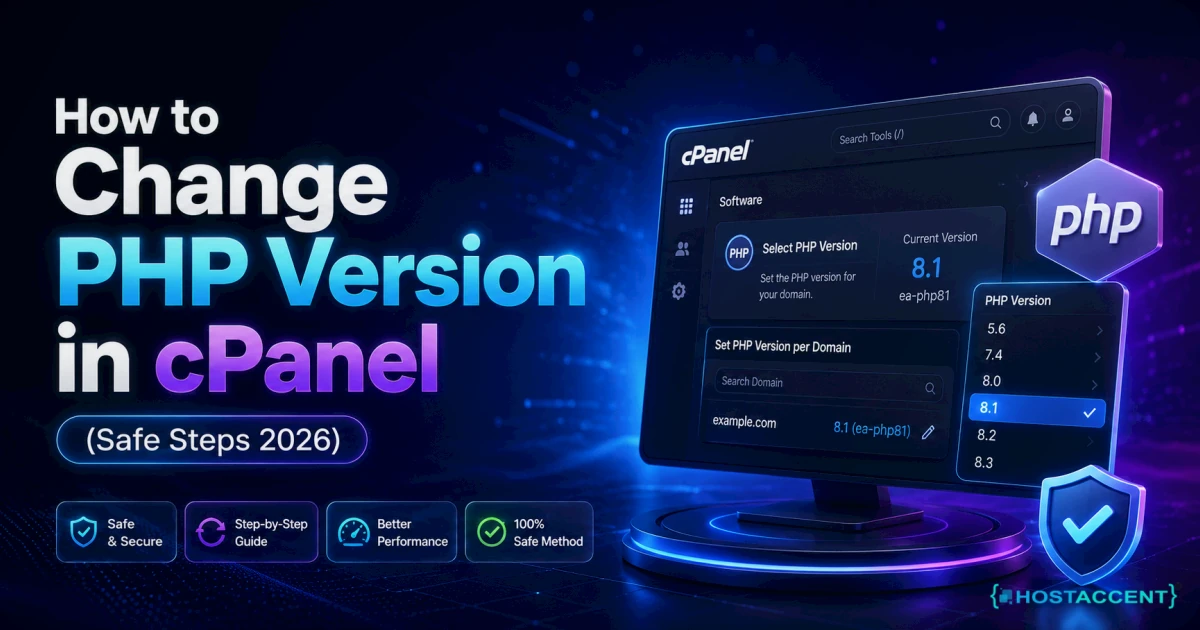
Your host emails you: PHP 7.4 is being retired on your server. Or a plugin update refuses to install because it needs PHP 8.1. Either way, you now need to know how to change PHP version in cPanel — without taking your site down in the process.
The switch itself takes about 30 seconds. The part nobody explains is what to check first, and what to do in the ten minutes after, when a fatal error suddenly replaces your homepage.
Quick Answer: Log into cPanel, open MultiPHP Manager under the Software section, tick the domain you want to change, pick the PHP version from the dropdown, and click Apply. The change is live immediately — no restart, no propagation wait. Back up your site first, and check plugin and theme compatibility before you jump more than one major version.
We resolve 20-30 client issues every day, and a host like Hostaccent hands you MultiPHP Manager and then gets out of the way. What no control panel can do is know whether your 2019 theme survives PHP 8.3. That part is on you — so this guide is the version we'd walk you through on a support ticket, written so you can do it yourself.
What Actually Changes When You Switch PHP Versions
PHP is the engine your site's code runs on. WordPress, WooCommerce, a Laravel app, that contact form someone wrote in 2016 — all of it is PHP source that a binary on the server reads and executes. Changing the version swaps that binary. Nothing else.
Three things move when you do it:
The language rules change. Functions deprecated in 7.4 are removed in 8.0. Code that used to throw a quiet warning now throws a fatal error and stops the page dead.
The extension set changes. Every PHP version on a cPanel server carries its own extension list — imagick, ionCube, mysqli, curl, soap. Switching from 7.4 to 8.2 does not carry your enabled extensions across. This is the single biggest reason a site half-works afterwards: the version applied perfectly, but ionCube is now switched off and your licensed plugin is dark.
Performance changes. PHP 8.x, with a better opcache and JIT, is faster than 7.4 on most real workloads — industry data typically puts WordPress response times 20-30% lower after the jump. That's free speed sitting behind one dropdown, and it feeds straight into your Core Web Vitals.
What doesn't change: your files, your database, your DNS records, your SSL certificate, your CDN cache. Nothing is deleted. That's precisely why rollback is so fast — you're swapping an interpreter, not migrating anything.
Pro Tip: Before you pick a version, check PHP's official supported versions page. Running a version past its security-support date is the quiet risk here — it keeps working right up until it doesn't, and by then you're patching a compromised site instead of a server setting.
Before You Change Anything: The 5-Minute Pre-Flight Check
Skip this and you'll be reading the rollback section instead. Do it and the switch is a non-event.
1. Take a real backup — files and database
Not a plugin snapshot sitting in the same account. A full cPanel backup you can download, or a host-side backup you can point support at. We've run full restores under genuine pressure, including after hardware failure, and the pattern is always the same: the backup you're glad you had is the one that lives somewhere other than the server you just broke. If you've ever had a restore go sideways, our guide on Database Import Failed Migration: Causes & Fix (2026) covers why.
2. Check what your software actually requires
Open your CMS admin. WordPress reports its recommended PHP version under Tools → Site Health. Then check your three riskiest components: your theme, any page builder, and anything with a licence key or encoded source. Those three account for most breakages.
3. Write down your current version and extensions
Literally write it down. Current version, plus every extension currently ticked. When you roll back, you'll want to restore both — and the extension list is the half everyone forgets.
Insider Insight: From the ticket queue — WordPress issues make up about 30% of our monthly support tickets, brute-force and malware 25%, Linux server issues 25%, and SSL problems 20%. PHP version changes rarely arrive labelled as PHP problems. They arrive as "my site is white" or "checkout is broken." The first question we ask is always: what changed in the last hour?
4. Confirm you have disk headroom
A version switch writes new opcache and session data. If your account is already sitting at its inode or disk ceiling, the switch can fail halfway and leave you in a strange state. cPanel Inode Limit Reached: What It Means & How to Fix walks through clearing that first.
How to Change PHP Version in cPanel, Step by Step
Here's how to change PHP version in cPanel using the tool built for it. This is the standard path documented in cPanel's official documentation, and it works the same on shared hosting and on a cPanel/WHM VPS.
- Log into cPanel. Usually yourdomain.com/cpanel, or through your hosting dashboard.
- Find MultiPHP Manager. It sits in the Software section. On Hostaccent servers you'll typically see PHP 7.4 through 8.3 available in the dropdown.
- Tick the domain. The cPanel MultiPHP Manager lists every domain, subdomain, and addon domain in the account, each with its own current version. Select only the one you're changing.
- Pick the target version. Use the "PHP Version" dropdown at the top right.
- Click Apply. That's it. The change takes effect on the next request — no server restart, no waiting.
- Load your site in a private window. Not a cached tab. A clean session, so you're seeing the server's actual response and not your browser's memory.
Then spend two minutes clicking around: homepage, a blog post, the admin dashboard, a form, and — if you sell anything — the checkout. Checkout is where PHP breakages love to hide, because payment gateways are usually the most code-heavy plugins you run.
Enabling extensions on the new version
Go to Select PHP Version (or MultiPHP INI Editor, depending on your cPanel build). Compare the ticked extensions against the list you wrote down. Re-tick anything missing. Save.
This one step resolves more post-switch tickets than everything else combined.
Changing PHP for One Domain or Folder Only
You don't have to move everything at once. This is the part most guides skip, and it's the safest way to upgrade a real account.
Per domain: MultiPHP Manager already does this. Set your staging subdomain to PHP 8.3, leave the live domain on 8.1, test for a week, then flip the live one. Same account, same server, two different interpreters.
Per directory: If you need one folder on a different version, use MultiPHP Manager's per-domain setting where possible rather than hand-editing handlers. If you must go manual, cPanel writes a handler line into .htaccess that looks like this — and note that cPanel generates and overwrites it automatically, so treat it as read-only:
apacheAddHandler application/x-httpd-ea-php83 .php
Pro Tip: Never hand-edit that handler line. cPanel regenerates it whenever you touch MultiPHP Manager, and a stale hand-written handler pointing at a version that no longer exists on the server is a guaranteed 500 error. After 14 years across everything from root servers to cPanel/WHM and Plesk fleets, that's one of the few mistakes we see repeat itself unchanged, year after year.
If you do hit one, 500 Internal Server Error WordPress: Fix It Fast (2026) has the full diagnostic path.
Site Broke After PHP Update? Here's the Rollback
Site broke after PHP update — white screen, fatal error, half the page missing. Don't panic and don't start deleting plugins. You have a 60-second undo.
Roll back first, diagnose second. It's the first thing we tell a Hostaccent customer who opens a broken-site ticket minutes after a version switch: get the site back up, then find out why. Debugging a live outage is how small problems turn into long ones.
- cPanel → MultiPHP Manager.
- Tick the domain.
- Select your previous version.
- Apply.
- Reload in a private window.
Your site should return. If it doesn't, the PHP version wasn't the cause — something else changed at the same time.
Now find out what broke. Go to cPanel → Errors, or open the error log in File Manager. You're looking for the most recent PHP Fatal error line. It names the file and the line number. That's your culprit — usually a theme function or a plugin calling something removed in PHP 8.
Common ones we see:
| Symptom after the switch | Usual cause | Fix |
|---|---|---|
| White screen, no output | Fatal error, display_errors off | Read the error log, not the browser |
| Site works, images don't process | imagick extension not enabled on the new version | Re-tick it in Select PHP Version |
| Licensed plugin dead | ionCube/encoder loader missing | Enable the loader for the new version |
| Database connection errors | Old mysql_* calls removed | Update the plugin or the code |
| Memory exhausted errors | Per-version memory_limit reset to default | Raise it (512M is a sane WordPress ceiling) |
If you land on that fourth row, Can't Connect to MySQL Server on localhost: Quick Fix narrows it down further.
Honest note: rollback buys you time, it doesn't buy you a pass. An unsupported PHP version stops receiving security fixes, and "it works" is not the same as "it's safe." Roll back, fix the offending plugin, then move forward within a week or two.
PHP 8 Compatibility: What Actually Breaks (and What Doesn't)
PHP 8 compatibility is less scary than its reputation. Modern WordPress core, and every actively maintained plugin, has been PHP 8 ready for years. The WordPress documentation tracks the current recommendation, and as of July 2026 core is comfortable on 8.x.
What breaks is almost always one of four things:
- Abandoned plugins. No updates since 2020? That's your risk, not PHP's.
- Custom theme functions written against 7.x behaviour.
- Encoded or licensed code whose loader hasn't been enabled on the new version.
- Old snippets pasted into
functions.phpyears ago and forgotten.
The official PHP manual documents every backward-incompatible change per version, which is worth ten minutes if you maintain custom code.
Here's the decision shortcut most people need. To update PHP version for WordPress sites, pick by situation, not by "newest is best":
| Your situation | Version to target | Why | |---|---|---| | Standard WordPress, all plugins current | Latest supported 8.x | Best performance and full security support | | WooCommerce with 20+ plugins | One major version behind latest | Extension maturity beats bleeding edge | | Legacy custom app, no developer | Newest version it tests clean on | Stability first, then plan the upgrade | | Anything on 7.4 or older | Move now | No security support — this is the actual emergency |
Jumping 7.4 → 8.3 in one hop is where most breakages happen. Go 7.4 → 8.0, test, then 8.1, then 8.2. Slower, dramatically less dramatic.
Worth knowing: a PHP upgrade often fixes performance complaints that people blame on their host. If your site felt sluggish before, run through Fix a Slow WordPress Site: Diagnose in 30 Minutes after the switch — the numbers usually look different. And if the field data still lags, Core Web Vitals Failing? Your Hosting Might Be the Problem covers the server-side half.
The Short Version — and Your Next Step
Five things to remember about how to change PHP version in cPanel:
- Back up first. Files and database, stored off the server.
- MultiPHP Manager is the tool. Software section, tick the domain, pick the version, Apply.
- Extensions don't follow you. Re-enable them on the new version, every time.
- One major version at a time. 7.4 → 8.0 → 8.1, testing between.
- Rollback takes 60 seconds. The same dropdown that broke it fixes it.
If your control panel doesn't offer a version choice at all, that's the real problem — and it's worth fixing. Hostaccent's Shared Hosting plans run cPanel with MultiPHP Manager on an NVMe SSD stack behind Cloudflare, with a 99.9% uptime guarantee and a 30-day money-back guarantee. The Economy plan is $1.99/mo and renews at $1.99/mo — no renewal surprise. Honest limitation: Economy suits brochure sites, blogs, and small business sites; if you're running a busy WooCommerce store with 30+ plugins, Standard at $4.58/mo is the sensible floor. If something does break after a switch, our UK-based engineers read your error log with you instead of closing the ticket.
Frequently Asked Questions
How to change PHP version in cPanel if MultiPHP Manager is missing?
Look for "Select PHP Version" instead — some cPanel builds use that tool. If neither appears, your host has restricted PHP version control at the server level. Contact support and ask them to switch the version for your domain, or move to a plan that gives you the control yourself.
Will changing my PHP version delete my website files?
No. Switching PHP versions only changes which interpreter runs your code. Your files, database, emails, DNS records, and SSL certificate are untouched. That's why rollback is instant — you're flipping a setting, not migrating data. Always back up anyway; the risk is code compatibility, not data loss.
How long does a PHP version change take to apply?
Immediately. There's no restart or propagation delay — the next request to your site uses the new version. Load your site in a private browsing window straight away, because a cached tab will happily show you the old page and hide a fatal error for several minutes.
Which PHP version should I use for WordPress in 2026?
Target a currently supported 8.x release. WordPress core has been PHP 8 ready for years, and the performance gain over 7.4 is real. If you run many plugins, sit one major version behind the newest for extension maturity. Anything on 7.4 or older needs upgrading now — no security support.
Why did my images stop working after upgrading PHP?
Almost certainly the imagick or gd extension isn't enabled on the new version. Extensions don't carry across versions in cPanel. Open Select PHP Version, compare the ticked extensions to your old list, re-enable what's missing, and save. This resolves most post-upgrade oddities.
Can different domains in one cPanel account run different PHP versions?
Yes. MultiPHP Manager sets the version per domain, subdomain, and addon domain independently. On Hostaccent accounts that means you can run a staging subdomain on PHP 8.3 while your live site stays on 8.1, test properly, then flip the live domain once you're confident. It's the safest upgrade path there is.
Discussion
Have a question or tip about this topic? Share it below — your comment will appear after review.