
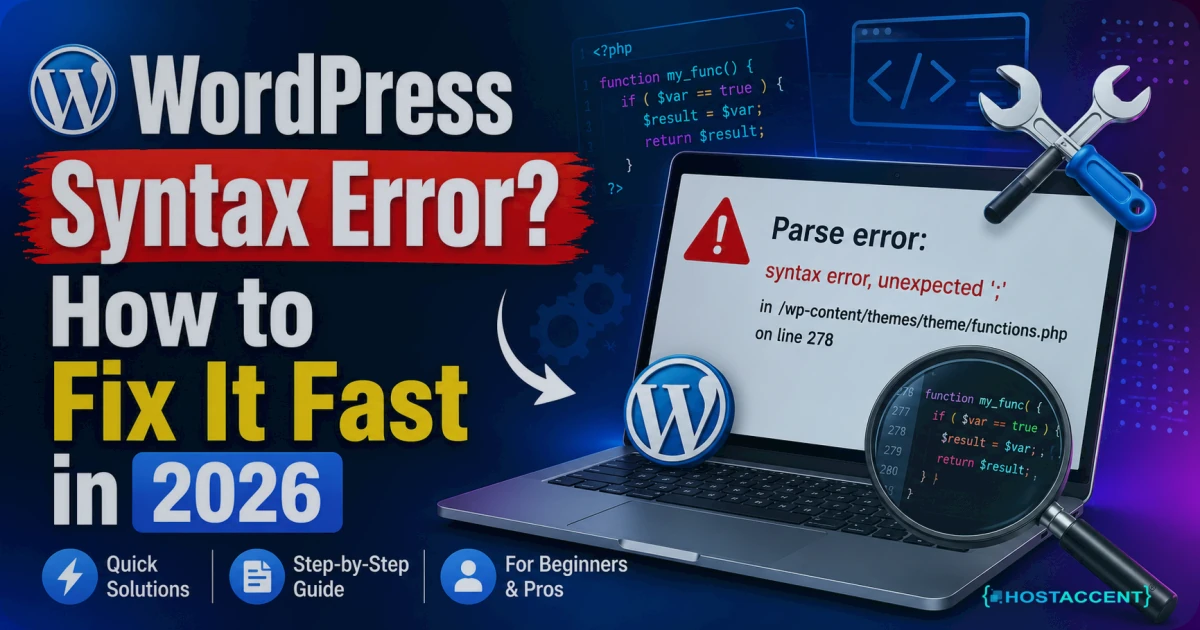
You pasted a snippet into functions.php, hit save, and now your site is a blank white page with a line like Parse error: syntax error, unexpected... — and you're locked out of wp-admin too. A WordPress syntax error looks like a disaster, but it's almost always a five-minute fix. The code you just added has a typo — a missing bracket, a stray character, an extra ?> — and PHP stopped the whole site rather than run broken code.
Here's the fastest way out.
Quick Answer: A WordPress syntax error means PHP found broken code — usually in functions.php — and halted the page to protect your site. To fix it, connect via FTP or your host's File Manager, open the file named in the error, and delete or correct the snippet you last added. Your site returns the moment the bad code is gone. No plugin, no database edit needed.
That's the whole game — and it's the same routine our team at Hostaccent walks customers through when a snippet takes a site down. Now let's do it properly, step by step, and make sure it never locks you out again.
What a WordPress Syntax Error Actually Means
Think of PHP as a strict proofreader. Before it runs a single line, it reads the whole file to check the grammar. One missing semicolon or unclosed brace and it refuses to continue — that's the parse stage failing, which is why you'll often see parse error syntax error unexpected followed by a symbol and a line number.
The message is more helpful than it looks. A typical one reads:
bash## Example error from a broken functions.php Parse error: syntax error, unexpected '}' in /home/user/public_html/wp-content/themes/yourtheme/functions.php on line 212
Two gold nuggets there: the file path (which file broke) and the line number (roughly where). Nine times out of ten, in the tickets our support team handles, that path points straight at wp-content/themes/yourtheme/functions.php — because that's the file every tutorial tells you to edit. PHP's own language reference is worth a bookmark if you touch code often.
One reassuring fact: nothing is broken permanently. Your posts, images, and settings live in the database, untouched. Only one text file has a typo. Fix the text, and the site is back.
The Fastest Fix: Undo the Bad Code via FTP
FTP (or SFTP) is the reliable route because it works even when wp-admin is dead. You'll need your hosting login and an FTP client like FileZilla, or the File Manager inside your control panel.
Here's the sequence:
- Connect to your server via SFTP (host, username, password, port 22 — or open the File Manager in cPanel/Plesk).
- Browse to the exact path from the error message — usually
/wp-content/themes/your-active-theme/. This is the theme's functions file. - Download a backup copy of functions.php first. Always. It takes 10 seconds and saves you if the next edit goes wrong.
- Open the file and jump to the line number the error named (say, line 212).
- Delete the snippet you just added — the whole block you pasted before things broke — or correct the obvious typo (a missing
},;, or)). - Save and upload the file back to the server.
- Reload your site. It should return instantly.
Not sure which lines you added? Look for anything that doesn't match the tidy formatting around it — pasted code usually stands out. When a client is mid-incident and genuinely can't tell, a host like Hostaccent can pull the pre-edit copy from a recent backup, but honestly, deleting your own paste is faster.
Pro Tip: Never edit functions.php from the WordPress dashboard's Theme File Editor. It's the single fastest way to white-screen a live site, because WordPress saves the broken code before it can warn you. Edit via FTP or a staging copy instead — every time.
What Causes a WordPress Syntax Error (Ranked by Frequency)
From the theme-edit tickets we see most weeks, the causes cluster into a short, predictable list. Worst offenders first:
| Cause | How often it's the culprit | Typical fix time |
|-------|----------------------------|------------------|
| Pasted snippet into functions.php | Most common | 2-5 minutes |
| Missing or extra brace { } / semicolon ; | Very common | 1-2 minutes |
| "Smart quotes" (curly " instead of straight ") | Common | 2 minutes |
| Stray closing ?> with whitespace after it | Occasional | 2 minutes |
| Typo in an edited plugin file | Occasional | 5 minutes |
The number-one cause, by a wide margin, is that first row: you found an "add this to functions.php" tutorial, pasted it, and the snippet either had a typo or clashed with your PHP version. Most php parse error wordpress cases trace back to that single file.
Smart quotes deserve a special mention because they're sneaky. If you copied code out of a Word doc, a PDF, or some blog posts, the straight quotes may have been auto-converted to curly ones. PHP can't read those. Retype the quotes by hand and the error vanishes.
Insider Insight: A big share of "sudden" syntax errors aren't sudden at all — they show up after a PHP upgrade. Code that ran fine on PHP 7.4 can throw a fatal error on PHP 8.2 because old syntax was removed. If your site broke without you touching a thing, check whether your host bumped the PHP version.
Fixing functions.php When You Can't Use FTP
No FTP client handy? You've got two other routes.
Option A — File Manager (fastest for most people). Log into your hosting control panel, open File Manager, and go to /public_html/wp-content/themes/your-theme/. Right-click functions.php, choose Edit, remove the bad snippet, and save. Same result as FTP, nothing to install.
Option B — The theme-rename trick. If the broken file is your active theme's functions.php and you can't edit it cleanly, rename the theme's folder (e.g. themes/yourtheme → themes/yourtheme-off). WordPress can't find the active theme, falls back to a default theme, and wp-admin loads again. Fix the file calmly, then rename the folder back.
For a plugin-caused error, the same logic applies: rename the offending plugin's folder inside /wp-content/plugins/ to force it off instantly.
Once you're back in, turn on debugging to catch the next one early. Add this to wp-config.php:
bash// Enable WordPress debug logging (remove after troubleshooting) define( 'WP_DEBUG', true ); define( 'WP_DEBUG_LOG', true ); define( 'WP_DEBUG_DISPLAY', false );
Errors then write to /wp-content/debug.log instead of exposing them to visitors. WordPress's own debugging documentation explains each flag. If other errors are stacking up alongside this one, our guides on the 500 Internal Server Error in WordPress and the 403 Forbidden Error cover the two you're most likely to meet next.
How to Confirm the Fix and Stop It Recurring
Reload your homepage and wp-admin. Both should load normally — no white screen, no error text. Click through a couple of inner pages too, since a broken snippet can sometimes affect only certain templates.
Now prevent the repeat. A few habits kill this problem for good:
- Use a code-snippets plugin instead of editing functions.php directly. Good ones validate syntax and auto-deactivate a broken snippet, so a typo can't take the whole site down.
- Test on staging first. Any decent managed WordPress setup gives you a one-click staging copy — break things there, not on your live site.
- Keep scheduled backups. At Hostaccent, on our Nginx → Apache and NVMe SSD stack, we keep automated backups so a bad edit is a 30-second restore, not a lost afternoon. Whatever host you're on, confirm your backups actually run.
- Match code to your PHP version. Check which version you're on (PHP 8.2 and 8.3 are current in 2026) before pasting older snippets.
Pro Tip: Before editing any theme file, copy its full contents into a plain-text editor as a manual backup. If the edit breaks, paste the original straight back and you're live again in seconds — no FTP scramble required.
The short version: find the file and line in the error, delete or fix the snippet you added, restore your site, then move future edits onto staging with backups running. Planning a bigger project? If you're also weighing a domain, our breakdown of .com vs .net vs .io is worth a look before you buy.
When It's Worth Letting Managed Hosting Handle the Risky Part
If tonight's scare is the third time a snippet has taken your site down, the real fix might be your setup, not just this one file. Managed WordPress hosting removes most of the risk: staging so you never edit live, automatic backups for instant rollback, and support that can undo a bad edit for you.
That's the idea behind Hostaccent's WordPress Hosting — UK-registered and running WordPress sites since 2018, on the same Cloudflare-fronted, Nginx → Apache, NVMe SSD stack we use across every site we host, with UK-based human support. The Basic plan starts at $22.99/yr. It won't magically fix bad code you paste in (nothing will) — but staging and one-click restore turn a WordPress syntax error into a shrug instead of an emergency. Outgrowing shared entirely? Our Amsterdam VPS hosting guide covers the step up.
Frequently Asked Questions
Why does a WordPress syntax error break my whole site?
Because PHP checks a file's grammar before running any of it. One typo — a missing brace or semicolon — and it refuses to execute the file, so every page that loads it goes blank. Fix the typo and the whole site returns; your content in the database is never touched.
How do I fix a syntax error in functions.php?
Connect via FTP or your host's File Manager, open the theme's functions.php at the path shown in the error, and delete the snippet you last added (or correct the typo on the named line). Save, then reload. Editing outside wp-admin is exactly what lets you fix it while locked out.
What does "parse error syntax error unexpected" actually mean?
It means PHP hit a character it didn't expect — often a stray }, ), or ; — at the position named. The "unexpected" symbol and line number point you to the exact spot. Go to that line, fix the mismatch, and the error clears immediately.
Can a plugin cause a PHP parse error in WordPress?
Yes. A plugin's own PHP files can carry a syntax error, especially after a half-finished update or a manual edit. To recover, rename that plugin's folder inside /wp-content/plugins/ to force it off, then reload wp-admin. Update or reinstall the plugin cleanly once you're back in.
Will I lose my content when I fix this?
No. Posts, pages, media, and settings live in your MySQL database, which a syntax error never touches. The problem is a single text file with a typo. Once you correct or remove the bad code, everything reappears exactly as it was. Backups still matter, but nothing is lost here.
How can I stop syntax errors from happening again?
Edit code on a staging site, use a snippets plugin that validates syntax, and keep automatic backups for instant rollback. Managed hosts like Hostaccent bundle staging and one-click restore, so a bad edit becomes a quick undo rather than downtime. Match your snippets to your current PHP version too.

Discussion
Have a question or tip about this topic? Share it below — your comment will appear after review.