
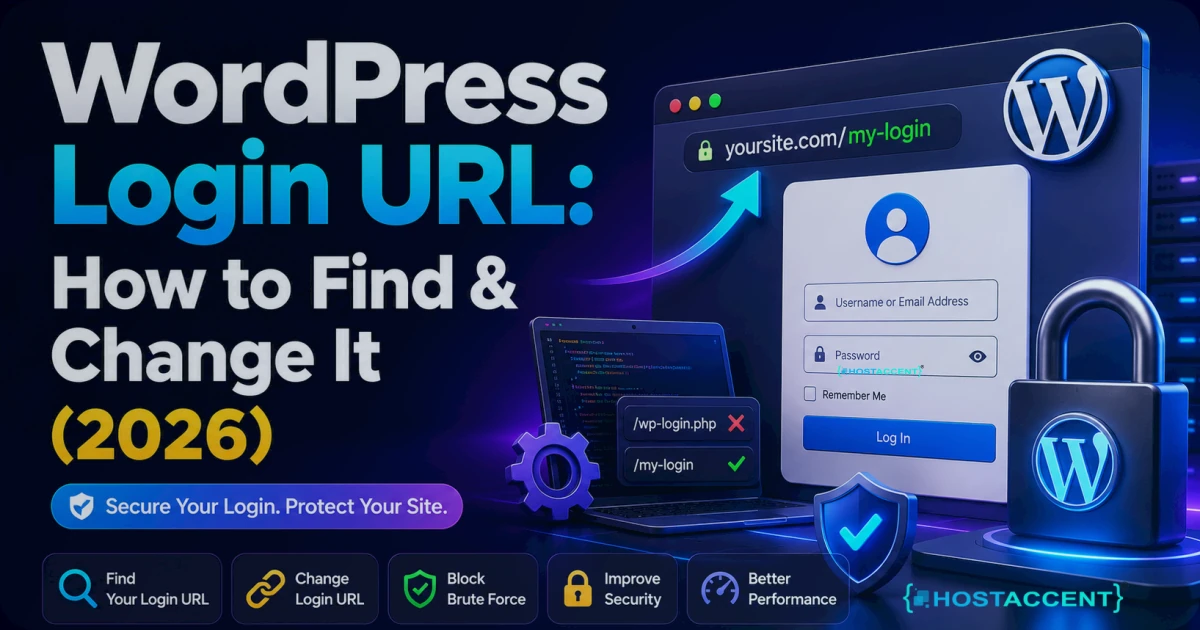
Locked out and staring at a page that won't load? The WordPress login URL is the single door into your dashboard — and when you can't find it, or a bot is hammering it, the whole site feels out of reach. Good news: the default path is predictable, recovering access takes minutes, and hiding that door is one of the easiest security wins you'll ever make.
This guide covers every default login path, how to get back in when you're locked out, and how to change wp-admin so attackers can't find it.
Quick Answer: By default, your WordPress login URL is yourdomain.com/wp-login.php (or the shortcut yourdomain.com/wp-admin). If neither loads, your permalinks, a security plugin, or a caching layer has likely moved or blocked it. You can restore access via your hosting file manager or database, then change the login slug to something private for better protection.
Most of this you can handle yourself in a few minutes. A managed host like Hostaccent smooths the fiddly parts — clean permalinks, brute-force blocking — by default, but you don't need one to get back in today.
Where Is the WordPress Login URL by Default?
Every standard install ships with the same front door. Type your domain followed by one of these and you'll land on the sign-in screen:
yourdomain.com/wp-login.php— the real login fileyourdomain.com/wp-admin— the wp-admin login shortcutyourdomain.com/login— works on some setupsyourdomain.com/admin— works on some setups
The first two are the ones that matter. wp-admin is technically the dashboard folder; when you're not signed in, WordPress bounces you to wp-login.php with a 302 redirect, then hands you the dashboard once you authenticate. The official WordPress documentation confirms these paths are baked into core.
If your site lives in a subfolder — say yourdomain.com/blog — your login sits at yourdomain.com/blog/wp-login.php. Multisite installs and staging copies follow the same rule from their own root.
Pro Tip: Bookmark your exact login URL the day you launch. In the support tickets our team handles, a surprising share of "I can't log in" cases are just someone typing
/wp-adminon a subfolder install where the real path includes the folder name.
How to Find Your WordPress Login Page (If You've Lost It)
Lost the link? Here's the fastest way to find your WordPress login page, in order of effort.
1. Try the defaults first. Nine times out of ten, /wp-login.php or /wp-admin just works. Start there.
2. Check your browser history and password manager. If you've logged in before, the URL is almost certainly saved. Search your stored passwords for your domain — the saved entry usually points straight at the login page.
3. Look for a custom slug. If a previous developer installed a security plugin (WPS Hide Login, iThemes Security, Wordfence), the wp-admin login may have been renamed to something like /secret-door. Check the plugin's settings, or ask whoever built the site.
4. Ask your host. Any decent control panel has a one-click "Log in to WordPress" button that skips the URL entirely. Hostaccent, for one, puts that shortcut right in the account area, so you're never stranded because a link went missing.
What to Do When the WordPress Login Page Is Not Found
Sometimes the URL is right but the page still won't load. A "WordPress login page not found" error (or a plain 404) usually points to one of these:
- Broken permalinks — a corrupted
.htaccessfile stops WordPress routing requests correctly. - A security plugin changed the slug and you don't remember the new one.
- A redirect loop is bouncing the login endlessly.
- A caching or CDN layer is serving a stale, broken version.
Here's how to fix each without panicking.
Reset your .htaccess. Using your file manager or SFTP, rename the existing .htaccess to .htaccess-old. WordPress regenerates a clean one when you visit Settings → Permalinks and click Save. On our Nginx → Apache stack, roughly one in three "can't reach login" tickets traces back to a mangled .htaccess rule.
Disable plugins via file manager. Rename /wp-content/plugins to plugins-old. That deactivates everything at once. If the login returns, a plugin was the culprit — restore the folder and re-enable one by one. If a redirect is the problem, our Too Many Redirects WordPress: Fix the Loop Fast (2026) walkthrough covers the loop in detail.
Purge the cache. Clear your caching plugin and your CDN (Cloudflare included). A stale cached redirect can outlive the fix by hours.
If the whole site is throwing errors rather than just the login, our guide on There Has Been a Critical Error on This Website: Quick Fix tackles the fatal-error version of the same problem.
Insider Insight: Before you touch the database, check whether it's really the login or the whole site that's down. Loading
yourdomain.comin an incognito window tells you in 5 seconds. If the homepage loads but/wp-login.php404s, it's almost always permalinks or a plugin — not a server outage.
How to Change Your wp-admin URL for Better Security
Here's the part most people skip. Because the default login path is identical on millions of sites, bots target /wp-login.php around the clock with automated password guesses. Automated login attacks have only gotten noisier in 2026, so hiding that door cuts the noise dramatically.
You've got two clean ways to change your wp-admin URL:
Option 1 — A plugin (easiest). WPS Hide Login is the lightweight favourite. Install it, open its settings, and set a custom slug like /my-private-entrance. From then on, /wp-login.php returns a 404 to strangers and only your path works. Write the new URL down first — locking yourself out is the classic mistake here.
Option 2 — Add real protection on top. Renaming the slug is "security through obscurity." It helps, but pair it with rate limiting, a firewall, and two-factor authentication. Cloudflare's WAF and rate-limiting rules can throttle brute-force attempts before they reach your server, and OWASP's guidance on credential stuffing explains why a strong password still matters most.
On our own stack at Hostaccent, we combine a renamed login path with Fail2ban-style blocking and a Cloudflare rule that challenges datacenter IPs — the same approach we deploy across the sites we host. It's not glamorous, but it stops the overwhelming majority of automated attempts cold. For the full checklist, our WordPress Security Hardening: Protect Your Site From Attacks guide goes step by step.
Pro Tip: After you change the login slug, update any bookmarks, mobile app logins, and uptime monitors that ping
/wp-login.php. We've watched monitoring tools fire false "site down" alerts for days simply because they were still checking the old, now-404 path.
Common WordPress Login Mistakes (and How to Avoid Them)
A few errors show up again and again:
- Forgetting the subfolder.
/wp-adminwon't work if WordPress lives in/blog. Always include the folder. - Confusing your host login with your WordPress login. Your hosting account (billing, control panel) and your dashboard are two separate accounts with two separate passwords.
- SSL gremlins after moving to HTTPS can make the login misbehave — our Mixed Content Warning After SSL? How to Fix It (2026) covers that.
- Assuming a slow login means a hack. Often it's just an underpowered server or missing PHP resources (running PHP 8.2 with adequate memory matters more than the URL). Confirm your setup meets the WordPress Hosting Requirements: PHP, MySQL & Memory (2026) before assuming the worst.
Roughly 40% of the web runs on WordPress, which is exactly why its login page is such a popular target — you're not being singled out, you're just running the world's most common CMS.
Managed WordPress Hosting That Keeps Your Login Secure
If wrangling .htaccess files and firewall rules isn't how you want to spend your afternoon, the right host does the heavy lifting for you. Hostaccent's WordPress Hosting runs on an NVMe SSD, Cloudflare-fronted, Nginx → Apache stack with UK-based human support — the Basic plan starts at $22.99/yr and includes the login-security defaults (SSL, 99.9% uptime, brute-force protection, clean permalinks) that keep your WordPress login URL locked down.
It won't magically fix a login you renamed and forgot — you still need to write that slug down. But it does mean fewer 404s, faster recovery when something breaks, and a support team that's seen every login puzzle before. As a UK-registered company operating since 2012, we've handled these tickets for well over a decade.
Frequently Asked Questions About the Login URL
What is the default WordPress login URL?
The default WordPress login URL is yourdomain.com/wp-login.php, with yourdomain.com/wp-admin as a shortcut that redirects there when you're signed out. If your site sits in a subfolder like /blog, add that folder to the path. These defaults work on nearly every standard install.
How do I find my login page if I forgot the URL?
Try /wp-login.php or /wp-admin first. If a security plugin renamed it, check that plugin's settings or your password manager, which usually saved the exact link. Most hosting control panels also include a one-click login button that skips the URL entirely.
Why does my WordPress login page say "not found"?
A "not found" or 404 error usually means broken permalinks, a corrupted .htaccess file, a plugin that renamed the login slug, or a stale cache. Reset .htaccess, disable plugins via file manager, and purge your cache to restore access.
Is it safe to change the wp-admin login URL?
Yes, changing the wp-admin URL is safe and recommended, as long as you save the new slug somewhere secure first. It reduces automated brute-force traffic hitting the default path. Pair it with a strong password, two-factor authentication, and a firewall for real protection.
Can my host help me recover login access?
Yes. A good host can reset your password from the database, restore a clean .htaccess, or provide a one-click dashboard login. Hostaccent's UK-based support handles exactly these recovery tickets, often getting locked-out customers back in within minutes rather than hours.
Does changing my login URL slow down my site?
No. A login-slug plugin like WPS Hide Login adds negligible overhead — it just rewrites one URL. Your speed depends far more on your server, caching, and PHP version than on the login path. On a fast NVMe host, you're looking at sub-500ms response times regardless.



Discussion
Have a question or tip about this topic? Share it below — your comment will appear after review.