
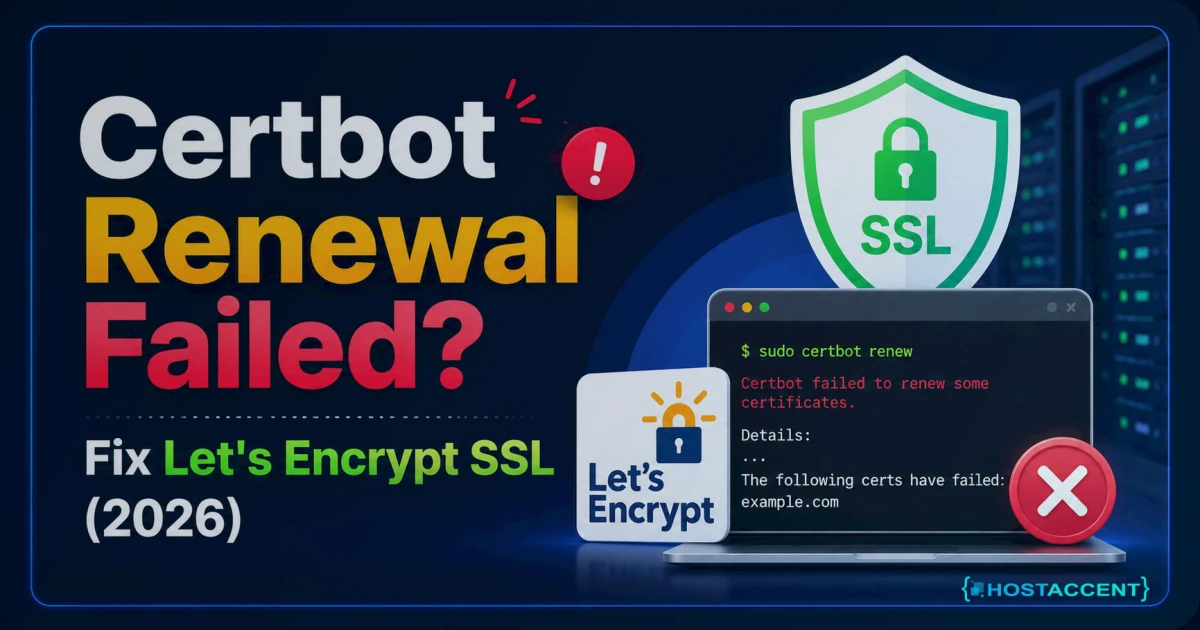
Quick Answer: A certbot renewal failed message almost always means Let's Encrypt couldn't re-validate your domain — usually a blocked port 80, a moved webroot, changed DNS, or a hit rate limit. Run
sudo certbot renew --dry-runto surface the exact reason in the log, fix that single cause, then renew. Let's Encrypt certificates last 90 days and should auto-renew at the 30-day mark.
Your browser just threw a security warning, you SSH'd in, ran a renew, and the terminal answered with certbot renewal failed. The clock's now ticking — a lapsed certificate means visitors hit a "Not Secure" page and bounce. Take a breath. This is almost never a broken certbot; it's one specific thing blocking the validation, and once you spot which one, the fix takes minutes.
This guide walks the real causes in the order we actually see them, with the exact commands and file paths for each. No theory dump — diagnosis first, then the targeted fix, then how to make sure it never wakes you at 2 a.m. again.
Here's the reassuring part: nothing's lost yet. Your old certificate stays installed until it expires, so a failure a few days before expiry still leaves a window to act. On a managed host like Hostaccent this renewal cycle runs in the background and you'd never see the error — but if you're self-managing a VPS, you own the whole chain, so let's fix it.
Why Certbot Renewal Failed: Causes Ranked by Frequency
Across the renewal tickets our team handles, a short list explains the overwhelming majority of failures. Roughly in order:
- Port 80 is closed or the HTTP-01 challenge times out — the validation server can't reach you.
- The webroot path moved, or a redirect is swallowing the
/.well-known/acme-challenge/request. - DNS changed — the A record no longer points at this box, or a proxy sits in the way.
- You hit a Let's Encrypt rate limit after too many quick retries.
- The certbot timer isn't running, so nothing renewed and now you're past due.
A certbot timeout and a webroot 404 write different log lines, so don't guess — read the log first.
Pro Tip: Before you change a single config file, run
sudo certbot renew --dry-run. It hits Let's Encrypt's staging environment, so it doesn't burn your real rate-limit budget, and it reproduces the exact failure with a clean error message. Nine times out of ten the fix is obvious from that one command.
Read the Log Before You Touch Anything
Every failed attempt writes to /var/log/letsencrypt/letsencrypt.log. Open the tail:
bashsudo tail -n 50 /var/log/letsencrypt/letsencrypt.log
Then check what certbot thinks it's managing:
bashsudo certbot certificates
That lists each certificate, its domains, and the days left. If you see "VALID: 12 days" you've still got runway. The renewal config for each domain lives in /etc/letsencrypt/renewal/yourdomain.conf — it records the authenticator (nginx, apache, or webroot) and the webroot path. Most "mystery" failures trace back to a value in that file no longer matching reality.
For what each renewal field actually means, the official Certbot documentation is the source of truth.
Cause 1: Port 80 Closed or the Challenge Times Out
The default HTTP-01 challenge needs Let's Encrypt to reach http://yourdomain/.well-known/acme-challenge/... on port 80 — even though your live site serves on 443. If the log says "Timeout during connect (likely firewall problem)," this is you.
Check the firewall:
bashsudo ufw status sudo ufw allow 80/tcp
On a cloud VPS, also open port 80 in the provider's security group. The OS firewall and the cloud firewall are two separate gates, and people forget the second one constantly. When we migrate customer sites, that missing cloud-firewall rule is one of the most common reasons a previously fine renewal suddenly times out on the new box.
Confirm nothing else is squatting on the port:
bashsudo ss -tlnp | grep ':80'
If neither Apache nor Nginx is bound there, the standalone plugin can't answer the challenge. The ACME protocol that powers this (RFC 8555) defines exactly how that handshake works if you want the spec-level detail.
Cause 2: Wrong Webroot Path or a Redirect Hijacking the Challenge
When you serve the challenge via webroot, certbot drops a token file into a directory and Let's Encrypt fetches it over HTTP. Two things break this.
The docroot moved. Your renewal/*.conf still points at /var/www/html, but your site now lives in /var/www/yoursite/public. Certbot writes the token where nobody's serving it → 404 → failure. Fix webroot_path in the renewal conf, or re-run with the correct path:
bashsudo certbot certonly --webroot -w /var/www/yoursite/public -d yourdomain.com -d www.yourdomain.com
A blanket HTTPS redirect. A force-SSL rule that 301s every HTTP request can catch the /.well-known/ path before the token is served. Add an exception so the challenge directory is reachable over plain HTTP. This single misconfiguration is behind a surprising share of "it worked last quarter" failures — and it often shows up alongside a 403 Forbidden error when permissions on the challenge folder are wrong too.
On our own Nginx → Apache stack at Hostaccent, this webroot-vs-redirect mismatch is the single most common cause we trace when a self-managed renewal breaks.
Insider Insight: If your stack proxies through Cloudflare, an HTTP-01 challenge on port 80 can be intercepted at the edge. The clean fix is to switch that domain to the DNS-01 challenge using the Cloudflare plugin, or install a long-lived Cloudflare Origin certificate instead. Don't fight the proxy — validate through DNS.
Cause 3: DNS Drift, Proxies, and Rate Limits
If your A record changed — new server IP, a typo, or a registrar edit — Let's Encrypt validates against where the domain currently points, which may not be your box. Confirm with:
bashdig +short yourdomain.com
If that IP isn't this server, the challenge keeps failing no matter how clean your config is. (DNS hygiene matters more than people expect when you're juggling several domains and extensions — our .com vs .net vs .io guide covers the registrar side.)
Rate limits — the silent trap. Every failed attempt counts. As of 2026, under Let's Encrypt's current token-bucket model, you get up to 5 validation failures per hostname per account each hour, refilling 1 every 12 minutes. Retry a broken config ten times in a row and you lock yourself out — turning a 5-minute fix into an hour of waiting. There's also a hard ceiling of 50 certificates per registered domain per week and 5 duplicate certificates per week, so don't spam --force-renewal. The official Let's Encrypt rate limit documentation lists every threshold.
This is exactly why the dry run matters — it fails safely against staging instead of spending your real budget. An SSL renewal failed on a VPS is far easier to recover from when you haven't already burned your hourly retries.
If you genuinely need to force one renewal after fixing the root cause:
bashsudo certbot renew --force-renewal --cert-name yourdomain.com
Use it once, not in a loop.
Confirm the Fix and Stop It Recurring
Once the underlying cause is sorted, prove it:
bashsudo certbot renew --dry-run
A clean dry run means the next real renewal will succeed. Then make sure automation is actually live — on modern systems this is a systemd timer, not cron:
bashsystemctl list-timers | grep certbot systemctl status certbot.timer
The timer should fire twice daily; certbot only acts when a certificate is inside the 30-day window, so most runs do nothing — that's normal. If the timer is dead, enable it:
bashsudo systemctl enable --now certbot.timer
Pro Tip: Add a renewal hook so your web server reloads the new certificate automatically. Drop
--deploy-hook "systemctl reload nginx"into the renewal, or place a script in/etc/letsencrypt/renewal-hooks/deploy/. A renewed cert the server never reloaded is the quiet cause behind "but certbot said success and the site's still broken" — sometimes surfacing as a 500 Internal Server Error in WordPress when a stale cert or mixed content trips PHP.
On our own managed stack at Hostaccent, that deploy hook ships enabled by default — which is precisely why renewal-reload mismatches never reach our customers. Set yourself a calendar reminder for 60 days out as a backstop, and you've turned a recurring fire drill into a non-event.
When Babysitting SSL Stops Being Worth It
There's no medal for hand-renewing certificates. If you're running one site or a handful of client sites, the hour you spend chasing webroot paths and firewall rules is an hour not spent on the actual business.
That's the honest case for managed hosting: SSL gets issued, renewed, and reloaded for you, so a certbot renewal failed message never reaches your inbox. Hostaccent's Linux Shared Hosting handles certificates automatically on its WHMCS + Cloudflare + NVMe stack — the Economy plan runs $1.99/yr with free SSL included, UK-based human support, and no cron timers for you to babysit, from a UK-registered host operating since 2018.
The trade-off, stated plainly: if you need deep, root-level control over your ACME client, custom DNS-01 setups, or non-standard challenge flows, a self-managed VPS is still the better fit — and if you'd rather keep that control, our Amsterdam VPS hosting guide walks through a performance-first EU setup. Pick the model that matches how much of the stack you actually want to own.
Key takeaways
- A certbot renewal failed error is a validation problem, not a broken certbot — read
/var/log/letsencrypt/letsencrypt.logfirst. - The top causes, in order: closed port 80, wrong webroot or a redirect, DNS drift, then rate limits.
- Always test with
--dry-runbefore retrying — it protects your hourly rate-limit budget. - Confirm
certbot.timeris active and add a deploy hook so renewed certs actually reload.
Related guides: How to Stop a DDoS Attack: The First 10 Minutes (2026)
<!-- ha:inbound-repair:end -->Frequently Asked Questions
Why does certbot renewal fail even though my site loads fine on HTTPS?
Your live certificate is still valid on port 443, so the site loads — but renewal validates over port 80. A closed port 80, a redirect catching the challenge path, or DNS pointing elsewhere will fail the renewal while the existing cert keeps working until it expires.
How do I fix a certbot timeout during connect?
A timeout means Let's Encrypt's servers can't reach port 80. Open it in both your OS firewall (sudo ufw allow 80/tcp) and your cloud provider's security group, then confirm nothing else is bound to it with sudo ss -tlnp | grep ':80'. Re-run the dry run to verify.
What happens if my certificate actually expires?
Visitors get a full-page browser warning and most leave immediately. The site itself keeps running — only the TLS trust is gone. If you're behind Cloudflare in Full (Strict) mode, visitors won't even see that warning — Cloudflare blocks the connection outright and shows Cloudflare Error 526: How to Fix Invalid SSL Fast (2026) instead. Renew as soon as you've cleared the cause; there's no penalty for a late renewal beyond the downtime window itself.
How many times can I retry a failed renewal?
Sparingly. Let's Encrypt permits 5 validation failures per hostname per account each hour, refilling one every 12 minutes. Hammering a broken config locks you out and stretches a quick fix into an hour-long wait. Fix the cause, then run a single dry run.
Does a Let's Encrypt renewal error mean I need a new certificate?
No. Renewal reuses your existing certificate's configuration. Once you clear the blocking cause — port, webroot, DNS, or rate limit — a normal certbot renew reissues it. You only need a fresh certonly run if the domains on the cert have actually changed.
Can Cloudflare cause an SSL renewal failed on a VPS?
Yes. A proxied (orange-cloud) domain can intercept the port-80 challenge at the edge. Switch that domain to the DNS-01 challenge with the Cloudflare plugin, or install a long-lived Cloudflare Origin certificate on the server so renewals don't depend on the HTTP path at all.
How do I stop certbot renewals failing in the future?
Confirm certbot.timer is enabled, add a --deploy-hook to reload your web server, and keep port 80 open for the challenge. On hosts where SSL is fully managed — like Hostaccent — this is handled for you, so renewals simply never lapse in the first place.




Discussion
Have a question or tip about this topic? Share it below — your comment will appear after review.