
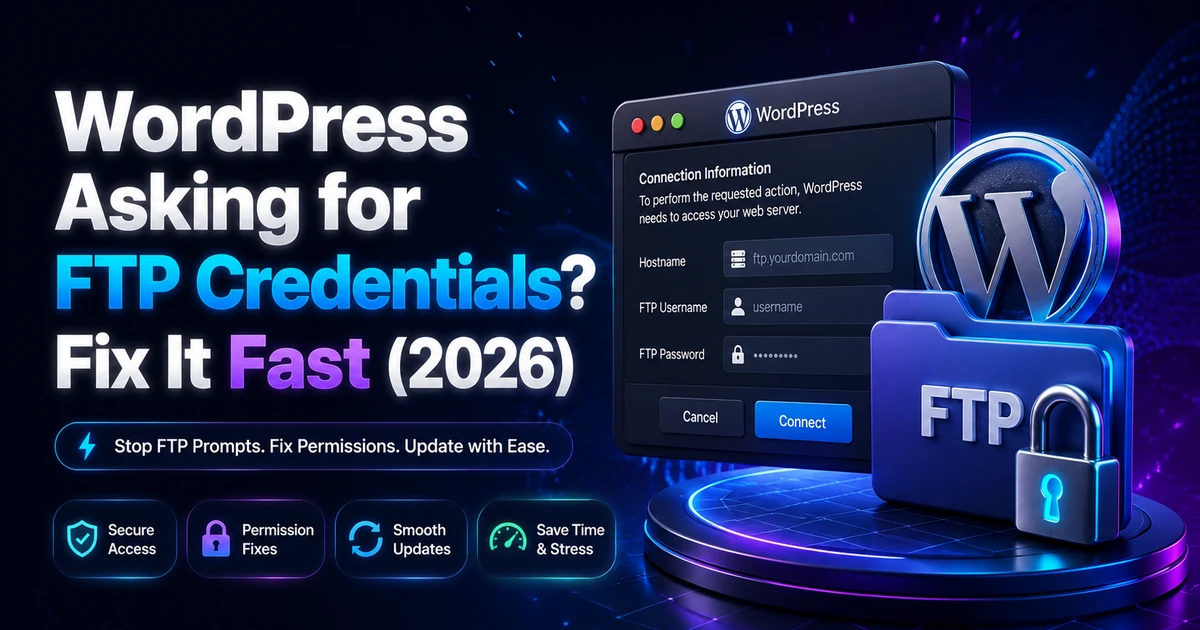
Installing a plugin should take about ten seconds. Instead you get a grey dialog box titled "Connection Information", and this line: To perform the requested action, WordPress needs to access your web server. Please enter your FTP credentials to proceed.
Nothing is broken. Your site is not hacked, and you almost certainly do not need FTP at all. WordPress asking for FTP credentials means one specific thing: PHP wrote a test file, checked who owned it, found a different owner than the one who owns your WordPress core files, and refused to write any further.
This guide comes out of the 20 to 30 client issues our engineers resolve every day at Hostaccent, a UK-registered host trading since 2012 and incorporated in 2018. It is written so you can fix this yourself in about five minutes, with no ticket and no FTP client.
Quick answer: As of August 2026, WordPress asking for FTP credentials is caused by a file ownership mismatch, not a permissions error. The fastest safe fix is adding define('FS_METHOD', 'direct'); to wp-config.php above the "stop editing" line. The permanent fix is changing ownership of your WordPress directory to the user PHP runs as, then setting directories to 755 and files to 644.
Below: what the check actually does, the causes ranked by how often we see them, both fixes with exact commands, and how to stop it recurring.
What "WordPress Needs to Access Your Web Server" Actually Means
WordPress runs an identity test before it writes anything. Inside wp-admin/includes/file.php, the function get_filesystem_method() creates a throwaway file called temp-write-test- plus a unique string inside your wp-content folder. It then compares the owner of that brand new file with the owner of the WordPress core file doing the checking. If both owners match, WordPress writes directly. If they differ, it walks down a fallback list: SSH2, then the FTP extension, then FTP over sockets. The dialog you are staring at is the last stop on that list.
Read that again, because it is the part every other guide skips. The test is not "can PHP write here". The test is "does PHP create files as the same user who owns WordPress". Those are different questions, and confusing them is why so many people try chmod 777 and end up with a wide-open site that still shows the prompt. You can read the exact logic in how WordPress picks its filesystem method if you want to see the source.
The Two-Owner Test
Here is the 60-second diagnostic we run before touching anything. Two commands, one comparison.
bash# Owner of your WordPress core files stat -c '%U:%G' /var/www/yoursite/wp-config.php # Owner of a file PHP creates right now ls -la /var/www/yoursite/wp-content/ | grep temp-write-test
If the second command returns nothing, trigger a plugin install and run it again immediately. Different users in those two outputs is your answer, and no amount of chmod will change it. Same user, and your problem is elsewhere, most likely disk space or a PHP restriction.
One practical consequence worth knowing: because the test file goes into wp-content, a wp-content folder that is missing, read-only, or full will fail the test before ownership is even considered. That single detail explains a large share of the cases that look mysterious.
Why You're Seeing WordPress Asking for FTP Credentials: Causes Ranked by Frequency
Six causes account for nearly every case that reaches a support queue. Ranked by how often they actually appear, root-owned files after a manual migration is the clear leader, followed by a PHP pool running as a different user than the one owning the site. Together those two explain roughly three quarters of the tickets we see for this error. The rest are quota, container and hardening issues.
1. Files owned by root after a manual move. Somebody unpacked a backup archive over SSH as root, or ran tar -xzf without dropping privileges. Every extracted file now belongs to root, while PHP runs as the site user. Across the 4,000+ site migrations our team has run since 2012, this is the single most common trigger, and it is why the prompt so often appears the same day a site moves.
2. PHP running as a different user than the file owner. Classic on a self-managed VPS with Apache and mod_php, where PHP executes as www-data while your files belong to ubuntu or a deploy user. Panels using PHP-FPM pools per account usually avoid this, but a hand-edited pool config can break it.
3. wp-content missing, read-only, or not writable. No temp file, no test, straight to the fallback list.
4. Disk quota or inode limit reached. The account is technically writable but has no room left, so fopen() fails silently. If you are also seeing resource errors, the 508 Resource Limit Is Reached guide covers how to read those limits properly.
5. Docker or local development UID mismatch. A bind-mounted wp-content owned by your host user, with a container PHP process running as UID 33. Extremely common on Docker, MAMP and similar setups.
6. Security hardening. SELinux contexts, open_basedir, or fileowner sitting in disable_functions all break the check without producing an obvious error.
From the Ticket Queue: According to Hostaccent's support-queue data (August 2026), WordPress issues account for about 30% of the tickets we handle each month, with brute-force and malware at 25%, Linux server issues at 25% and SSL problems at 20%. File ownership faults like this one are a steady, boring, entirely preventable slice of that WordPress 30%.
Fix 1: Match File Ownership to the PHP User (The Permanent Fix)
This is the fix that actually solves the problem rather than hiding it, and on a VPS with root or sudo access it takes about two minutes. You identify the user PHP runs as, change ownership of your WordPress directory to that user, then set directories to 755 and files to 644. Once the owner of your files matches the owner of files PHP creates, the ownership test passes and the prompt disappears permanently.
Step 1: Find out which user PHP actually runs as. Do not guess this. On a self-managed server:
bashps aux | grep php-fpm | grep -v root
The username in the first column of the pool processes is your answer. On cPanel or Plesk, PHP runs as your account username, visible in the panel dashboard. If you have no shell, drop a temporary file called whoami.php in your site root containing <?php echo exec('whoami'); , load it in a browser, then delete it immediately.
Step 2: Check what currently owns the files.
bashls -la /var/www/yoursite/ | head -20
Seeing root root on wp-content or wp-config.php confirms cause number one from the list above.
Step 3: Correct the ownership. Replace the user and path with your own values:
bashsudo chown -R www-data:www-data /var/www/yoursite
On cPanel-style hosting where the account user owns everything:
bashsudo chown -R accountuser:accountuser /home/accountuser/public_html
Step 4: Reset permissions to sane values. WordPress does not need loose permissions, and the official WordPress file permission documentation agrees on these numbers:
bashcd /var/www/yoursite sudo find . -type d -exec chmod 755 {} \; sudo find . -type f -exec chmod 644 {} \; sudo chmod 640 wp-config.php
Step 5: Reload the plugin page. No service restart is needed. The check runs fresh on every request.
Pro Tip: Never chown WordPress files to root "so everything works". Root-owned files are what caused this in the first place, and a root-owned document root turns any file-write vulnerability into a much larger incident. Also skip
chmod -R 777entirely. It grants write access to every user on the box, and it does not even satisfy the ownership test, so you get the security hole without the fix.
Live site, and no appetite for chown roulette? Our engineers fix this exact error for a small one-time fee, and you see the exact quote before anyone touches a file. Already hosted with Hostaccent? Then this is simply covered by support, at no cost. Have an engineer fix it
On shared hosting without SSH, you cannot change ownership yourself, and that is normal. Open a ticket with this exact wording: "WordPress prompts for FTP credentials on plugin installs. Please confirm PHP runs as the same user that owns my files." Any competent host resolves that in minutes.
Fix 2: Add the FS_METHOD Direct Line to wp-config.php (The Two-Minute Fix)
Adding one constant to wp-config.php tells WordPress to skip its ownership test and write with PHP regardless. This works without SSH, without root, and without a single terminal command, which makes it the right first move when a client site is stuck and you need the plugin installed now. Open wp-config.php in your host's file manager, and place the line above the comment that reads "That's all, stop editing".
phpdefine('FS_METHOD', 'direct'); define('FS_CHMOD_DIR', (0755 & ~umask())); define('FS_CHMOD_FILE', (0644 & ~umask())); /* That's all, stop editing! Happy publishing. */
The first line is the one doing the work. The two FS_CHMOD constants set what permissions WordPress applies to anything it creates afterwards, which keeps new plugin folders consistent instead of inheriting whatever the umask happens to be. All three are documented in the official wp-config.php constant reference.
Placement matters. Anything defined below the "stop editing" line loads after WordPress has already bootstrapped, so the constant is ignored and you will swear the fix did not work.
Do I Actually Need to Worry About FS_METHOD Direct Being Insecure?
For a single site on modern hosting, the honest answer is no. The ownership test was designed for shared servers in 2009, where PHP frequently ran as a shared web user and one customer's plugin could theoretically write into another customer's files. On a per-account PHP-FPM pool, that scenario no longer exists, and thousands of well-run WordPress sites use FS_METHOD direct permanently.
The real risk is different, and it is worth stating plainly.
Insider Insight: FS_METHOD direct does not grant permission. It only stops WordPress from asking whether it has permission. If ownership is genuinely broken, you trade a harmless prompt for a worse outcome: "Could not create directory", a plugin that unpacks halfway and leaves a broken folder in wp-content, or an update that fails mid-write. We have cleaned up several sites where a half-written update produced a 500 Internal Server Error that nobody connected back to a wp-config edit made a week earlier.
So use this fix when you need speed or lack shell access, and treat Fix 1 as the thing you still owe the server. If the constant makes the prompt vanish and plugins install cleanly, ownership was close enough. If the prompt vanishes and installs now fail with directory errors, you have confirmed a genuine ownership problem that only chown will solve.
When Neither Fix Works: Quotas, SELinux and Locked-Down PHP
If ownership is correct and FS_METHOD direct is in place but the WordPress FTP credentials prompt still appears, the temp file is failing to write for a reason unrelated to ownership. Four culprits cover almost all of these cases, and each takes under a minute to rule out. Start with disk space, because it is the most common and the least suspected.
Disk and inodes. Run both, because a full inode table looks like plenty of free space:
bashdf -h /var/www df -i /var/www
Either at 100% and PHP cannot create the test file at all. On shared hosting, check your panel's disk usage figure and your account quota, not just the server total.
SELinux contexts on AlmaLinux, Rocky or RHEL. Files can be perfectly owned and still unwritable because the security context is wrong:
bashls -Z /var/www/yoursite/wp-content sudo chcon -R -t httpd_sys_rw_content_t /var/www/yoursite/wp-content
Make it survive a relabel with semanage fcontext rather than relying on chcon alone.
Disabled PHP functions. Some hardened php.ini configs list fileowner, getmyuid or exec in disable_functions. WordPress cannot perform the ownership comparison at all, so it falls straight through to the FTP fallback. Check your PHP info page for disable_functions and look for PHP's fileowner() function in that list. The same applies to open_basedir restrictions that exclude the wp-content path.
Immutable or read-only filesystems. Rare, but real. lsattr wp-content will show an i flag if someone set chattr +i during a security cleanup, and a filesystem remounted read-only after a disk error produces identical symptoms. mount | grep ' / ' tells you quickly.
One more scenario worth naming: on containerised setups, the fix is usually a user: directive in your compose file matching the host UID that owns the bind mount, not anything inside WordPress at all.
Confirm the Fix and Stop the Prompt Coming Back
Verification takes one plugin install. Install Hello Dolly from the plugin directory, activate it, then delete it. If all three steps complete without a dialog box, the ownership check is passing and the fix held. Then check that no stray temp-write-test- files were left behind in wp-content, because leftovers there indicate WordPress was interrupted partway through the test at some point.
If you use WP-CLI, this is faster and more honest, because it runs as whichever user you invoke it as:
bashsudo -u www-data wp plugin install hello-dolly --activate sudo -u www-data wp plugin delete hello-dolly
That sudo -u prefix is the habit worth building. Running WP-CLI as root is how correct WordPress file ownership silently becomes broken WordPress file ownership. We run mass operations across client sites with WP-CLI constantly, including plugin audits and emergency deactivations, and every one of those commands runs as the site user for exactly this reason.
Three prevention habits stop this from recurring:
Never extract archives as root. Use sudo -u www-data tar -xzf backup.tar.gz or run chown immediately afterwards as the final step of your restore script. Make it part of the script, not part of your memory.
Set the setgid bit on wp-content. New files then inherit the group automatically instead of picking up whoever created them.
Pro Tip:
sudo chmod g+s /var/www/yoursite/wp-contentcombined with aumask 002on your deploy user keeps group write intact on everything created later. It is the single most effective prevention step for teams where more than one person touches the server, and it costs nothing.
Audit after any host or PHP change. Switching PHP handlers, moving to a new pool, or restoring from a panel backup can all reset ownership quietly. A quick ls -la after each is cheap insurance.
Worth knowing: file ownership faults sometimes travel with performance complaints, because the same rushed migration that left root-owned files often left caching and object storage misconfigured too. If your site felt sluggish before this error appeared, work through the WordPress Site Slow: Complete Diagnosis and Fix Guide (2026) and How to Fix High TTFB in WordPress (2026 Guide) next, since both share root causes with a bad move. Reviewed by our own WordPress support engineers, as of August 2026.
Your Next Step: Two Paths From Here
Fixed it? Then keep the one takeaway that matters: WordPress asking for FTP credentials is an ownership mismatch, and it returns every time someone unpacks an archive as root. On a well-managed host, that class of problem is support's job rather than yours. Hostaccent's managed WordPress Hosting starts at Basic, $22.99/yr, renewing at $22.99/yr, with a 99.9% uptime guarantee, a 30-day money-back guarantee, and engineers who own the ownership problem for you. Skip it if you genuinely enjoy running your own stack, plenty of people do, and Best Hosting for High Traffic WordPress Sites in 2026 covers what to demand either way. Still stuck? Open a ticket with our engineers and you will see the exact quote before anyone touches your files.
Frequently Asked Questions About the WordPress FTP Prompt
Is WordPress Asking for FTP Credentials a Sign My Site Is Hacked?
No. It is a file ownership mismatch, not a security incident. WordPress compares the owner of a file PHP just created against the owner of its own core files, and when those differ it falls back to asking for FTP. That is the designed behaviour. The prompt appears most often after a migration, a restore, or a PHP handler change. If you also see unfamiliar admin users or unknown files in wp-content, treat that separately as a possible compromise.
Is It Safe to Enter My FTP Credentials in That Box?
Technically yes, if your host actually provides FTP and you are on HTTPS, but it is the wrong solution. Those credentials are stored in the browser session and sent for every operation, plain FTP is unencrypted in transit, and you are papering over a five-second ownership fix with a permanent workflow tax. Many modern hosts have disabled plain FTP entirely, which is why the box often fails even with correct details. Fix the ownership instead.
Does define('FS_METHOD', 'direct') Create a Security Risk?
On a per-account PHP-FPM setup, the practical risk is minimal, and plenty of production sites run it permanently. The constant only tells WordPress to stop checking, so the real exposure depends on whether PHP can write to files it should not touch. Keep wp-config.php at 640, directories at 755 and files at 644, and the constant changes very little. The bigger danger is using it to mask a genuine ownership fault you never repair.
Why Did This Start Right After I Migrated My Site?
Because the archive was almost certainly extracted as root. Every file and folder now belongs to root while PHP runs as your site user, so the ownership comparison fails on the first plugin install you attempt. This is the most common cause we see, and it is why a site that worked perfectly for years suddenly prompts on day one at a new host. A single recursive chown to the correct user resolves it completely.
Can I Install Plugins Without FTP on Shared Hosting?
Yes, and you should be able to by default. If you cannot install plugins without FTP access, either the FS_METHOD constant is missing or your host has PHP running as a different user than the one owning your files. Add the constant through your control panel's file manager first, and if the prompt persists, ask support to align the PHP user with the file owner. On Hostaccent's managed WordPress stack, PHP-FPM runs as the site's own user, so the check passes without any wp-config edit.
What Permissions Should WordPress Files and Folders Use?
Directories at 755, files at 644, and wp-config.php tightened to 640. Those values let the owner read and write while everyone else only reads, which is what WordPress needs and nothing more. Never use 777 anywhere, including on wp-content or uploads, because it grants write access to every user on the server and does not satisfy the ownership check anyway. Permissions and ownership are separate things, and this error is about ownership.


Discussion
Have a question or tip about this topic? Share it below — your comment will appear after review.