
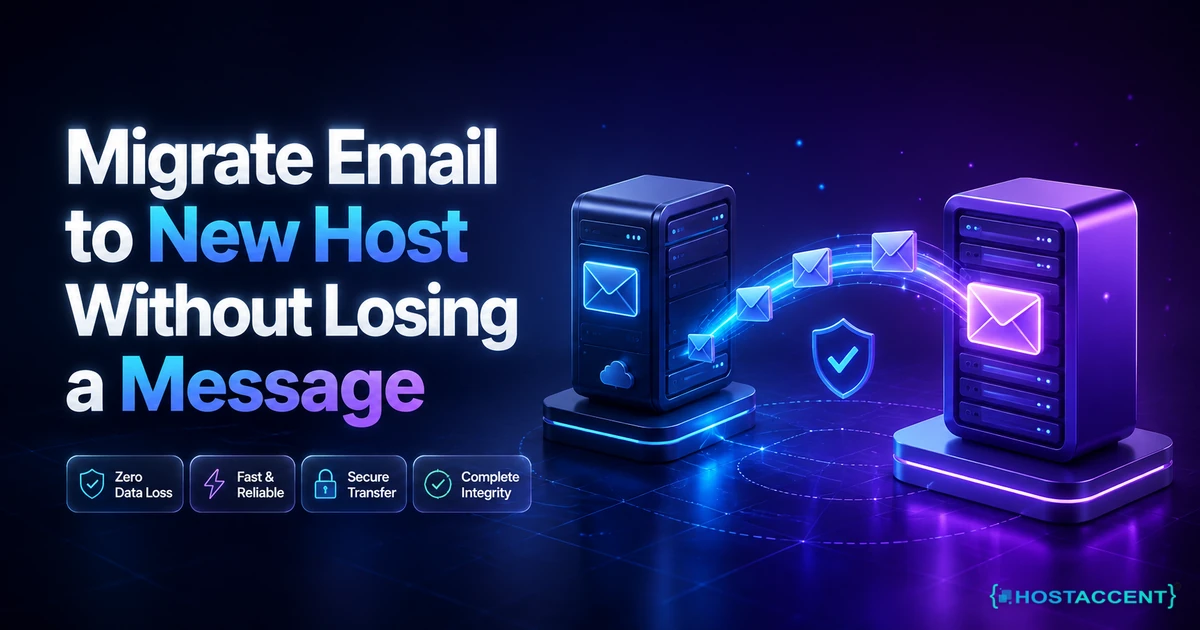
Your site can be down for an hour and half your customers will never notice. Lose one signed contract out of an inbox and you will hear about it for years. That gap is exactly why so many owners stall on switching providers, and why the question is never really about servers. It is about whether you can migrate email to new host servers and still have every message on the other side.
Quick answer: To migrate email to new host servers without losing mail, create identical mailboxes on the new server, copy everything across with an IMAP sync while the old server is still receiving, drop your MX record TTL to 300 seconds, switch the MX record, then run one final sync. As of August 2026, that five-part sequence still loses nothing.
We resolve 20 to 30 client issues a day, and mailbox moves arrive with more panic attached than almost anything else. This guide is the same sequence our engineers follow on a paid migration, written so you can run it yourself. A host like Hostaccent will usually do the whole thing for free when you sign up, but you should know what "done properly" looks like either way, because the difference between a clean cutover and a bad one is about four decisions.
Why Email Is the Part That Actually Breaks When You Switch Hosts
Websites move easily because files are files. Email breaks because two separate things have to move at once: the archive sitting on the old server, and the routing that decides where tomorrow's mail lands. Miss either one and you get a half-migration, which is worse than not moving at all.
The routing side is controlled by a single DNS entry called the MX record. It tells every sending server on the internet which machine accepts mail for your domain. Change it and the world starts delivering somewhere new, but not instantly, because resolvers cache the old answer for as long as your TTL says they can. If your TTL is the common default of 86,400 seconds, some senders keep using the old address for a full 24 hours after you flip it.
The archive side is a separate job entirely. Nothing about updating DNS copies a single old message. Your ten years of invoices stay exactly where they are until you deliberately move them.
That is the trap. Owners change nameservers, watch the website appear on the new host, assume email came along for the ride, and then discover an empty inbox on Monday. When you move email to a new server, the archive and the routing are two tasks, and they must happen in that order.
Pro Tip: Before you touch anything, check whether your mail client is set to POP3 rather than IMAP. POP3 downloads messages and often deletes the server copy, which means your only archive may be sitting on one laptop. If that laptop is the source of truth, back it up before you start, because a server-side sync cannot copy what the server no longer holds.
One more thing worth knowing early: if your domain is registered somewhere other than your hosting account, you will edit DNS at the registrar, not at the host. That split confuses people constantly, and it is covered properly in Can I Buy a Domain Without Hosting? Yes, Here's How.
How to Migrate Email to New Host Servers in 7 Steps
Here is the full email migration checklist. Follow it in order and your worst case is a handful of messages arriving a few minutes late. Budget roughly 90 minutes of hands-on work for one to five mailboxes, spread across three days, and add about 20 minutes per extra mailbox after that.
Step 1: Inventory what you actually have. List every address on the domain, including forwarders, aliases and any catch-all. Note each mailbox size. A 500 MB mailbox syncs in minutes; a 25 GB mailbox can take several hours and may exceed the storage quota on your new plan, so check that first.
Step 2: Build the mailboxes on the new server. Transfer email accounts to new hosting by recreating each address exactly, same spelling, same domain. Passwords can differ, but keeping them identical saves you reconfiguring every phone in the office later.
Step 3: Drop your MX TTL to 300 seconds. Do this at least 48 hours before cutover day. You have to wait out the old TTL before the new short one is universally respected, which is why last-minute TTL changes do nothing. How MX records route mail is worth five minutes of reading if the term is new to you.
Step 4: Run the first sync while the old server is still live. This is the step that makes the whole thing safe. Mail keeps flowing to the old server, users keep working, and you copy the archive across in the background with zero disruption.
Step 5: Flip the MX record. With TTL at 300 seconds, most of the internet follows within 5 to 10 minutes, and stragglers clear within an hour. Update SPF, DKIM and rDNS at the same moment so your outbound mail keeps authenticating.
Step 6: Verify authentication before you celebrate. Send test messages to a Gmail address and a Microsoft address, then check the headers for SPF and DKIM passes. Getting this wrong is the number one cause of "our mail suddenly goes to spam" tickets, and the SPF standard (RFC 7208) explains why a stale include line breaks delivery. If you start seeing rejections instead, 550 Email Bounce Back: Causes and How to Fix (2026) covers the exact error strings.
Step 7: Run the final delta sync 24 hours later. Anything that landed on the old server during propagation gets swept up here. Call it The Two-Sync Rule: one sync days ahead to move the weight, one sync after the flip to catch the stragglers. Skip the second and you will lose exactly the messages that arrived while you were watching DNS.
Don't want to do any of this yourself? Hostaccent's team can handle the whole move end to end: domain, hosting, SSL, mailbox sync and a live website, with no downtime on your side. Tell us what you need and we will take it from there.
Three Ways to Move Your Mailboxes, Compared
There are three realistic methods, and the right one depends entirely on mailbox count and size. IMAP email migration is the default for a reason: it talks to both servers at once and mirrors folders, flags and dates rather than dumping files. The protocol is defined in the IMAP specification (RFC 9051), and it is the only method of the three that can be re-run safely without duplicating what it already copied.
| Method | Best for | Downtime risk | Keeps folders and read status | Effort | |---|---|---|---|---| | IMAP sync tool (imapsync) | 1 to 200 mailboxes, any size | None, old server stays live | Yes, including flags and dates | Command line, or ask your host | | Email client drag and drop | 1 to 3 small mailboxes under 2 GB | None, but slow and manual | Mostly, read status can reset | Low skill, high patience | | Control panel backup restore | Same-panel moves, e.g. cPanel to cPanel | Short gap during restore | Yes, exact copy | Medium, needs panel access both ends |
Drag and drop is genuinely fine for one mailbox. Open both accounts side by side in Thunderbird or Outlook, select a folder, drag it across, wait. The catch is that clients throttle around a few thousand messages and silently stall on large attachments, so you end up babysitting it for hours and still checking counts afterwards.
The panel restore route is the fastest when both ends run the same software, because it copies the raw mail directory instead of replaying messages one by one. It needs terminal or full panel access on both sides, which most shared plans allow through the transfer tool documented in cPanel's official documentation.
Insider Insight: Whichever method you pick, compare message counts per folder before and after, not just the inbox total. Sent Items and archived subfolders are where losses hide, and a sync that reports success can still have skipped a folder it could not read. Two minutes of counting beats a month of "where did that thread go".
What an Email Migration Really Costs and How Long It Takes
For a small business with five mailboxes totalling under 20 GB, a clean migration costs nothing in software and about 2 to 4 hours of your attention spread over three days. The tooling is free. The real cost is the calendar time you have to leave between lowering the TTL and switching the MX record, and that is not something you can compress.
Paid help sits in a wide band. Independent technical help typically runs $25 to $150 for a small batch of mailboxes based on industry rates, while most reputable hosts include migration free with a new plan, which makes paying separately hard to justify. Infrastructure itself is the cheaper half of the bill: shared hosting with mailboxes included starts around $1.99/mo, and a VPS with root access starts around $7.99/mo. If you want the full three-year arithmetic on hosting rather than just the sticker price, Cheapest Way to Host a Website in 2026 (Real 3-Year Math) breaks it down.
In the Hostaccent support queue, mailbox moves that go wrong almost always trace back to one of two causes, and neither is exotic: the TTL was never lowered, or the old mailbox was cancelled the same day the MX record changed. The second one is unrecoverable. Once the old server is deleted, anything still queued for it is gone.
So keep the old account alive for 14 days after cutover. Sending servers retry failed deliveries for up to 72 hours, and slow resolvers hold cached records longer than they should. Fourteen days of overlap costs you one more month of a plan you were leaving anyway, which is cheap insurance against a lost purchase order.
Timeline in plain terms: day one, inventory and build mailboxes and drop the TTL. Day three, first sync and MX switch. Day four, delta sync and delivery tests. Day fourteen, cancel the old account. That is the whole thing.
The DIY Path, Honestly Assessed
If you can log into a DNS panel, read a table of records and follow instructions without improvising, you can do this yourself. That is the honest bar. It is not a developer-level task, and anyone selling it as one is selling something.
What it genuinely takes: comfort editing DNS records, patience with a sync that runs unattended, and the discipline to verify rather than assume. The command-line version of imapsync needs one long instruction with server names, usernames and passwords for both ends. If that sentence made you tense, the client drag-and-drop method gets you the same result with more clicking and no terminal.
Do I really need to hire someone to move six mailboxes?
Probably not. Six mailboxes is a Saturday morning, and the parts that feel scary are mostly waiting. What you are paying for when you hand it over is not skill, it is the accountability of someone else watching the message counts and owning the outcome if something stalls at 3am. For a business where email is the sales channel, that is often worth it. For a personal domain with two addresses, it rarely is.
Where DIY genuinely goes wrong is scope creep. People decide to move the website, change the domain structure and migrate mail in the same evening, then cannot tell which change broke what. Move mail on its own day. If URLs are changing too, handle those separately with 301 Redirect htaccess Setup: Copy-Paste Examples 2026 once the mail is settled.
Pro Tip: Write down the old server's IMAP hostname, port and every password before you cancel anything, and store them somewhere that is not an email account on the domain you are migrating. Locking yourself out of the source server halfway through is a genuinely painful way to spend an afternoon, and we see it more often than you would expect.
Across the 4,000+ sites we have moved since 2012, the step people skip most often is the final delta sync. Everything else gets done carefully, then the second sync feels redundant because the inbox already looks right. It is not redundant. It is the whole reason nothing gets lost.
What a Full A-to-Z Setup Includes
Handing the job over should mean handing over all of it, not just the sync. A complete setup covers the domain, the hosting, the SSL certificate, the mail migration and a working website at the end, with one team accountable for the lot.
Concretely, that means: registering or transferring your domain and configuring DNS; provisioning the hosting account; recreating every mailbox, alias and forwarder; running both syncs; issuing and installing the SSL certificate; setting SPF, DKIM and DMARC so mail authenticates from day one; and reconfiguring the mail clients on your devices so nothing needs re-adding by hand. The infrastructure underneath runs Cloudflare, Nginx and Apache on NVMe SSD storage, with a 99.9% uptime guarantee and a 30-day money-back guarantee behind it.
The part owners underestimate is what happens after. Mail servers need attention: blocklist checks, certificate renewals, quota management, the occasional compromised password that starts sending spam at 4am. Ongoing management means those land with engineers rather than with you. We have launched 10,000+ websites since 2012 as a UK-registered company incorporated in 2018, with 15 datacenter locations across the US, Europe and Asia-Pacific, and support handled by our own engineers rather than outsourced ticket-closers.
Two honest limits, because you should hear them before you decide. First, a VPS gives you full root access and free 30 Gbps DDoS filtering, but it does not include a cPanel or Plesk licence. Commercial panel licences cost real money, over $30/mo for cPanel alone, and any host advertising one free under $10 is recovering that cost somewhere you cannot see. Second, we cannot migrate mail we cannot authenticate against, so if the old provider has already suspended the account, the archive may be unrecoverable no matter who does the work.
If you are weighing this against building everything yourself from scratch, Cost to Hire Someone to Build a Website (2026 Rates) has current market numbers.
Your Next Step: A Move That Costs You Nothing in Lost Mail
Now that you know the risk lives in one MX record and one final sync, the day you migrate email to new host servers is the day you stop dreading it. You can block out a Saturday and run the checklist above, or hand over the credentials and read a confirmation instead. Hostaccent has launched 10,000+ websites and completed 4,000+ site migrations since 2012, and our own engineers run the sync personally. A small site with a handful of mailboxes fits the Economy shared hosting plan at $1.99/mo, flat at renewal. Heavy senders or 20+ mailboxes belong on the Basic VPS plan at $7.99/mo with root access. One caveat: if you want a control panel on the VPS, budget for the licence separately. Tell us what you need and you will get the plan before you commit to anything.
Frequently Asked Questions About Email Migration
Will I lose emails when I migrate email to new host servers?
Not if you sync before you switch. The archive on your old server never moves by itself, so copy it across with an IMAP sync while the old server is still receiving mail, then switch the MX record afterwards. Run a second sync 24 hours after the switch to collect anything that arrived during DNS propagation. Keep the old mailbox alive for 14 days as a safety net and nothing is at risk.
How long does an email migration take from start to finish?
Plan for four days, though your hands-on time is closer to three hours. Day one is inventory, mailbox creation and lowering the MX TTL to 300 seconds. Day three is the first sync and the MX switch. Day four is the delta sync and delivery testing. The 48-hour gap after the TTL change is unavoidable waiting, not work, and rushing it is what causes mail to keep landing on the old server.
Do I need to keep paying my old host during the move?
Yes, for about two weeks after cutover. Sending servers retry undeliverable messages for up to 72 hours, and some DNS resolvers hold cached records longer than the TTL instructs. If you cancel the old account on switch day, anything still queued for it disappears with no way to recover it. One extra month on a plan you are leaving is cheap compared with a lost client enquiry.
What happens to messages sent while DNS is still propagating?
They split. Some senders still hold the old MX record in cache and deliver to the old server; others have picked up the new one and deliver to the new server. With TTL at 300 seconds this window lasts minutes rather than days. Nothing bounces, because both servers are still accepting mail for your domain, and the final delta sync pulls the old-server arrivals across afterwards.
Will my SPF, DKIM and DMARC records break after the switch?
They will if you forget them, and this is the most common post-migration complaint. Your SPF record authorises specific servers to send for your domain, so it must be updated to name the new one or your outbound mail starts landing in spam folders. DKIM needs a fresh key published from the new server. Update all three at the same moment you change the MX record, then verify with test sends.
Can you move my mailboxes for me, and what does it cost?
Migration is free with a Hostaccent plan, and paid standalone quotes depend on mailbox count and total size. Tell us how many addresses you have, roughly how much mail they hold, and who currently hosts them, and you will get a fixed plan with a timeline before anything starts. Most small business moves finish inside four days with no downtime, and your old mailbox stays reachable throughout.


Discussion
Have a question or tip about this topic? Share it below — your comment will appear after review.