
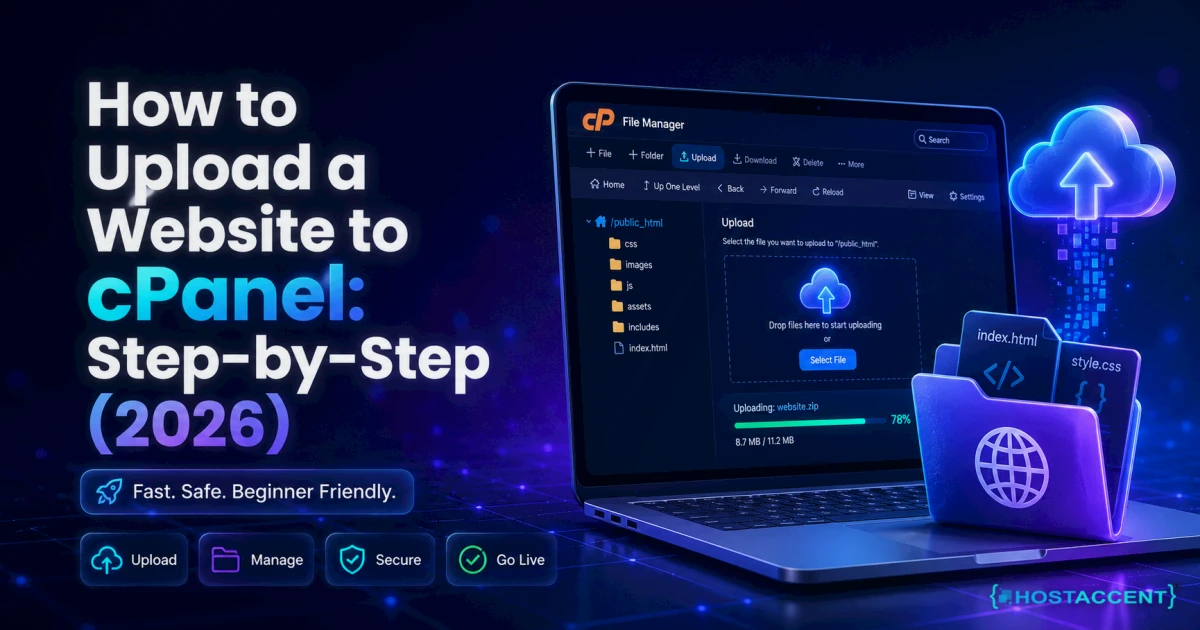
You've built the site. The files sit in a folder on your desktop, and now comes the step no design tutorial ever covers properly: getting them onto the internet. The good news? If your host runs cPanel, you can upload a website to cPanel in about 10 minutes with nothing more than a browser — no code, no command line.
Quick Answer: Log in to cPanel, open File Manager, enter the public_html folder, click Upload, and add your files — or upload one .zip archive and use Extract. Make sure your home page is named
index.htmlorindex.php, then load your domain in a browser. As of July 2026, the process is identical across every current cPanel version.
That's the happy path. Our team at Hostaccent resolves 20-30 client issues every day, and a steady slice of those tickets are first uploads gone sideways — the archive extracted into a nested folder, the domain never pointed at the server, a home page saved as Index.HTML. This guide comes straight from that queue, written so you can do the upload right the first time and fix it yourself if something doesn't load.
What You Need Before You Upload
Five things, and the whole job goes smoothly. Missing any one of them is where most "it's not working" moments actually start.
- A hosting account with cPanel. Shared hosting plans almost always include it. Your welcome email contains the login URL (usually
yourdomain.com/cpanelor the server address on port 2083), your username, and your password. - A domain that points at your hosting. Either you registered the domain with your host, or you updated the nameservers at your registrar to the ones in your welcome email. Fresh nameserver changes take up to 24-48 hours to propagate worldwide — start this first. If you don't have a name yet, a .com runs $13.99/yr when you register your domain, and keeping domain and hosting under one login means one dashboard, one renewal date, one support team when something breaks.
- Your site files, organised. HTML, CSS, JavaScript, and images in one folder, with the home page named
index.html(orindex.phpfor PHP sites) sitting at the top level of that folder — not buried inside a subfolder. - A .zip of that folder's contents if you have more than a handful of files. One archive uploads far faster than 300 individual images.
- Optionally, an FTP client like FileZilla, the free open-source FTP client — better for very large sites, as we'll cover below.
Still at the planning stage rather than the launch stage? Our breakdowns of Do I Need a Website for My Small Business? (2026 Answer) and How Much Does a Website Cost in 2026? Full Breakdown cover the decisions that come before this one.
How to Upload a Website to cPanel Using File Manager
File Manager is the built-in, browser-based route — nothing to install, works from any machine. It's the right choice for most first launches. Here's the exact sequence:
- Log in to cPanel. Use the URL from your welcome email, or add
/cpanelto your domain once DNS has propagated. - Open File Manager. It sits in the Files section, usually top-left of the dashboard.
- Enter public_html. Double-click the
public_htmlfolder in the left-hand tree. This is your main domain's web root — files outside it never appear on your site. - Click Upload. A new tab opens with a drop zone.
- Drag your .zip in (or click Select File and browse to it). Watch the progress bar reach 100% before closing the tab.
- Extract the archive. Back in File Manager, right-click the .zip and choose Extract, confirming
public_htmlas the destination. Then delete the .zip to keep the account tidy. - Verify. Load
yourdomain.comin a private/incognito window. If your home page appears, you're live.
To upload an HTML website to cPanel this is genuinely all there is — static sites need no database, no configuration, nothing else. The full interface reference lives in cPanel's official documentation if you want to go deeper on any screen.
Pro Tip: Zip the contents of your site folder, not the folder itself. Select all the files inside it (
index.html,/css,/images…) and compress those. Zipping the outer folder is the single most common upload mistake we see — it extracts aspublic_html/mysite/index.html, and your domain shows an empty directory instead of your site.
One honest limitation: File Manager uploads one file at a time and can't upload folders directly (that's exactly why the .zip step exists), and very large archives can time out on slow connections. That's your cue for method two.
Uploading Your Site With FTP (Better for Large Sites)
FTP — File Transfer Protocol — connects your computer to the server directly, so you can drag entire folder trees across, queue thousands of files, and resume a transfer that drops halfway. For a portfolio with 2GB of photography or an export with deep folder structures, it beats using the File Manager to upload your website by a wide margin.
Setup takes five minutes:
- Install FileZilla (free, runs on Windows, macOS, and Linux).
- Get your credentials. Your cPanel username and password work by default, or create a dedicated account under FTP Accounts in cPanel — a smart move if a developer needs access without full control-panel rights.
- Connect. Host: your domain or server IP. Username and password as above. Port: 21 for plain FTP — but choose SFTP on port 22 where your plan supports it, so credentials travel encrypted rather than as plain text.
- Transfer. Your local files show on the left pane, the server on the right. Open
public_htmlon the server side, select your site folder's contents locally, and drag them across. FileZilla queues everything and reports failures per file.
Insider Insight: After a big FTP transfer, sort the remote pane by size and scan for 0-byte files. Interrupted transfers sometimes leave empty shells with correct filenames — the page "exists" but renders broken, and it's maddening to diagnose later. Re-upload any zero-byte stragglers before you close FileZilla.
Still blocked by this control-panel issue?
Send the exact error and the action that triggers it. We can diagnose account, DNS, SSL, mail, and server-side causes without requiring a hosting transfer.
Where Files Go: public_html, Document Roots, and index Files
Understanding three concepts turns you from someone following steps into someone who can publish a website with cPanel confidently, every time.
public_html is your main domain's document root. The web server maps yourdomain.com to that exact folder — public_html/about.html becomes yourdomain.com/about.html. Files sitting in your home directory (one level up) are invisible to visitors, which is why "I uploaded everything but the site is blank" so often means "everything landed one folder too high."
Extra domains get their own roots. On Hostaccent's shared plans, every addon domain you attach gets its own folder inside your account (for example home/username/seconddomain.com), so one hosting account can serve several sites without their files colliding. Always check which document root you're in before uploading a second project.
The index file is your front door. When someone requests a folder rather than a file, the server looks for index.php first, then index.html, in that priority order. No index file means visitors see a directory listing or a 403 error. And the name is case-sensitive on Linux servers — Index.html and index.HTML do not count.
A note for WordPress builders: WordPress isn't a folder of files you drag across — it's files plus a MySQL/MariaDB database plus a configuration file, so a straight upload produces a broken site. The migration process in the official WordPress documentation covers the database export/import that has to travel with the files.
Website Not Showing After Upload? Run This 6-Point Check
A website not showing after upload is the #1 follow-up problem, and in our experience it's almost always one of six causes. Work down the list in order — it's sequenced from most to least common.
1. DNS hasn't propagated yet. If the domain shows your registrar's parking page, another site, or a browser error like DNS_PROBE_FINISHED_NXDOMAIN, the internet simply doesn't know your domain lives on this server yet. Nameserver changes take up to 24-48 hours; there's nothing wrong with your upload. Our guide Fix dns_probe_finished_nxdomain Error Fast (2026 Guide) walks the diagnosis.
2. Files landed outside the document root. Open File Manager and confirm index.html sits directly inside public_html — not in your home directory, and not in public_html of the wrong addon domain.
3. The zip extracted into a nested folder. If you see public_html/yoursite/index.html, select everything inside the nested folder, choose Move, set the destination to /public_html, then delete the empty folder.
4. The index file is missing or misnamed. home.html, main.html, and Index.html all fail silently. Rename your home page to exactly index.html (lowercase).
5. You're seeing a cached page. Hard-refresh with Ctrl+F5 / Cmd+Shift+R, or test in a private window. Hosts often place a "coming soon" page in new accounts, and browsers cling to it.
6. A broken .htaccess or SSL mismatch. A stray rule in .htaccess can turn every request into a 500 or 400 response — our fix-list for the 400 Bad Request Error: How to Fix It in 2026 (All Fixes) covers the pattern. And if the browser warns "not secure," your host's AutoSSL simply may not have issued the free Let's Encrypt certificate yet; it typically lands within minutes to a few hours of DNS resolving, and you can trigger it manually under SSL/TLS Status in cPanel.
Pro Tip: Bookmark this test: create a one-line file called
test.htmlcontaining "hello", upload it topublic_html, and loadyourdomain.com/test.html. If it appears, the server, DNS, and document root are all fine — the problem is inside your site's own files, not the hosting.
Mistakes We See in Real Support Tickets
From the Ticket Queue: Linux server and file-level issues make up about 25% of our monthly support volume — and a recurring chunk of those are launch-day uploads. Having handled 4,000+ site migrations since 2012, these are the patterns worth avoiding:
- Uploading the .zip and never extracting it. The archive sits in
public_html, the domain shows nothing, and the panic sets in. Upload → Extract → Delete zip. Three steps, always. - Breaking file permissions. Files should be
644and folders755. Setting777"to make it work" is the pattern Hostaccent's engineers flag most often in compromised-site cleanups — world-writable files are an open invitation to malware. If a page needs 777 to run, the code is the problem, not the permission. - Editing live with no backup. Before replacing an existing site, compress the current
public_htmland download it. A rollback then takes two minutes instead of a support ticket. - Forgetting the database. Any dynamic site — WordPress, a custom PHP app — needs its database created and imported via MySQL Databases and phpMyAdmin, and the config file updated with the new credentials. Files alone render errors.
- Uploading over plain FTP on public Wi-Fi. Use SFTP. Your password is worth the one-dropdown change.
If your project has outgrown drag-and-drop entirely — staging environments, deploy scripts, root access — that's the point where Fully Managed VPS Hosting: What You Actually Get in 2026 becomes the more honest recommendation than any shared plan.
Your Next Step: From Local Folder to Live Site
Quick recap of what actually matters: files go inside public_html, the home page must be exactly index.html or index.php, zip-then-extract beats file-by-file, and if nothing shows, it's DNS, a nested folder, or the index name — in that order.
You now know how to upload a website to cPanel — pick File Manager for a fast launch or FTP when the file list runs long. If you're still deciding where that site should live, here's the shortcut: the Economy shared hosting plan — $1.99/mo, renewing at $1.99/mo — includes cPanel, NVMe SSD storage, free SSL, a 99.99% uptime guarantee, and a 30-day money-back window, with support answered by the same engineers whose tickets shaped this guide (10,000+ websites launched since 2012, UK-registered in 2018). Pair it with your .com domain — $13.99/yr, flat at renewal — and DNS, files, and billing live in one dashboard. One honest caveat: Economy is sized for a single site; juggling several client projects, look at Standard instead. Either way, the price you sign up at is the price you renew at — that renewal honesty is the whole point of Hostaccent.
<!-- ha:inbound-repair:start -->Related guides: 301 Redirect htaccess Setup: Copy-Paste Examples 2026 · Cheapest Way to Host a Website in 2026 (Real 3-Year Math)
<!-- ha:inbound-repair:end -->Frequently Asked Questions About Uploading a Website to cPanel
How do I upload a website to cPanel without FTP?
Use the built-in File Manager: log in to cPanel, open File Manager, enter public_html, click Upload, and add your files or a single .zip archive. Right-click the archive and choose Extract, then delete it. No software installation is needed — the entire process runs in your browser.
Where exactly should I put my website files in cPanel?
Your main domain's files belong directly inside public_html, with the home page at its top level. Addon domains each use their own document-root folder, shown under cPanel's Domains screen. Files placed in your home directory — one level above public_html — are never served to visitors, which is a common cause of blank sites.
Can I upload a zip file to cPanel and extract it there?
Yes, and you should — one archive uploads far faster and more reliably than hundreds of loose files. Upload the .zip into public_html via File Manager, right-click it, choose Extract, and confirm the destination. Zip the folder's contents rather than the folder itself to avoid a nested-directory result.
Why is my website not showing after I uploaded everything?
Six usual suspects, in order of likelihood: DNS hasn't propagated (allow 24-48 hours), files sit outside public_html, the zip extracted into a nested folder, the home page isn't named exactly index.html, your browser is showing a cached page, or a broken .htaccess rule is blocking requests. Check them in that sequence.
How long after uploading does my site go live?
The files are live the second the upload finishes — if your domain already points at the server. New registrations and nameserver changes need up to 24-48 hours to propagate. On Hostaccent servers, uploads to a correctly pointed domain appear instantly; a hard refresh (Ctrl+F5) clears any cached "coming soon" page still lingering.
Can I host more than one website on a single cPanel account?
Yes, if your plan supports addon domains. Each addon domain gets its own document-root folder, its own emails, and its own SSL certificate while sharing the account's storage and resources. Entry-level plans are typically limited to one site, so check your plan's addon-domain allowance before uploading a second project.






Discussion
Have a question or tip about this topic? Share it below — your comment will appear after review.