
Reviewed by the HostAccent Editorial Team — July 2026.
Quick Answer: A hacked-site warning can appear when Google detects injected spam, malware, or pages you did not create. Open Google Search Console, review the Security Issues report, preserve evidence, clean the affected files and database or restore a known-clean backup, close the entry point, and request a review. Review time varies, so do not promise clients a fixed removal window.
You searched your own brand. And there it sat, in grey text under your title — a label telling every visitor your site might be compromised. Your stomach drops. Traffic is already sliding.
Take a breath. This is fixable, and you can start right now.
Treat the warning as an incident, even if the site looks normal to you. Conditional malware may only appear to logged-out visitors, mobile devices, or users arriving from search. Start with Google's report and your server logs rather than deleting unfamiliar files at random.
That warning is not a permanent black mark. It's a snapshot — Google's automated system caught something it didn't like on a recent crawl. Clean the problem, prove it's gone, and the label disappears. We'll walk through exactly how, in the order that actually works mid-incident.
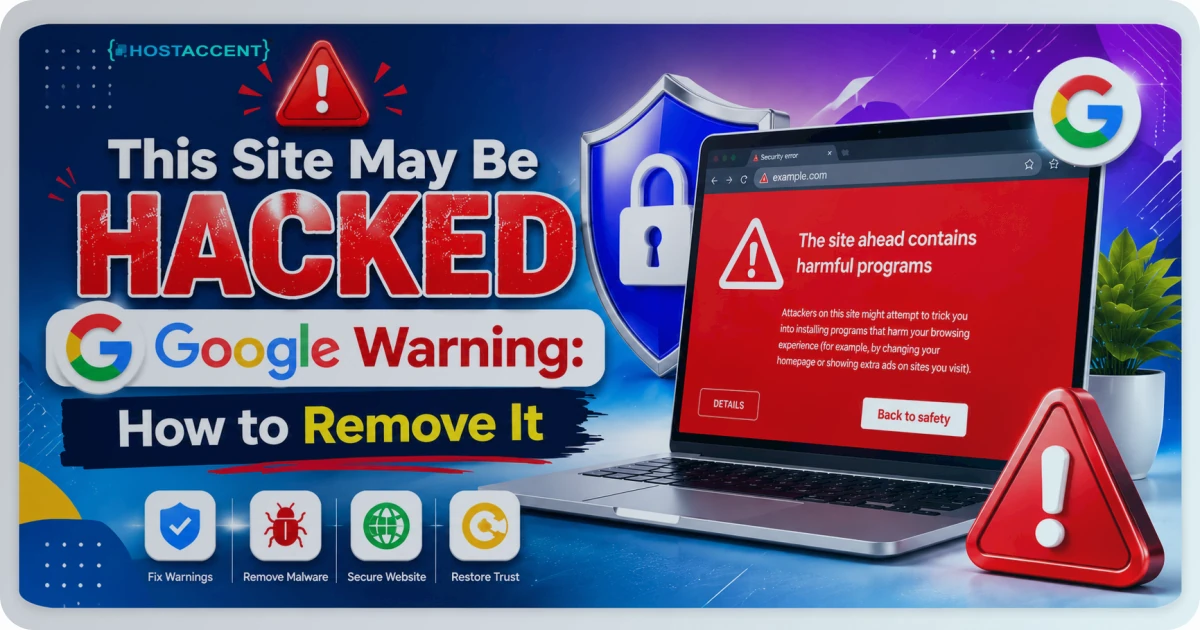
What the "This Site May Be Hacked" Google Warning Actually Means
This label is different from the bright red full-page "Deceptive site ahead" screen. The grey notice appears directly in your search listing. It means Google's crawler found content that looks injected — spammy outbound links, pages in a language you don't publish in, or hidden text stuffed with pharma or casino keywords.
Visitors may still be able to reach the site, but the warning can seriously reduce trust and clicks. The exact impact depends on the query, audience, and warning shown.
Two systems are involved here. Safe Browsing controls the search-result label, and Search Console's Security Issues report tells you what Google found. Start there — never guess at the infection.
Pro Tip: Before you touch a single file, take a full backup of the site as it is right now — infected and all. If your cleanup goes sideways, you'll want the ability to roll back, and a forensic copy helps you trace how the attacker got in.
Why Google Flags a Site — Causes Ranked by Real Frequency
Several causes recur in WordPress compromises. Check them as investigation leads rather than assuming the first one must be responsible.
- Outdated plugins or themes. A known vulnerability can allow file uploads, database changes, or unauthorised access.
- Weak or reused admin passwords. Brute-force bots hammer
/wp-login.phpthousands of times a day. One weak password and they're in. - Nulled (pirated) themes or plugins. These almost always ship with hidden backdoors. We see this constantly on sites that were "saving money."
- Weak account isolation or file permissions. Misconfiguration can expose files beyond the intended account boundary.
- Stolen FTP or SSH credentials. Often lifted from malware sitting on the site owner's own laptop.
The injected payload usually does one of three things: redirect mobile visitors to a scam page, slip spammy links into your footer, or generate hundreds of hidden doorway pages — the classic "Japanese keyword hack."
If your site is also throwing a white screen alongside the warning, our walkthrough on There Has Been a Critical Error on This Website: Quick Fix covers that failure mode, since a half-broken hacked site often shows both symptoms at once.
How to Remove the This Site May Be Hacked Google Warning, Step by Step
Here's the sequence that clears the flag fastest. Work top to bottom — don't skip ahead.
Step 1 — Confirm it in Search Console
Log into Google Search Console and open Security & Manual Actions → Security Issues. If your property isn't verified yet, verify it now via a DNS TXT record or the HTML-file method — this takes about 10 minutes, and you cannot request a review without it. The report lists the issue type and sample affected URLs. Screenshot it before you change anything.
Step 2 — Scan and locate the infection
Pull the flagged URLs from Search Console and inspect them. Common hiding spots:
wp-content/uploads/— PHP files have no business living herewp-config.phpandindex.php— check forbase64_decode,eval(, orgzinflate.htaccess— look for unexpected redirect rules- Any recently modified files
Over SSH, this command surfaces files changed in the last 7 days, which is usually the fastest way to spot the breach:
bashfind /home/youruser/public_html -type f -mtime -7 -name "*.php"
For a deeper, file-by-file cleanup process, our WordPress Site Hacked? Malware Removal & Recovery Guide goes line by line.
Step 3 — Clean or restore
You have two routes. If you've got a known-clean backup from before the infection, restoring it is the quickest fix — minutes, not hours. If you don't, you clean manually: strip out the injected code, replace core WordPress files with fresh copies from wordpress.org, and delete any admin users you don't recognise.
Important: Restoring a backup without closing the entry point can lead to another compromise. Identify the vulnerable component or stolen access, patch it, and rotate credentials as part of the restore plan.
Step 4 — Patch the entry point
Update every plugin, theme, and the WordPress core to its latest version. Force-reset all admin passwords plus your hosting and FTP credentials. If the reset then locks you out with an FTP 530 login authentication failed error, it's usually the username format. If you found a nulled plugin, delete it outright. Our full checklist lives in WordPress Security Hardening: Protect Your Site From Attacks.
Storage speed affects scan time, but investigation quality matters more. Keep a record of removed files, replaced components, users deleted, credentials rotated, and the vulnerability or access path that was closed.
How to Confirm the Fix and Request a Google Review
Once the site is clean and patched, request a review in Search Console. This gives Google a direct signal that remediation is complete, although the site still needs to be recrawled and reassessed.
- In Search Console, go back to Security Issues.
- Tick "I have fixed these issues."
- Click Request Review and write a short, honest note: what was infected, what you removed, and how you closed the hole. Specific reviews get approved faster than vague ones.
Review times vary. While you wait, check for collateral damage. A compromise that left injected pages behind can create soft 404s, altered sitemaps, or broken permissions. If legitimate pages now return access errors, use the 403 Forbidden troubleshooting guide to diagnose the server response.
Pro Tip: Don't request the review until you've confirmed the infection is fully gone with two independent scanners. A failed review can drop you into a slower re-review queue — and that's another full day of clean traffic lost for nothing.
How to Prevent the Warning From Coming Back
Clearing the flag is half the job. Staying clear is the other half. Here's what actually moves the needle.
Keep everything updated. Remove abandoned extensions, apply security updates promptly, and use auto-updates where the site's testing and rollback process can support them.
Add a web application firewall. A WAF at the edge blocks malicious requests before they ever reach PHP. Cloudflare's WAF stops the bulk of automated exploit traffic on its own.
Lock down logins. Two-factor authentication on /wp-admin, plus a login-attempt limiter, shuts down brute-force bots. The principles in OWASP's authentication guidance are the gold standard here.
Run real backups. Daily, off-server, with 14-30 days of retention. A backup sitting on the same disk as the hack is worthless.
The platform underneath matters too. Account isolation, server-level monitoring, an edge firewall, and off-server backups can reduce risk and shorten recovery. They complement application maintenance; they do not replace it. If a site keeps getting reinfected, review both the WordPress installation and the hosting account's isolation, access logs, and restore process.
Keep Your Site Off Google's Blocklist for Good
If you've cleaned this once, you know the real cost — lost traffic, shaken trust, and an afternoon you'll never get back. Removing the "this site may be hacked google warning" really comes down to three moves:
- Clean the infection completely — files, database, and unknown admin users.
- Patch the entry point that let it in, before restoring anything.
- Request a Search Console review and confirm the flag has cleared.
Do those in order and the label goes away.
The longer-term goal is faster detection and a reliable recovery path. HostAccent WordPress hosting can provide managed infrastructure, backups, and security controls, but check the current plan page for the exact features and support scope. No plan removes the need to maintain WordPress itself.
Frequently Asked Questions
How long does it take to remove the this site may be hacked google warning?
Google does not guarantee a fixed review time. Submit the review only after the infection and entry point are fully addressed, then monitor Search Console and the live search result for changes.
Will the warning hurt my Google rankings permanently?
No. Once the flag is removed, rankings usually recover within days to a few weeks. The traffic loss comes from the warning scaring off clicks, not from a ranking penalty. The longer the site stays flagged, though, the more crawl trust erodes — so move fast.
Can I remove the warning without Google Search Console?
Search Console is the most reliable place to see Google's security report and request a review. You can clean a site without it, but you lose Google's affected-URL examples and the direct review workflow. Property verification time depends on the method and DNS provider.
Why did my site get hacked if I never did anything wrong?
Most compromises are automated, not personal. Bots scan millions of sites for known plugin vulnerabilities and weak passwords. You didn't have to do anything wrong — just run one outdated plugin. That's why updates and a firewall matter far more than caution alone.
How do I know the malware is completely gone?
Use more than one form of evidence: check Search Console, compare WordPress core and plugin files with trusted copies, review recently modified files and logs, inspect administrators and scheduled tasks, and test the original trigger conditions. A clean scanner result alone is not proof that the access path is closed.
Does better hosting actually stop this from happening again?
Partly. No host makes a site immune. Account isolation, monitoring, an edge firewall, and versioned backups can reduce exposure and recovery time, while WordPress updates, secure credentials, least-privilege access, and tested restores remain the site owner's responsibility.


Discussion
Have a question or tip about this topic? Share it below — your comment will appear after review.