
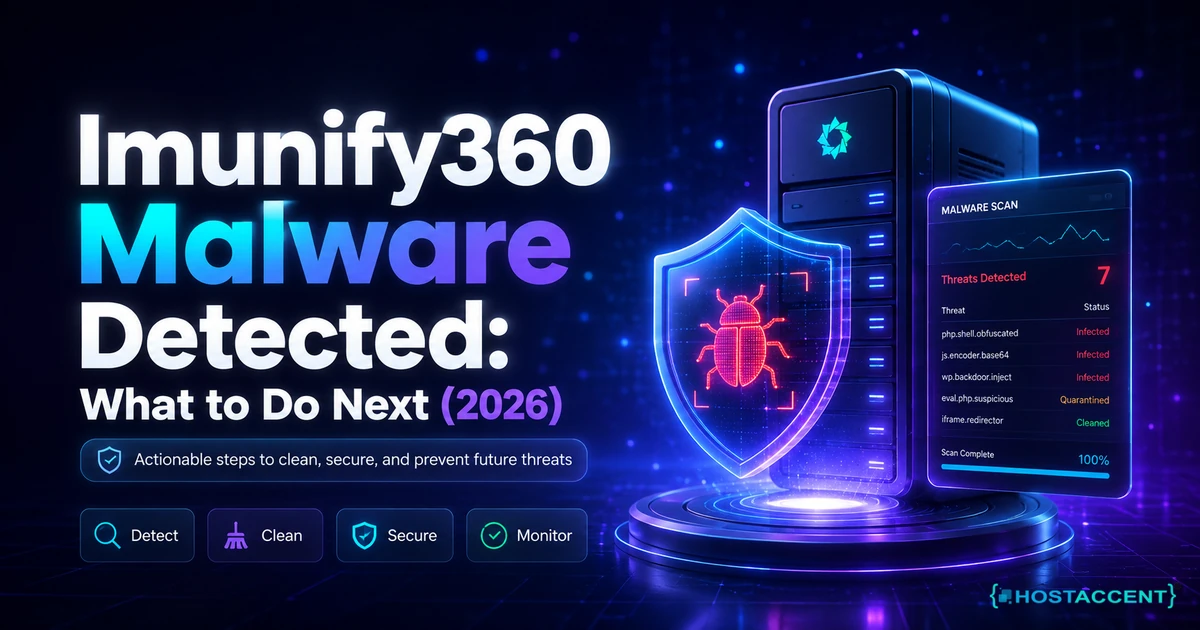
You logged into cPanel, saw a red counter beside the Imunify360 icon, and now you are looking at a list of your own files marked malicious. Your first instinct is to select all and hit delete. Please don't. Deleting the wrong file takes a working site down harder than the infection ever did.
Quick Answer (as of August 2026): An Imunify360 malware detected alert means the scanner matched code inside a file against a known signature, or watched a PHP script behave like an attacker. Open cPanel, go to Security, open Imunify360, and review each flagged path. Use Cleanup rather than Delete on CMS core files, rotate every password, update everything, then rescan after 48 hours.
Most of the panic comes from not knowing what the scanner already did to your files while you were asleep. On shared cPanel stacks like Hostaccent's, it runs continuously, so by the time the email lands, some files have been cleaned, some have had their permissions stripped to 000 so nothing can execute them, and some are simply flagged and waiting on you.
Our engineers work through 20 to 30 client issues a day, and compromise tickets are a steady share of that, so this guide is written the way we would walk a customer through it on a live server. Exact clicks, exact paths, and the parts the vendor documentation skips.
By the end you will know what each file status means, when cleaning beats deleting, how to rescue a legitimate file the scanner got wrong, and why the file it named is usually not the way the attacker got in.
What an Imunify360 Malware Alert Actually Means
The scanner is a signature matcher, not a judge. It compares file contents against a threat database maintained by CloudLinux, and separately runs a behavioural engine called Proactive Defense that watches PHP scripts as they execute and kills anything that acts like an attack. A match tells you a specific file contains a known pattern. It does not tell you your whole account is compromised, and it does not tell you how the file got there.
That distinction matters, because the action already taken depends entirely on how your host configured the default response. Here is what the statuses on the Files tab actually mean.
| Status shown on the Files tab | What already happened to the file | Your next move | |---|---|---| | Cleaned / Content removed | Malicious code stripped out, the rest of the file left intact and working | Open the site and confirm the page still renders | | Detected (no action) | Flagged only, the file is untouched and still executable | You decide: clean, ignore, or remove it | | Permissions set to 000 | File is on disk but nothing can read or run it | Expect broken pages until you resolve it | | Added to Ignore List | Excluded from all future scans, permanently | Review this later, it is a blind spot | | Failed to cleanup | The scanner could not separate good code from bad | Manual review or a restore from backup |
The file actions available to you sit behind small icons in the Actions column: an eye to view contents, a brush to clean, a clock to restore the original, and a bin to remove. Note the viewer only renders the first 100KB of any file, so a large infected JavaScript bundle will look truncated. The full reference for every status and action lives in the official Imunify360 file status documentation.
One thing that trips up a lot of readers following older guides: CloudLinux removed the Quarantine and Delete actions from both the interface and the CLI in Imunify360 version 6.2, and previously quarantined files were deleted at the same time. If your host runs a current build, those buttons are gone and cleanup is the primary path. If they still appear, your host is on an older release. Either way, do not go hunting for a quarantine folder that no longer exists.
Pro Tip: If pages started returning 403 errors around the same time the alert arrived, check permissions before you blame anything else. A file sitting at 000 is unreadable by Apache, and the symptom looks identical to a permissions misconfiguration. Our 403 Forbidden Error: How to Fix It (Step-by-Step 2026) walkthrough covers the diagnosis if the file turns out to be innocent.
The Real Causes, Ranked by How Often We See Them
Five causes account for the overwhelming majority of these alerts, and knowing which one you are dealing with changes the cleanup entirely. Ranked by frequency in the compromise tickets that reach our queue:
1. An outdated WordPress plugin or theme. By a wide margin the most common entry point. A plugin with a known file-upload vulnerability sits unpatched for weeks, a bot finds it, and a PHP shell lands in a writable directory. Nulled premium themes belong in this bucket too, since the backdoor is usually shipped inside the download on purpose.
2. Stolen credentials. FTP, cPanel, or WordPress admin passwords harvested from a compromised laptop or reused from a breached service. There is no vulnerability involved here at all, the attacker simply logs in. If you have been hitting FTP 530 Login Authentication Failed: How to Fix It errors recently, that is worth a second look.
3. Cross-infection from another site on the same account. An abandoned staging copy or a forgotten addon domain running an ancient CMS gets compromised, and the payload walks sideways through shared file permissions into your live site.
4. Files uploaded through your own forms. Contact forms and media uploaders without proper type validation let a PHP file land in wp-content/uploads. Nothing in that folder should ever be executable, which is exactly why the scanner flags it so reliably.
5. A genuine false positive. Obfuscated but legitimate code, minified JavaScript, encoded licence checks, and standalone file-manager scripts all trip signature matching regularly.
From the Ticket Queue: According to Hostaccent's support-queue data (August 2026), WordPress issues account for about 30% of monthly tickets, with brute-force and malware activity at roughly 25%, Linux server issues at 25% and SSL problems at 20%. Malware alerts and WordPress problems are not separate categories in practice, they are the same story arriving through two different doors.
One symptom worth watching for separately: if your outbound email suddenly starts bouncing or landing in spam folders, a compromised account may be sending on your behalf. That failure mode shows up as 554 Message Rejected: Why It Happens and How to Fix It bounces long before anyone notices the scanner alert.
Imunify360 Malware Detected: The Step-by-Step Cleanup
Work through these in order. The whole point of the sequence is that you remove malware with Imunify360 without taking down anything legitimate in the process, so resist the urge to jump to step four.
Step 1: Take a backup before you touch anything. Yes, a backup of an infected site. You need a rollback point in case a cleanup breaks a file you needed. Use cPanel's backup tool and download it locally. Critically, do not overwrite your last known-good backup with this one.
Step 2: Read the list before you act on it. Open cPanel, find Imunify360 under Security, and look at the paths, not just the count. Group them mentally. Files under wp-includes or wp-admin are core files that should exactly match the official WordPress distribution. Files under wp-content/uploads should never be PHP at all. Files in your own custom directories need a human judgement call.
Step 3: Use the eye icon and actually look. Click through to view the flagged content. Real injections are visually obvious once you have seen a few: long base64 strings, eval() calls, gzinflate wrappers, or a wall of hex escapes at the very top of an otherwise normal file. A legitimate minified library looks dense but structured. An injection looks like someone tried to hide something.
Step 4: Clean core files, remove foreign files. For infected CMS core, plugin, or theme files, use Cleanup. It strips the malicious block and leaves the working code, which keeps the site up. For a PHP file sitting in an uploads folder that you never put there, removing it is correct because there is no legitimate version to preserve.
Insider Insight: In our experience, the file the scanner names is almost never the file that let the attacker in. A shell in uploads is the payload. The vulnerable plugin that allowed the upload is still installed, still unpatched, and will accept the next one within hours. Clean the file, then go find the door.
Live site and no time to experiment? Our engineers fix this exact class of infection for a small one-time fee, and you see the exact quote before anyone touches a file. Hosted with Hostaccent? Then issues like this are simply covered by support, at no extra cost. Have an engineer fix it
Step 5: Rotate every credential. cPanel password, all FTP accounts, database users, and every WordPress administrator. If credentials were the entry route, cleaning files without changing passwords buys you a few hours at most.
Step 6: Update everything, then delete what you do not use. Update WordPress core, then every plugin and theme, following the official WordPress documentation for a safe upgrade path. Then delete deactivated plugins entirely. A deactivated plugin still has files on disk, and files on disk are still reachable by a direct request.
Step 7: Rescan and check your pages. Run a fresh on-demand scan and click through your key URLs. If cleanup removed a file that a template referenced, you will see missing pages, which our guide on how to fix 404 Not Found errors covers cause by cause.
Do I actually need to take my site offline?
Usually no, and taking it down often costs more than it saves. If the infection is a handful of flagged files and the scanner has already stripped or neutralised them, cleaning in place is fine. Put the site into maintenance mode only if it is actively serving spam links, redirecting visitors elsewhere, or has been flagged by Google Safe Browsing. In those three cases the reputation damage compounds by the hour.
Imunify360 False Positive: How to Restore and Report a Clean File
Signature matching cannot read intent, so legitimate code that looks evasive gets flagged. The usual suspects are standalone file managers, licence-checking code in commercial plugins, aggressively minified JavaScript, and custom scripts that build function names dynamically. An Imunify360 false positive is not a bug in the scanner so much as the unavoidable cost of catching obfuscated attacks.
If a file you rely on was cleaned or neutralised, you have three routes back, in order of preference.
Restore the original. The clock icon beside the flagged file restores the pre-cleanup version. This window is roughly 14 days on most builds, after which the stored copy is gone and you are restoring from your own backup instead. Do this first, before the window closes.
Add it to the Ignore List. From the Ignore List tab, click to add a file or directory, paste the full absolute path such as /home/username/public_html/wp-content/plugins/yourplugin/loader.php, and save. The scanner will skip it permanently from that point.
Report it to CloudLinux. This is the step almost nobody takes, and it is the one that actually fixes the problem for everyone. Over SSH:
bashimunify360-agent submit false-positive --reason "custom licence loader, verified clean" /home/username/public_html/path/to/file.php
The full syntax, including submitting a missed detection as a false negative, sits in the Imunify360 command-line reference. Once the signature is corrected upstream, the file stops being flagged on every server running the product.
There is a related error worth knowing. If cPanel's File Manager refuses to save an edit with a BAILOUT Malware Detected message, that is the upload scanner rather than the file scanner. A server administrator can add the file hash to the global ignore list, or disable that specific layer with imunify360-agent config update '{"MALWARE_SCANNING": {"enable_scan_cpanel": false}}'. On shared hosting you will need to ask support, since this is a server-level setting.
Pro Tip: Never ignore-list an entire directory to make alerts stop. We found this pattern in a client account where wp-content had been excluded months earlier by a previous developer. Everything inside it was invisible to the scanner, which is precisely where an attacker would choose to work. Path-level exclusions only, and write down why you added each one.
Confirm the Fix and Break the Reinfection Loop
Cleanup is not the finish line. The single most useful diagnostic we use is what our team calls the 48-hour reinfection test, and it costs you nothing.
Clean the flagged files, note the exact paths, then wait 48 hours and run a fresh scan. If nothing returns, the infection was a one-off and you are done. If the same file or a similar one reappears in that window, you did not have a malware problem, you had an access problem. Something is still writing to your account: an unpatched plugin, a live credential, or a scheduled task.
So check the three places reinfection hides. First, cron jobs, under cPanel's Cron Jobs section. A cron entry calling curl or wget against an external URL is a persistent reinstaller and will survive any number of file cleanups. Second, the database, since Imunify360's malware database scanner inspects CMS tables for injected content and CloudLinux estimates that a meaningful share of malicious files on a typical server originate from database infections. Third, your WordPress user list, where an unfamiliar administrator account is a straightforward indicator that the attacker gave themselves a legitimate way back in.
Once you are clean, harden the account so this does not become a monthly ritual. Enable automatic updates for WordPress core, plugins and themes. Remove every plugin you are not actively using. Turn on two-factor authentication for cPanel and WordPress admin. Make sure your SSL certificate is valid and renewing, because a broken certificate chain produces exactly the kind of error covered in Cloudflare Error 526: How to Fix Invalid SSL Fast (2026) and erodes trust at the worst possible moment. Verify your backups actually restore, rather than assuming they will.
Email deserves a specific mention. Compromised accounts get used to send spam, which damages your sending reputation for months afterwards. Confirm your SPF, DKIM and DMARC records are correct and publishing properly, using DKIM Record Not Found: How to Add & Verify It (2026) as the checklist. For a broader view of application-layer risks and how attackers actually chain them together, OWASP remains the reference worth reading once a year.
Your Next Step After the Alert Clears
Now that you can read an Imunify360 malware detected alert instead of fearing it, keep the one habit that matters: rescan 48 hours after every cleanup.
If you fixed it yourself, good. Worth saying plainly though, on a well-run shared host this entire class of problem is support's job, not yours. That is what you are buying with the Economy shared hosting plan at $1.99/mo, which renews at $1.99/mo, backed by a 99.9% uptime guarantee, 30 days money back, and engineers from Hostaccent who clean infections rather than closing tickets. One honest limit: Economy is sized for a single site, so if you run several client projects, Standard at $4.58/mo fits better.
Still stuck? Open a ticket and you will get an exact quote before any work starts.
Frequently Asked Questions About Imunify360 Malware Alerts
What does Imunify360 malware detected mean on my hosting account?
It means the scanner matched code inside one or more of your files against a known threat signature, or its Proactive Defense engine caught a PHP script behaving maliciously while executing. The alert identifies a specific file, not your entire account. Depending on how your host configured the default action, the file may already be cleaned, may have permissions set to 000, or may simply be flagged and awaiting your decision.
Should I just delete every file Imunify360 flags?
No, and this is the most expensive mistake people make in the first ten minutes. Deleting a core WordPress or plugin file that was merely injected takes down working functionality and leaves you restoring from backup. Use Cleanup on legitimate files that contain injected code, because it strips the malicious block and preserves the rest. Reserve removal for genuinely foreign files, such as a PHP script sitting in an uploads directory.
What happened to the Imunify360 quarantine files option?
CloudLinux removed the Quarantine and Delete actions from both the user interface and the command line in Imunify360 version 6.2, and files already sitting in quarantine were deleted as part of that change. If you are following an older tutorial that tells you to quarantine something, that advice is out of date. Some hosts still run earlier builds where the buttons appear, so check what your control panel actually shows.
How do I report an Imunify360 false positive?
Two steps. Restore the file first using the clock icon in the Files tab, which is available for roughly 14 days after cleanup, then add its full path to the Ignore List so it stops being flagged on your account. After that, report it upstream over SSH with imunify360-agent submit false-positive --reason "your reason" /full/path/to/file. That last step corrects the signature for every server running the product.
Why does the same malware keep coming back after I clean it?
Because you removed the payload but not the entry point. Reinfection within 48 hours almost always means one of three things: a vulnerable plugin is still installed and still accepting uploads, a password was never rotated so the attacker simply logs back in, or a cron job is quietly reinstalling the file on a schedule. Check cron jobs first, since a persistent reinstaller survives unlimited file cleanups.
Can malware on my account infect other websites on the same server?
On a properly configured shared server, accounts are isolated at the filesystem level, so an infection in one customer's account should not reach another's. The genuine risk is inside your own account, where a compromised addon domain or forgotten staging copy can spread sideways to your live site. Across the 10,000+ sites Hostaccent has launched since 2012, that self-inflicted cross-infection is far more common than any cross-account event.


Discussion
Have a question or tip about this topic? Share it below — your comment will appear after review.