
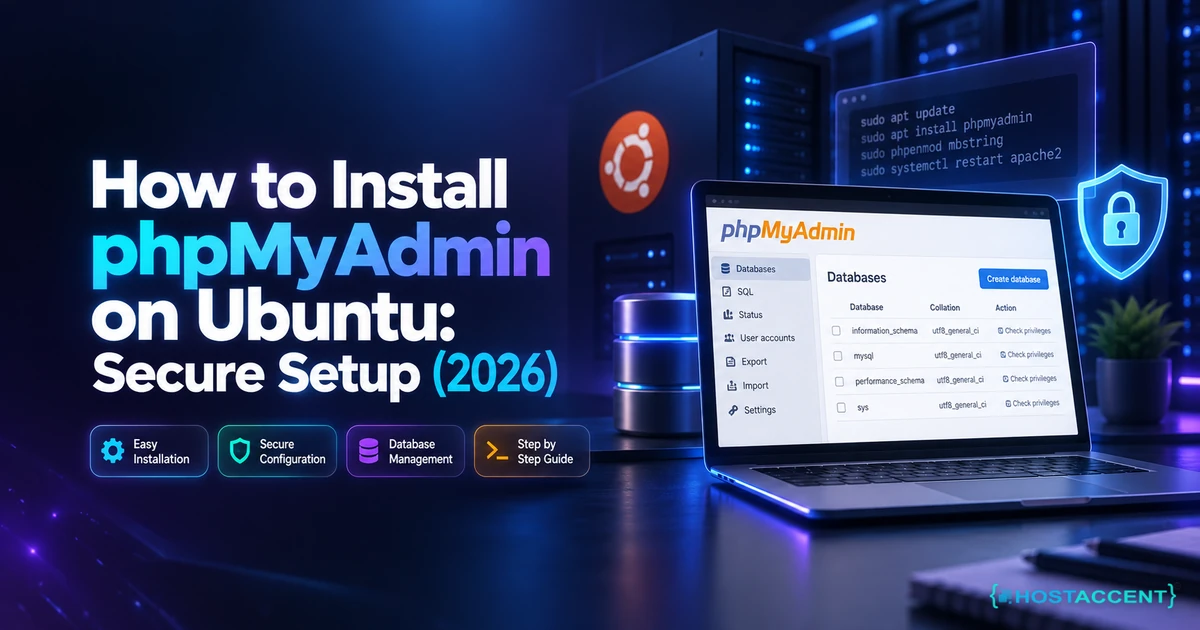
Install the database panel the lazy way on a fresh Ubuntu box, and you have roughly the security posture of taping your house key to the front door. Automated scanners probe /phpmyadmin on new server IPs around the clock, and a default install answers them politely. So this guide covers how to install phpMyAdmin on Ubuntu the way it should be done: working in about ten minutes, then fenced in before you close the terminal.
Quick answer: Run sudo apt update, then sudo apt install phpmyadmin php-mbstring php-zip php-gd php-curl. Select apache2 with the spacebar, accept the dbconfig-common database setup, run sudo phpenmod mbstring, restart Apache, and open http://your-server-ip/phpmyadmin. As of September 2026, the Ubuntu package ships phpMyAdmin 5.2.1 while upstream stable is 5.2.3. Hardening comes next, and it is not optional.
Our engineers resolve 20 to 30 client server issues every day, and exposed database panels show up in that queue more often than they should. On the servers we run at Hostaccent, a freshly assigned IP normally starts collecting /phpmyadmin probe requests within hours of going live, before the site on it has a single real visitor. This guide is written from that side of the ticket.
You'll get the Apache path, the Nginx path, a security layer that actually holds, and fixes for the four errors that send people back to Google ten minutes after install.
What phpMyAdmin Is, and When You Shouldn't Install It
phpMyAdmin is a PHP web application that puts a browser front end on MySQL and MariaDB: browsing tables, running SQL, importing dumps, creating users. As of September 2026 the current stable release is 5.2.3, compatible with PHP 7.2 and newer. It carries exactly the privileges of whichever database account you log in with, which is the entire security story in one sentence.
That last point is why the install is easy and the deployment is not. There is no separate permission layer inside the app to fall back on. The project's own documentation says as much: granting database permissions correctly stays the administrator's job.
For a developer managing a handful of sites, the tool earns its place. Importing a 200 MB client dump through a browser beats dictating mysql < commands over a support call. Fixing one wrong row in wp_options takes fifteen seconds in a GUI and a very careful UPDATE statement otherwise.
Do I actually need phpMyAdmin on a production server?
Often, no. Be honest about which case you're in:
- Skip it if you already run cPanel, Plesk or another control panel. They ship a database manager. A second one is a second attack surface for zero gain.
- Skip it if you're the only admin and you're comfortable at the
mysqlprompt, or happy pointing TablePlus, DBeaver or Sequel Ace down an SSH tunnel. That setup has no public login page at all. - Install it when non-technical people, a client or a junior dev, need access to one database without a shell account.
- Install it temporarily for a migration, then
sudo apt remove phpmyadminwhen the job is done.
Across the 4,000+ site migrations our team has handled since 2016, the most common reason a panel exists on a server at all is a single import somebody never cleaned up afterwards.
Worth knowing: Adminer does much of the same work as a single PHP file, which makes it trivial to drop in and delete. Less features, and also less of it to attack. If you'd rather keep the whole thing off the host, running it in a container is a reasonable middle ground, and our guide to Install Docker on Ubuntu VPS: Secure Production Setup covers that base setup.
Pro Tip: If you only need it for a one-off import, install it, do the work, and remove it the same day. In our experience the panels that get compromised are almost never the ones somebody is actively using. They're the ones installed for a migration two years ago and forgotten, still running an unpatched release.
Prerequisites: The Stack phpMyAdmin Needs First
phpMyAdmin is not a server. It needs a working web server, a database and PHP already running before apt will do anything useful. On Ubuntu 24.04 LTS the package lives in the universe repository at version 5.2.1, and current builds of the package want PHP 8.2 or newer. Budget roughly 10 minutes for the stack and 2 minutes for phpMyAdmin itself.
Start as a sudo user, not root, on Ubuntu 22.04, 24.04 or 26.04:
bashsudo apt update && sudo apt upgrade -y sudo apt install apache2 mariadb-server -y sudo apt install php php-mysql php-mbstring php-zip php-gd php-curl php-xml -y sudo mysql_secure_installation
Those PHP extensions are not decoration. mbstring handles multibyte strings, and phpMyAdmin throws a warning on every page without it. zip and gd cover compressed imports and the built-in charts. Leave one out and you get a working panel that fails on the exact task you installed it for.
mysql_secure_installation is the step people skip. Say yes to removing anonymous users, yes to disallowing remote root, yes to dropping the test database. Thirty seconds, and it shuts doors you would otherwise have to shut by hand later.
Check what you actually have before continuing:
bashphp -v systemctl status apache2 --no-pager sudo apt info phpmyadmin | head -n 12
If apt info reports nothing at all, enable the universe repository with sudo add-apt-repository universe, then update again.
One infrastructure note, because it changes what you're working with. A VPS and a shared hosting account are not the same starting point: on shared hosting the panel is already provided and you cannot install this, while on a bare VPS you own the whole stack. Hostaccent's Basic VPS plan, for example, arrives as a clean Ubuntu install with full root access and no control panel licence bundled, which is exactly the blank slate this guide assumes. If you're building that server from scratch today, our Linux VPS Security Baseline (Ubuntu 24.04) in 30 Min covers the firewall and SSH work that belongs before any web panel exists.
How to Install phpMyAdmin on Ubuntu with Apache (Step by Step)
The Apache path is three commands and two prompts, and the prompts are where most installs quietly go wrong. Install the package, press Space to tick apache2, accept dbconfig-common, enable mbstring, restart Apache. Total time is under two minutes on a 2 vCPU box. The alias at /phpmyadmin gets written for you into /etc/apache2/conf-available/phpmyadmin.conf.
1. Install the package
bashsudo apt install phpmyadmin -y
2. Choose the web server correctly
The installer shows a list containing apache2 and lighttpd. The highlighted item is not the selected item. Press Space to put an asterisk next to apache2, then Tab to reach OK, then Enter. Press Enter straight away and nothing gets selected, no web server config is written, and you meet a 404 later with no obvious cause. That one keystroke is behind a large share of "it installed but I can't reach it" tickets.
3. Accept the dbconfig-common setup
Choose Yes. This creates the phpmyadmin database and internal user that store bookmarks, query history and table comments. Give it a long random application password, which you will never need to type again.
4. Enable mbstring and reload
bashsudo phpenmod mbstring sudo systemctl restart apache2
5. Confirm the alias is live
bashls /usr/share/phpmyadmin | head sudo a2enconf phpmyadmin sudo systemctl reload apache2
Now browse to http://your-server-ip/phpmyadmin. The login page should appear.
Do not try to log in as root. On Ubuntu, the MySQL and MariaDB root account authenticates through the auth_socket or unix_socket plugin, so it works from the shell and fails from a web form every time. Create a proper account instead:
sqlsudo mysql CREATE USER 'dbadmin'@'localhost' IDENTIFIED BY 'a-long-random-password'; GRANT ALL PRIVILEGES ON *.* TO 'dbadmin'@'localhost' WITH GRANT OPTION; FLUSH PRIVILEGES; EXIT;
Pro Tip:
GRANT ALL ON *.*is the demo version. In production, grant per database instead:GRANT ALL PRIVILEGES ON clientsite.* TO 'clientdev'@'localhost';. When that login eventually leaks, and some of them do, the blast radius is one database rather than the whole server.
phpMyAdmin Nginx Config: Serving It on a LEMP Stack
Nginx never reads /etc/apache2/conf-available/phpmyadmin.conf, so on a LEMP stack the apt install completes successfully and the URL still returns 404 until you write the mapping yourself. You have two options: a symlink into your web root, or an explicit location block. The block wins, because it lets you rename the path and attach access rules in the same place.
The quick version:
bashsudo ln -s /usr/share/phpmyadmin /var/www/html/phpmyadmin
The version worth deploying, inside your existing server { } block:
nginxlocation /dbadmin { alias /usr/share/phpmyadmin/; index index.php; location ~ ^/dbadmin/(.+\.php)$ { alias /usr/share/phpmyadmin/$1; include fastcgi_params; fastcgi_pass unix:/run/php/php8.3-fpm.sock; fastcgi_param SCRIPT_FILENAME $request_filename; } }
Two details break this for most people. First, the socket path has to match the PHP version actually installed. Check it, never assume it:
bashls /run/php/ sudo nginx -t && sudo systemctl reload nginx
Second, alias and try_files do not cooperate. Copy a WordPress-style try_files $uri $uri/ /index.php line into this block and PHP requests get rewritten to the wrong file, which shows up as raw source or a blank page. Leave it out.
Notice the path above is /dbadmin, not /phpmyadmin. Renaming costs nothing and takes you off the default scan list immediately. Nginx's own documentation has the full alias and location precedence rules if you want the detail.
One more on the Nginx side: set client_max_body_size 64M; in the server block, or a large .sql upload dies with a 413 before PHP ever sees the request.
While you're in there, check your PHP-FPM pool settings too, because an import that dies at 30 seconds is a PHP limit rather than a phpMyAdmin bug. Our guide to Nginx + PHP-FPM Performance Tuning on Linux VPS covers max_execution_time, upload_max_filesize and post_max_size, which are the three you will hit on any dump over about 50 MB.
Still working through this server issue?
Send the symptoms, error output, and what you have already tried. We can work with Hostaccent services or infrastructure hosted with another provider.
Secure phpMyAdmin Login: The Two-Door Rule
Every panel our engineers expose follows one rule, and we call it the Two-Door Rule: a database panel should never sit behind a single login. There must be two independent doors, and an attacker has to open both. Door one is the web server, meaning HTTP auth or an IP allowlist. Door two is the MySQL account itself. A default install has one door, and the whole internet already knows where it is.
Insider Insight: According to Hostaccent's support-queue data (September 2026), brute-force and malware cases make up about 25% of monthly tickets, with SSL problems another 20%. The compromised panels are almost always on the default path, over plain HTTP, with one password guarding a
GRANT ALLaccount.
Set a real blowfish secret
bashopenssl rand -base64 32 sudo nano /etc/phpmyadmin/config.inc.php
php$cfg['blowfish_secret'] = 'paste-your-32-character-string-here';
This key encrypts the login cookie. Leave it empty and phpMyAdmin generates one at runtime, which has historically caused cookie and session problems.
Move off the default path
Apache users edit the Alias /phpmyadmin /usr/share/phpmyadmin line in /etc/apache2/conf-available/phpmyadmin.conf to something unguessable like /db-7f2a, then reload. This is obscurity rather than security, and it is still worth two minutes, because it removes you from every scanner that only knows one URL.
Add HTTP auth in front of the app
bashsudo htpasswd -c /etc/phpmyadmin/.htpasswd dbadmin
Then add AuthType Basic, AuthUserFile /etc/phpmyadmin/.htpasswd and Require valid-user to the directory block. The Nginx equivalent is auth_basic "Restricted"; plus auth_basic_user_file /etc/phpmyadmin/.htpasswd;.
Allowlist your IP if it's static
nginxallow 203.0.113.10; deny all;
Force HTTPS
A login form over plain HTTP is a password handed to anyone on the path. A certificate from Let's Encrypt is free and renews itself, so there is no excuse left in 2026.
Harden the app config
php$cfg['Servers'][$i]['AllowRoot'] = false; $cfg['Servers'][$i]['AllowNoPasswordLogin'] = false; $cfg['LoginCookieValidity'] = 1800;
Ban the noise
Fail2ban on the auth log, plus rate limiting at the edge. Nginx Rate Limiting: Basic DDoS & Bot Protection walks through the limit_req zones, and the OWASP project is the reference if you want to go deeper on access control design.
Before you hand any account write access through a browser, make sure you can restore. We run offsite backups and have done full restores under genuine pressure, including after hardware failure, and the lesson never changes: an untested backup is a hope, not a backup. Linux VPS Backup Automation with Rsync + Cron covers the cron side.
The most secure option is still not publishing it at all. Bind it to 127.0.0.1 and tunnel in:
bashssh -L 8081:127.0.0.1:80 you@your-server
Then browse http://127.0.0.1:8081/db-7f2a. No public exposure, no login page for bots to find.
When phpMyAdmin Breaks Right After Install
Four errors account for nearly everything that goes wrong in the first hour, and none of them need a reinstall. In roughly 9 out of 10 cases the fix is a single command or one missing config line, so read the log before you touch the package manager.
phpMyAdmin 404 after install
The package installed, the URL returns Not Found. On Apache, the config was never enabled, usually because nobody pressed Space at the web server prompt:
bashsudo a2enconf phpmyadmin sudo systemctl reload apache2
If that config file doesn't exist, recreate the alias by hand, then confirm the files are there with ls -la /usr/share/phpmyadmin. On Nginx, the cause is the missing location block from the section above. Try the capitalised /phpMyAdmin once as well, since some manual installs land there.
A blank white page after login
Almost always PHP erroring out with display off. Look, don't guess:
bashsudo tail -n 50 /var/log/apache2/error.log sudo tail -n 50 /var/log/php*-fpm.log
A missing php-mbstring is the usual culprit, followed by a PHP version mismatch after an upgrade. Install it, run sudo phpenmod mbstring, restart.
Token mismatch, or an endless login loop
You log in and land straight back on the login page. Three causes, in order of likelihood: no blowfish_secret, an unwritable temp directory, or a stale cookie.
bashsudo mkdir -p /var/lib/phpmyadmin/tmp sudo chown -R www-data:www-data /var/lib/phpmyadmin
Clear the cookies for that hostname and try once more.
Access denied for user 'root'@'localhost'
Not a bug. Ubuntu's MySQL and MariaDB root account uses socket authentication, which cannot work through a web form by design. Create a normal database user as shown earlier and log in with that instead.
If the panel is reachable but the server feels sluggish afterwards, that's a resource question rather than a phpMyAdmin one, and Setup Server Monitoring on VPS: Know Before Your Users Do covers catching it before your users do.
The short version
- Build the stack first. The panel needs Apache or Nginx, MariaDB or MySQL, and PHP 8.2+ already running.
- Press Space at the web server prompt. That single keystroke prevents the most common 404.
- Nginx users write their own location block, because the apt package only ever configures Apache.
- Two doors, always: web server auth or an IP allowlist outside, a least-privilege database account inside.
- Never log in as root, and never leave the panel on its default path over plain HTTP.
Your Next Step: A Box That's Ready to Be Locked Down
Now that you know how to install phpMyAdmin on Ubuntu and, more importantly, how to fence it in, the only open question is what you run it on. You can build and harden that server yourself this weekend, or you can start on one where full root access, NVMe storage and free 30 Gbps DDoS protection are already standard, and where 24/7 support means engineers who fix your problem rather than close your ticket. Basic is $7.99/mo and renews at $7.99/mo, with a 30-day money-back guarantee if it isn't your fit. Start on the Basic plan. One honest caveat from Hostaccent: no plan here bundles a cPanel or Plesk licence, since those cost more per month than your server does.
Frequently Asked Questions About Installing phpMyAdmin on Ubuntu
How to install phpMyAdmin on Ubuntu 24.04 in one command?
You can't quite do it in one, because the installer asks two interactive questions, but this comes close: sudo apt update && sudo apt install phpmyadmin php-mbstring php-zip php-gd php-curl -y. At the prompts, press Space to select apache2, then accept the dbconfig-common database setup. Follow with sudo phpenmod mbstring and sudo systemctl restart apache2. On a 2 vCPU server the whole sequence takes under two minutes, and the panel answers at /phpmyadmin straight afterwards.
Where is phpMyAdmin installed on Ubuntu?
The application files live in /usr/share/phpmyadmin, the configuration in /etc/phpmyadmin/config.inc.php, and the Apache alias in /etc/apache2/conf-available/phpmyadmin.conf. Working files and the temp directory sit under /var/lib/phpmyadmin. If you installed manually from the official tarball rather than apt, the directory is wherever you extracted it, most often /var/www/html/phpmyadmin. Knowing those four paths solves the majority of 404 and permission problems without reinstalling anything.
Is phpMyAdmin safe to use on a production server?
It is safe if you treat it as an admin tool rather than a public page. That means HTTPS only, a non-default URL, HTTP auth or an IP allowlist in front of it, a least-privilege database user, and current packages. Left at defaults over plain HTTP with a GRANT ALL account, it is one of the riskiest things you can run. The safest configuration is binding it to localhost and reaching it through an SSH tunnel.
Can I change the phpMyAdmin URL to something other than /phpmyadmin?
Yes, and you should. On Apache, edit the Alias line in /etc/apache2/conf-available/phpmyadmin.conf to something like /db-7f2a and reload. On Nginx, change the location path in your server block. Bots scan a fixed list of common paths, so renaming removes you from the great majority of automated attempts overnight. It does not replace authentication, but it cuts log noise sharply and buys real time against opportunistic scanning.
Do I need a control panel licence to run phpMyAdmin on a VPS?
No. phpMyAdmin is free, open-source software with no licence fee, which is exactly why it is so common on unmanaged servers. Commercial panels are a different story: a cPanel licence alone runs roughly $30 or more per month, more than most entry-level VPS plans cost. Hostaccent VPS plans do not bundle one, and any sub-$10 server advertising a free commercial panel is recovering that cost somewhere you cannot see yet.
Should I install phpMyAdmin from apt or the official tarball?
Use apt for production. Ubuntu 24.04 ships 5.2.1 while upstream stable is 5.2.3, which looks worse than it is, because Ubuntu backports security fixes into the packaged version and updates arrive with your normal apt upgrade. The tarball gets you the newest features and makes you personally responsible for tracking every advisory. Choose it only if you need a specific new feature, and then subscribe to the project's security announcements.
What should I do if phpMyAdmin stops working after a PHP upgrade?
Check the extensions first. A PHP major-version upgrade installs a fresh extension set, so mbstring, zip, gd and curl are frequently missing for the new version. Run sudo apt install php-mbstring php-zip php-gd php-curl, then sudo phpenmod mbstring and restart. On Nginx, update fastcgi_pass to the new socket path in /run/php/. The Apache error log names the missing piece in one line, so read it before changing anything else.





Discussion
Have a question or tip about this topic? Share it below — your comment will appear after review.